
Payment Options
As a Care Connect employer partner, you can pay for services booked on the platform via Automated Clearing House (ACH) or credit card, optionally splitting payments with patients to cover their responsibility. You can receive invoices as a PDF/CSV.
IN THIS ARTICLE
Invoicing
Most employer partners using Care Connect pay via invoice, which is set up by our account managers. Our standard approach is to collect ACH payment via Direct Debit. If your organization isn’t able to utilize Direct Debit, please discuss that with your account manager.
Invoices must be paid in full, not voucher by voucher.
Types of Invoicing
- Paying Invoices, no claims - PDF Invoicing only (includes CSV).
- Paying invoices while receiving information for reporting - Your company must be able to receive claims through the Optim iEDI clearinghouse either because you have a direct relationship with Optum iEDI or a relationship with another clearinghouse that can send/receive files from the Optum iEDI clearinghouse. 837 claims are available in a standard format. Any requested changes are subject to a service fee.
What Your Account Manager Needs to Set Up Invoicing
Your account manager will set up invoicing after your company has a completed Voucher Invoicing Agreement with Care Connect. The setup requires:
- The email addresses of company administrators who will receive the monthly invoicing email from Care Connect. This will allow those users to log into Care Connect and view the invoices.
- Which different billing entities will be set up. For example, if a navigation partner works with multiple companies/TPAs, your account manager will need to set up invoicing separately for each group that needs its own invoice. Some navigators, for example, receive and pay just one invoice, while others have separate invoices for each of their client companies.
Invoicing is done weekly on Friday morning each week, and includes all vouchers redeemed from the previous Friday to Thursday.
(For some existing companies in Care Connect, monthly invoices are sent on the first of each month, and includes all vouchers redeemed during the previous month. However, this is a grandfathered arrangement that is not available for new partners. Existing partners can switch from monthly to weekly invoices. In this case, the first invoice after the switch may be for a different time period. For example, if you switch from monthly to weekly on May 13, 2025, the first weekly invoice will be generated on May 17, 2025, and will include everything that was not on the previous invoice. If your previous invoice was on May 1, 2025 for the month of April, that invoice ended on April 30, 2025. The weekly invoice on May 17 will include everything from May 1 to May 16.)
Invoices include any fund transfers to a company for vouchers purchased via invoice from MDsave that were redeemed during the previous month.
Invoice Delivery
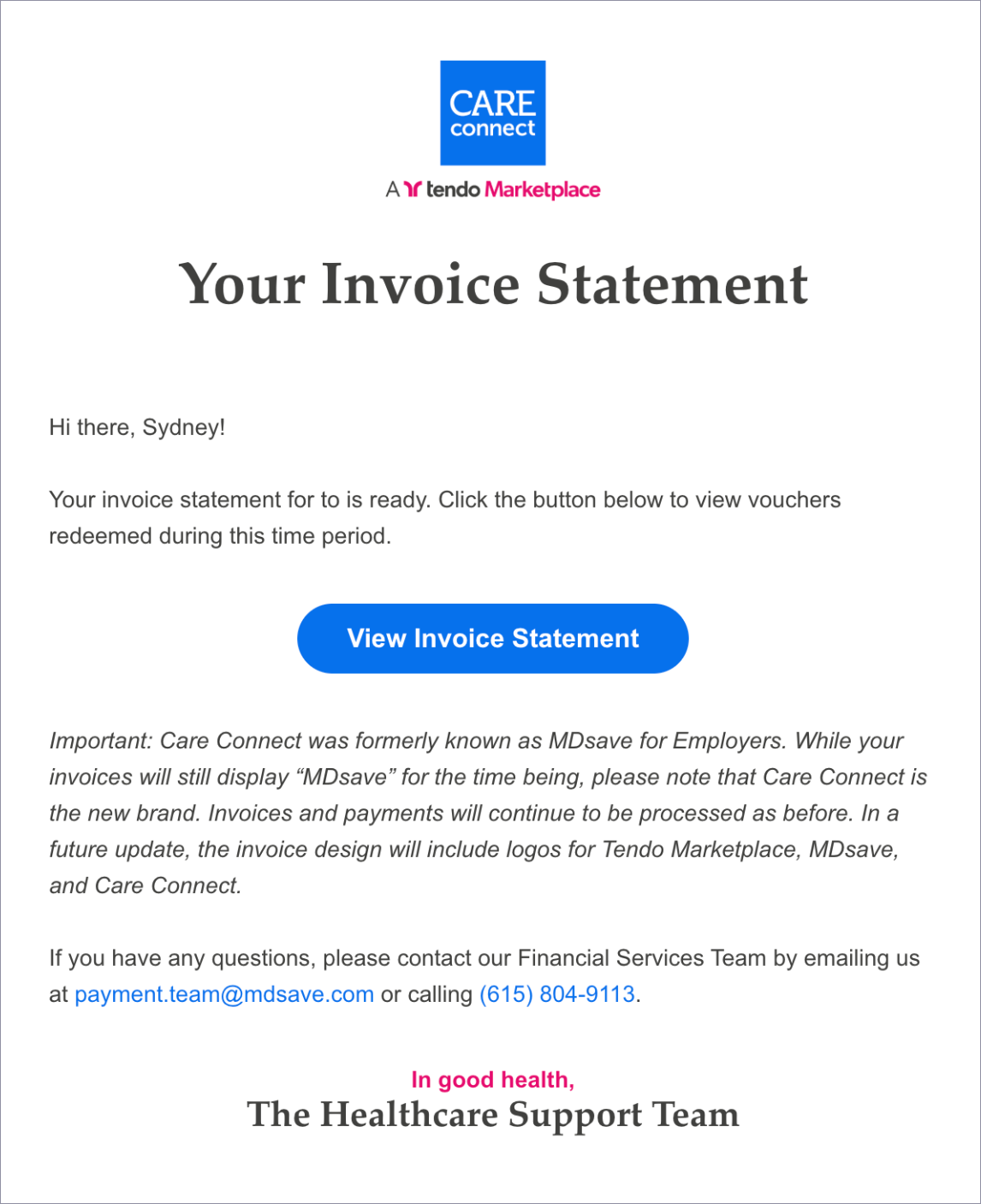
On the first day of each billing period, if your company has an invoice, your users who are set up to receive invoices will receive an email notification titled Your MDsave Invoice Statement is Available. The email will prompt the user to log in to view the invoice.
Viewing Invoices When Logged In
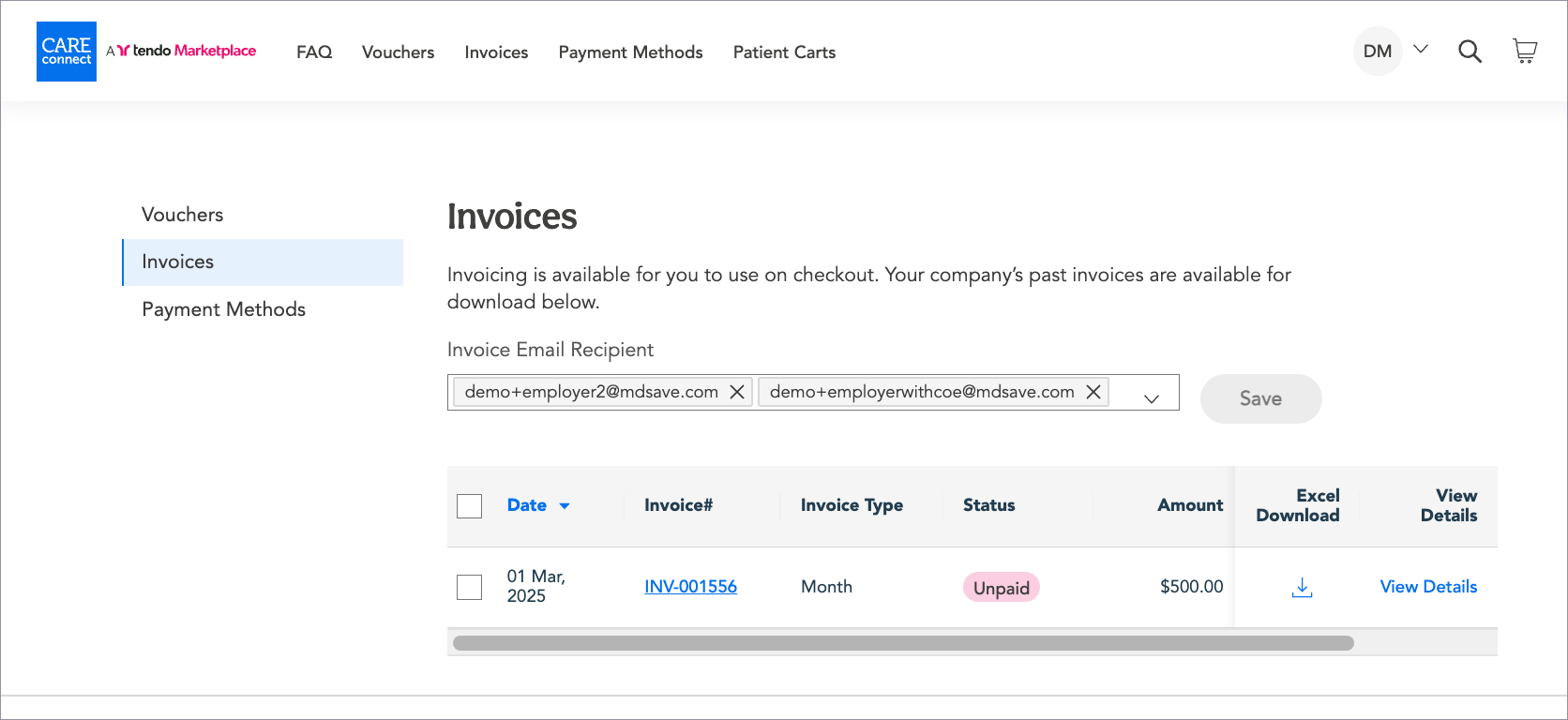
Care navigators who have access to receive invoices can view the invoices at any time when logged in.
On the Invoices page, they can view all of their past invoices and their statuses. They can click on View Details to see line item details for each invoice.
Invoice Statuses
Invoices can have three different statuses.
- Unpaid
- Paid
- Overdue - Unpaid invoices change to Overdue after they are more than 30 days old.
PDF and Excel Invoices
For security reasons, MDsave does not attach PDF or Excel invoices to the emails that let users know there is an invoice available. Users can download an Invoice PDF in the Invoice# column and an Excel invoice from the Excel Download column.
PDF Invoice
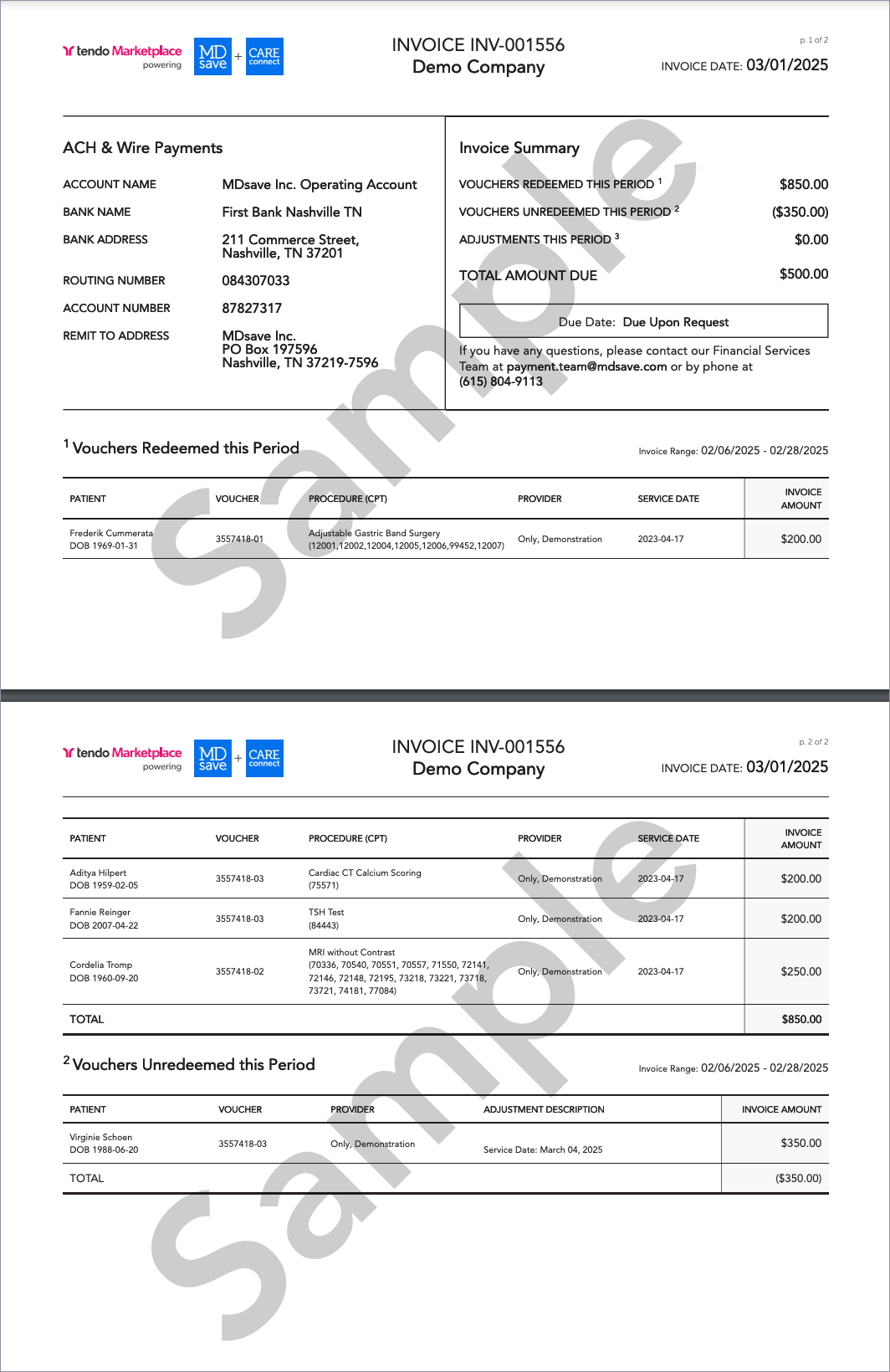
The PDF invoice includes:
- Summary
- Vouchers Redeemed this Period - This sums the $ amount paid by invoice for the portion of vouchers that were redeemed. For vouchers split between Patient Responsibility and Invoice, the amount paid via invoice is shown.
- Vouchers Unredeemed this Period - This sums the $ amount paid by invoice for the portion of vouchers that was unredeemed. For vouchers split between Patient Responsibility and Invoice, the amount paid via invoice is shown.
- Adjustments this Period - This sums the $ amount for fund transfers from MDsave to your company (performed on invoiced vouchers).
Excel Invoice
The Excel invoice provides additional information for each voucher, and may make it easier for your company to update your systems.

For vouchers purchased via Patient Responsibility Split Payment, we will show three columns for the price. Invoice Amount contains the amount being invoiced. Patient Responsibility contains the amount that was paid for that procedure by the patient. Total Procedure Price sums up the invoice amount and the patient responsibility.
837 Claims + 835 ERA
The employer claims process allows Tendo Care Connect to receive 837 claims in addition to PDF and Excel invoices for voucher redemptions that were purchased via invoice.
This process matches the typical 837+835 workflow used between payers and medical providers. This allows Tendo Care Connect companies to receive 837 claims from Tendo just like they would receive from any provider. This allows those companies to pay Tendo by sending an 835 ERA as well.
Full 837 + 835 Claims Process Workflow for Employers + Care Connect
- A Care Connect company purchases a voucher on mdsave.com for a patient.
- The patient (often with assistance from the Care Navigator) schedules the services with the provider.
- The patient goes to the provider to have the service(s) performed.
-
The provider notifies Tendo that the procedure has been performed through an 837 claim or through the Tendo Marketplace interface.
Care Connect generates an invoice for the company. The frequency of invoicing is dependent on your company's agreement.
Care Connect sends 837 claims to the Optum clearinghouse for delivery to the Care Connect company.
- Please note that the claims will come from MDsave with the NPI 1073129623.
- The partner receives the claims and processes the claims for payment.
- The partner pays Tendo.
- The partner sends an 835 ERA to MDsave (with NPI 1073129623) specifying the details of the payment (vouchers + $ amount for each voucher). The 835 also includes a trace number to allow automatic association between the ACH payment and the 835 ERA.
- The partner sends an ACH payment with a matching 835 TRN reassociation trace number to allow automated reconciliation of the payment.
- Care Connect receives the ERA and matches the ERA to specific vouchers on invoices.
- Tendo confirms that it has received the payment for the ERA to update the invoices to "paid" inside of mdsave.com.
Participating in the Claims Process
In order to participate in the full employers claims process (both 837+835), your company must be able to receive claims electronically from Tendo/MDsave through our Optum clearinghouse. Your company also must be able to send MDsave 835 ERAs + ACH payment each with a reassociation trace number.
Claims Benefits
For Partners - Patient claim information automatically enters the partner’s existing claims process without manual entering of information into your claims management system.
For Tendo - For partners wanting to pay voucher by voucher instead of a weekly invoice, Tendo can dramatically reduce the time spent reconciling payments. Instead of manually marking each voucher paid, Tendo can mark entire ERA files as paid, which will automatically match payments to ERAs.
Claims may go out as frequently as once a day. If you are interested in adding claims, please contact your account manager.
Patient Responsibility
The following are payment options that deal with situations when patients have some responsibility for payment:
Splitting Purchases between Invoice and Patient Responsibility
Purchase costs can be split between your company invoice and a patient’s credit card(s) on Checkout if the patient has partial responsibility for the cost such as a deductible or coinsurance. Your account manager must enable this option for it to be available in your Care Connect portal. When entering the payment method for a voucher purchase, the care navigator will select Patient Responsibility and Invoice. They will then add a patient credit card and invoice payment to split the purchase amount between those payment methods. Credit cards can be any card that can run through the Visa/Mastercard/Discover/AMEX card networks. This can include credit cards, debit cards, Health Savings Account (HSA), Flexible Spending Account (FSA) and Health Reimbursement Arrangement (HRA). More than one card can be added for a patient.
If you would like to enable this feature, please let your Account Manager know. If you do not know your Account Manager, send us a message.
Deductible Checker
Care Navigator users can utilize a “deductible checker” on the Checkout page that provides information on a patient’s individual and family deductibles and out-of-pocket maximums for their commercial insurance. This requires enabling requiring the insurance provider name and member and group ID on Checkout. The entered values will be included in the invoice and voucher purchase reports.
If you are interested in adding this feature, ask your account manager about it.
Shared Carts
Shared shopping carts enable care navigators to share shopping carts with patients so they can pay their part of the cost of a procedure or the total cost, depending on the payment arrangements your company has with them. They can pay with a regular credit card, CareCredit or Paypal.
Care navigators can share a shopping cart with an employee/member in an email or text message so they can pay their share of the voucher or vouchers in the cart. The employee/member is shown only their cost in the cart, but it will say that the company is paying the remaining balance.
This feature is not useful if your company policy is always to waive the cost to the patient. It is needed if patients sometimes pay the entire balance and/or sometimes pay a patient responsibility with your company paying the remainder by invoice.
The split payment details appear on the voucher PDF, Voucher page, and Employer Invoice Excel.
Your account manager can configure your company settings in Care Connect to include shared and saved carts so that care navigators can send these carts to patients.
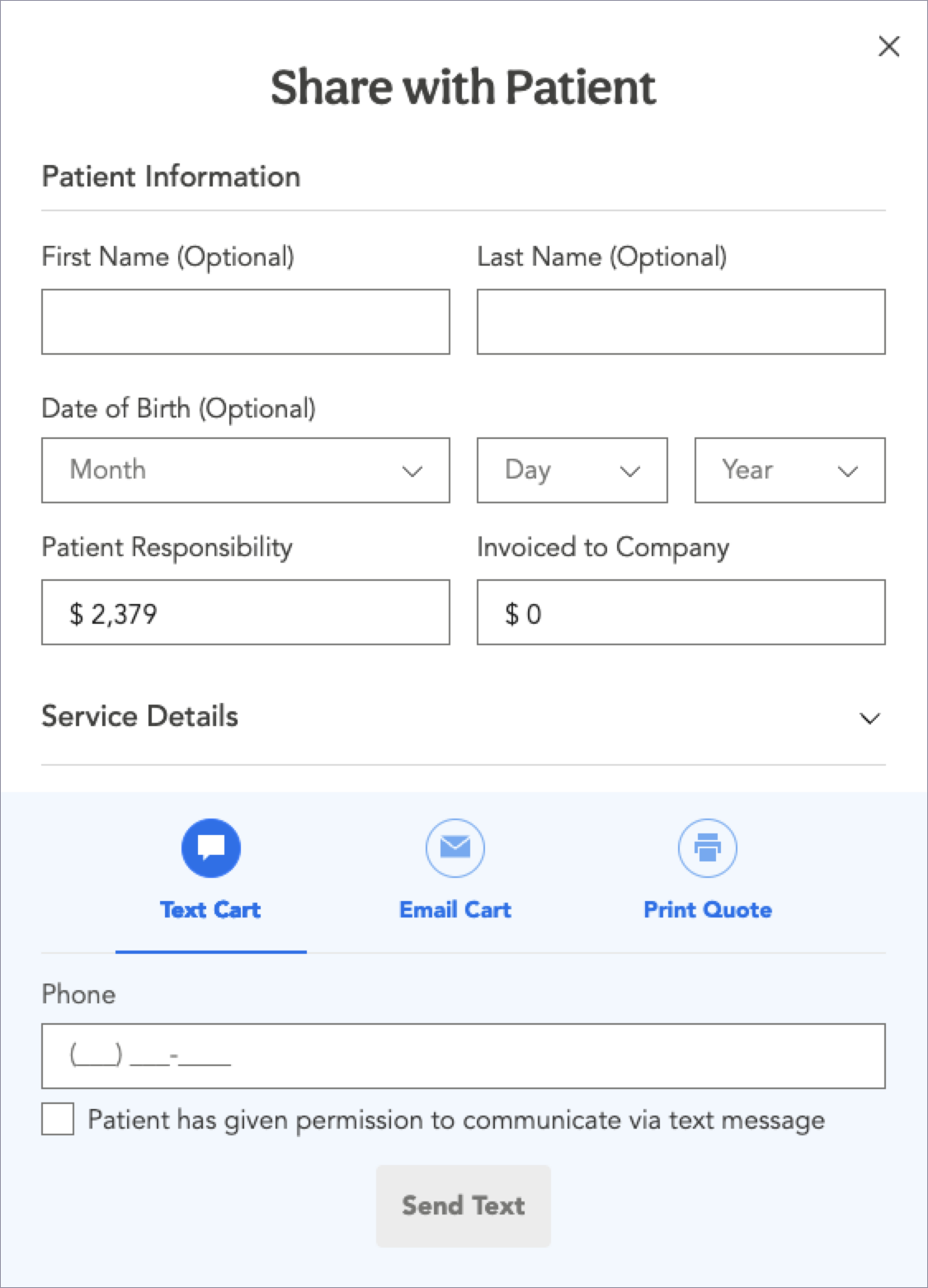
When this feature is enabled for your company, care navigators can access the Share with Patient popup below from the shopping cart and on Checkout and fill it out. They have the option to select Text Cart or Email Cart to send the shopping cart to the patient, and also can print a Quote to generate a PDF or printout that can be shared with the patient.
If the care navigator chooses Text Cart, the patient must have given permission to receive texts, and the navigator must input the patient’s phone number.
The patient can complete the purchase for their responsibility using a credit card, multiple credit cards, PayPal or Care Credit. Patients who receive a split payment shared cart cannot modify the contents or quantity of procedures in the cart.
If the price of any of the items in a split payment shared cart changes prior to the patient completing their purchase, a new cart must be shared with the patient that specifies the updated amounts that the patient must pay.
Multiple Voucher Purchases
When users purchase several vouchers in a single order via split payment, the funds will be split across the various vouchers as evenly as possible while rounding to the nearest whole dollar.
Example:
- Two vouchers: Voucher A = $100 + Voucher B = $1000
- $400 patient credit card
- $700 invoice
- Voucher A will be purchased using $36 patient credit card and $64 invoice
- Voucher B will be purchased using $364 patient credit card and $636 invoice
Refunds
When refunding vouchers, the original payment methods will be refunded. For example, if a procedure cost a total of $1,000, and the patient credit card paid $360 while the invoice of $640 was paid by the company, those amounts will be refunded to each.
If a new split (different amount paid by the patient and employer) is desired, a new voucher must be purchased after canceling the original one.
Current Payment Limitations
We only allow patient credit card(s) + invoice to the employer
- Credit card(s) means that payment can be run through the Visa/Mastercard/Discover/AMEX card networks. This can include credit cards/debit cards/HSA/FSA/HRA.
We do not allow options including but not limited to:
- Cash payment to a facility from a patient + employer invoice
- CareCredit + employer invoice - This is not available for Care Navigators, but vouchers can be purchased with CareCredit using a shared cart sent to the patient.
- Paypal + employer invoice -This is not available for Care Navigators. However, vouchers can be purchased with Paypal using a shared cart sent to the patient.
- Patient ACH + employer invoice
- Patient balance + employer invoice
- Patient payment + Employer Corporate Card (as opposed to an invoice)
We don’t allow these vouchers to be transferred to different procedures/providers
This is because we would have to account for all different types of cases - charging/refunding invoice, credit card, or both invoice + credit card.
We don’t allow fund transfers on these vouchers
This is because it is too complicated to handle all cases of refunds (refunding patient/employer/both).
These vouchers cannot be canceled to the patient balance
- This is because we do not allow the patient balance to be used to purchase another voucher being purchased with Patient Responsibility Split Payment.
- Vouchers must be refunded back to the original payment method.
Vouchers must be refunded back to the original payment method
For vouchers with multiple redemptions (for example,a bariatrics surgery with an office visit + the surgery being redeemed separately), the funds will be applied similarly. When refunding a voucher partially, the funds will be refunded proportionally based on how they were purchased.