
Viewing and Downloading Invoices
Companies set up for invoicing are billed weekly or monthly for all vouchers redeemed within the previous billing period. Invoices should be paid in full, and not partially. Tendo collects payment directly from companies and handles all payment distribution to providers.
To sign up for invoicing or make changes to your invoice information, please reach out to your Account Manager. If you do not know your Account Manager, send us a message.
You will receive a weekly email that notifies you of new invoices and contains a link to your invoices.
Access to invoices in your Care Connect portal is subject to specific permissions. If you have permission to see invoices, you can click the Invoices tab at the top of the page to see your invoices.
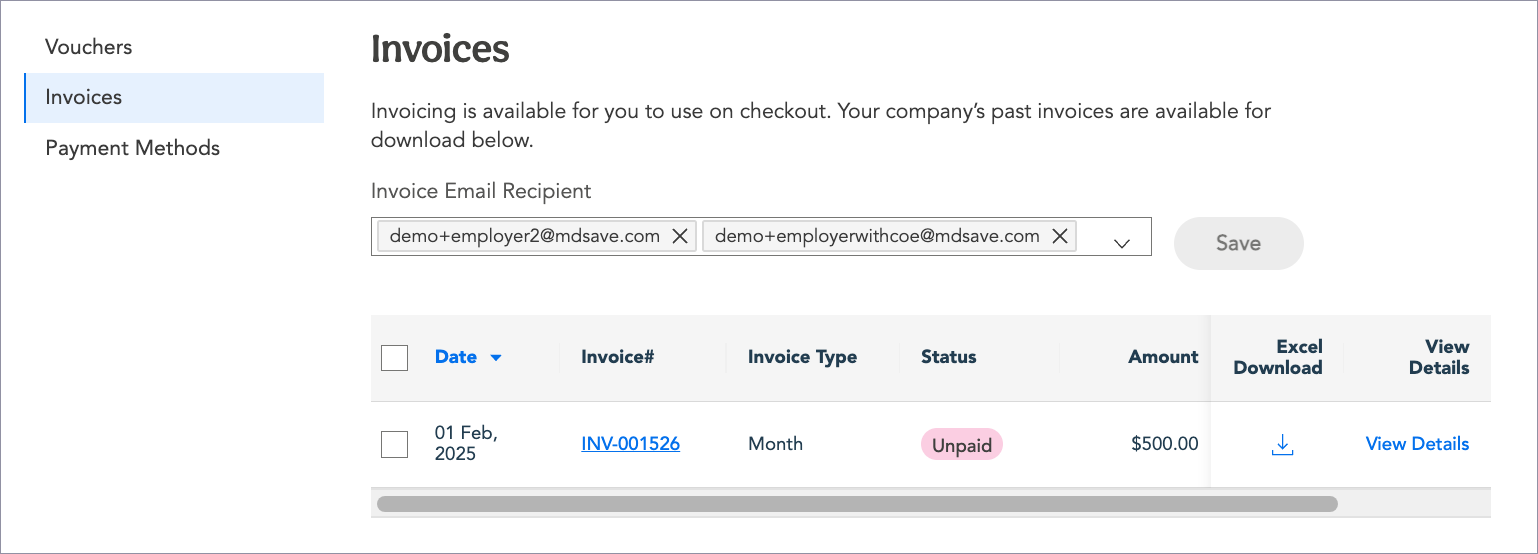
In the example above, the invoice type is for the company for an entire month.
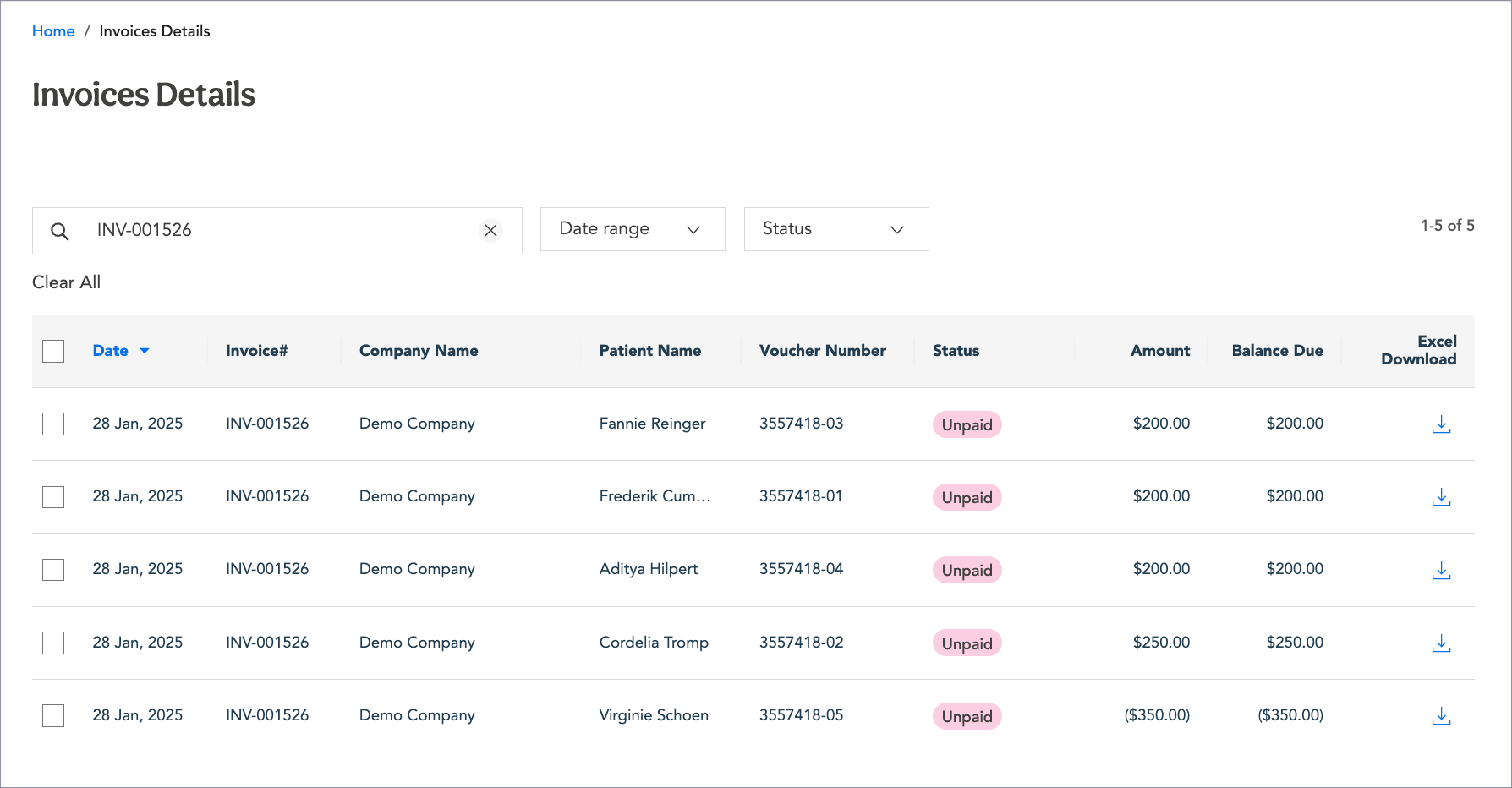
Click View Details to see details about an invoice’s vouchers.
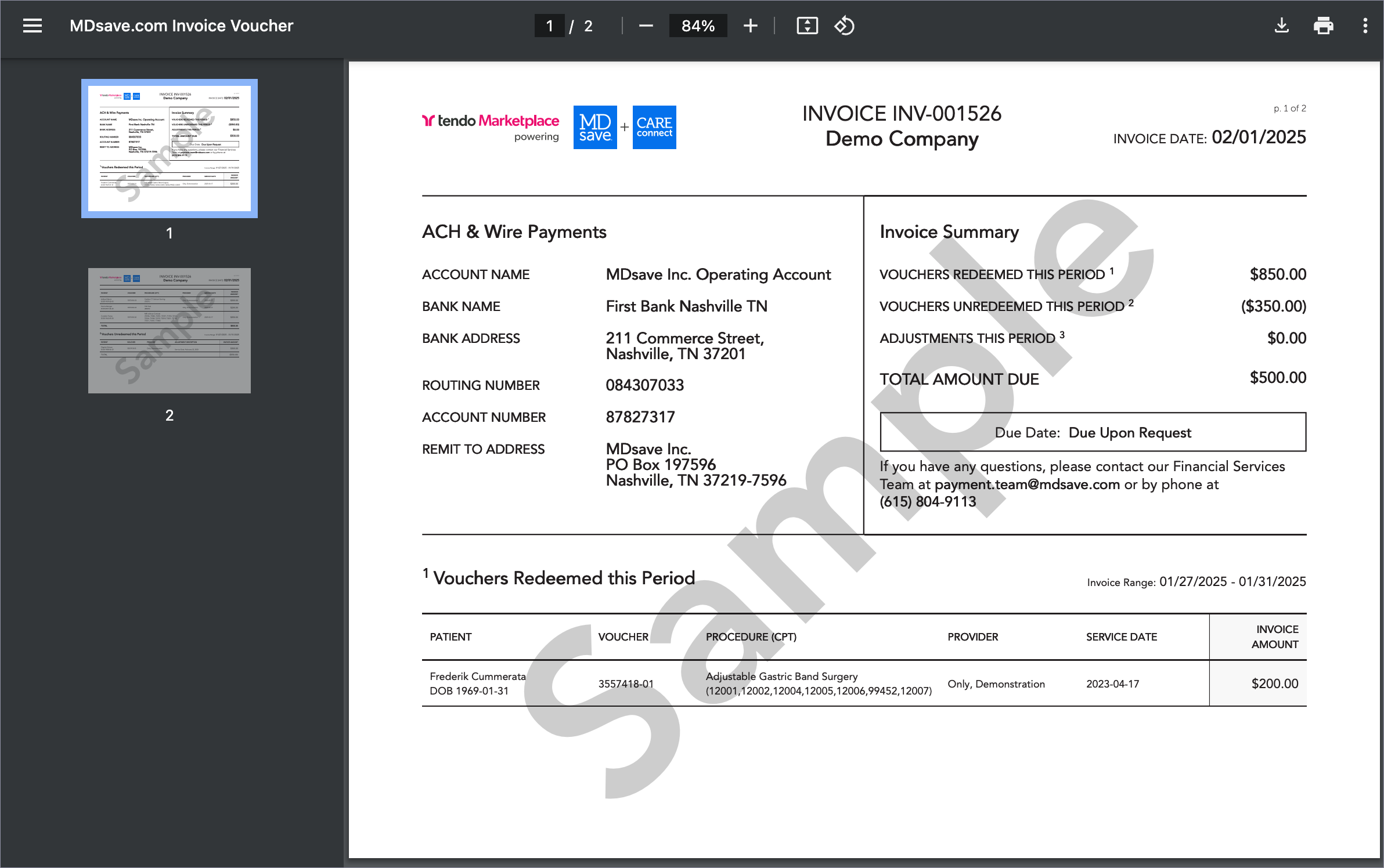
Back on the Invoices page, click an invoice number in the Invoice# column. You will see a pdf of the invoice.
You can download an Excel version of the invoice that includes additional details about the transaction by clicking on the download icon in the Excel Download column on the Invoices page and opening the Excel file in your download folder.
Invoicing Considerations
- If a voucher is redeemed in one period and unredeemed in a second period, it will show up as a payment on the first invoice and a credit on the second.
- When a voucher is partially redeemed, only the redeemed part of the voucher will display on the invoice. The other portion may show up in a later period. An example of when this could occur would be if a facility fee were redeemed, but the physician fee had not yet been redeemed.