
Training Scenario: Redeeming a Voucher
Note: This training is for new users of Tendo Marketplace for Providers. You need a login for mdsave.com to access the sandbox environment used for this training. Our implementation team or account manager adds your facility's users and send invitation emails to users with the login information. Contact Tendo Support at support@tendo.com if you have questions.
Step 1
Go to mdsave.com/training-sandbox.
Keep this browser window open for reference while you complete the scenario.
Step 2
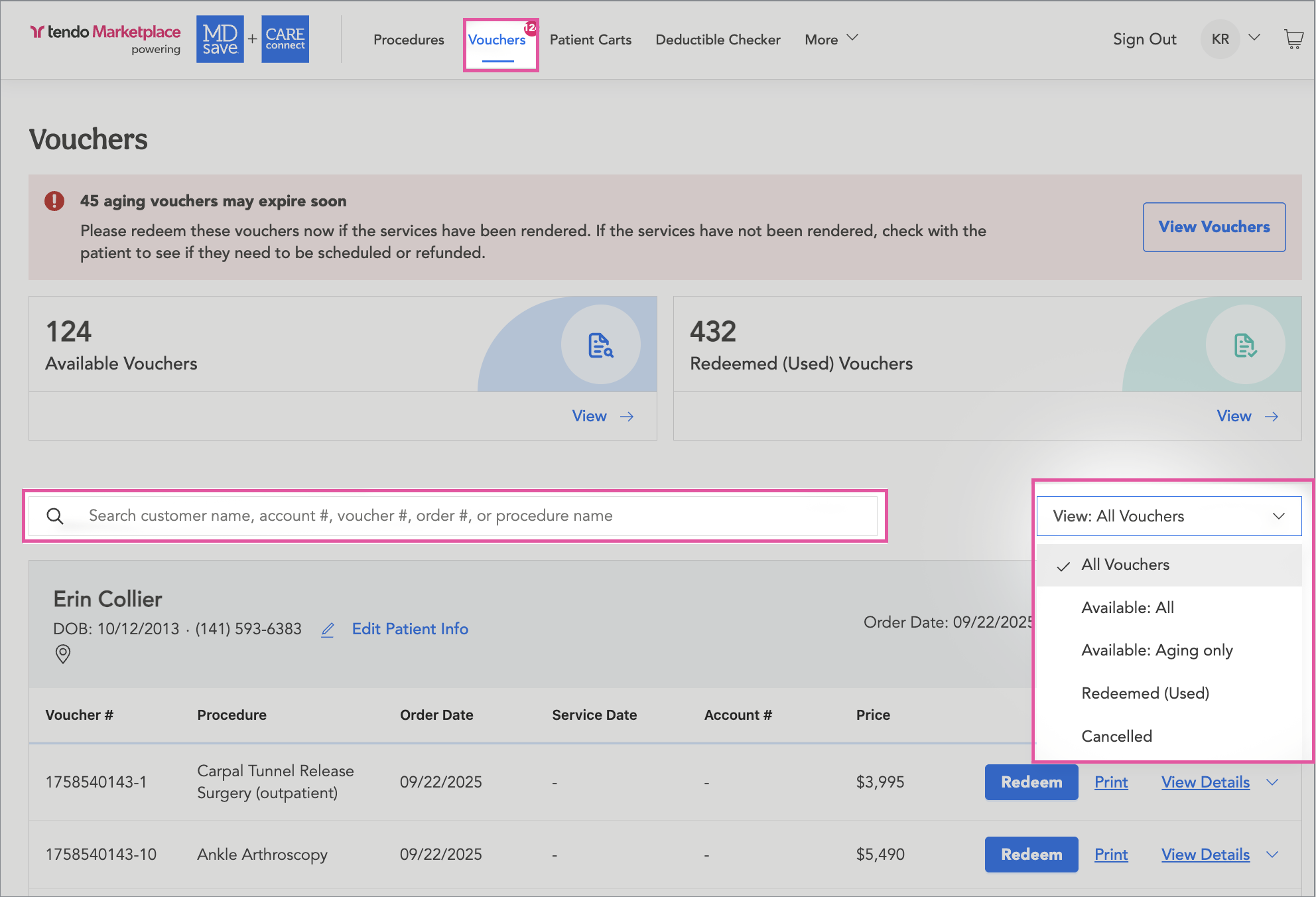
Select the Vouchers tab at the top of the page.
Use one of the two following search methods to search for the patient’s voucher you created in Scenario 1:
- Search by voucher number, patient account number, patient name, or procedure.
- View by availability status - Available: All, Redeemed (Used), or All Vouchers
Step 3
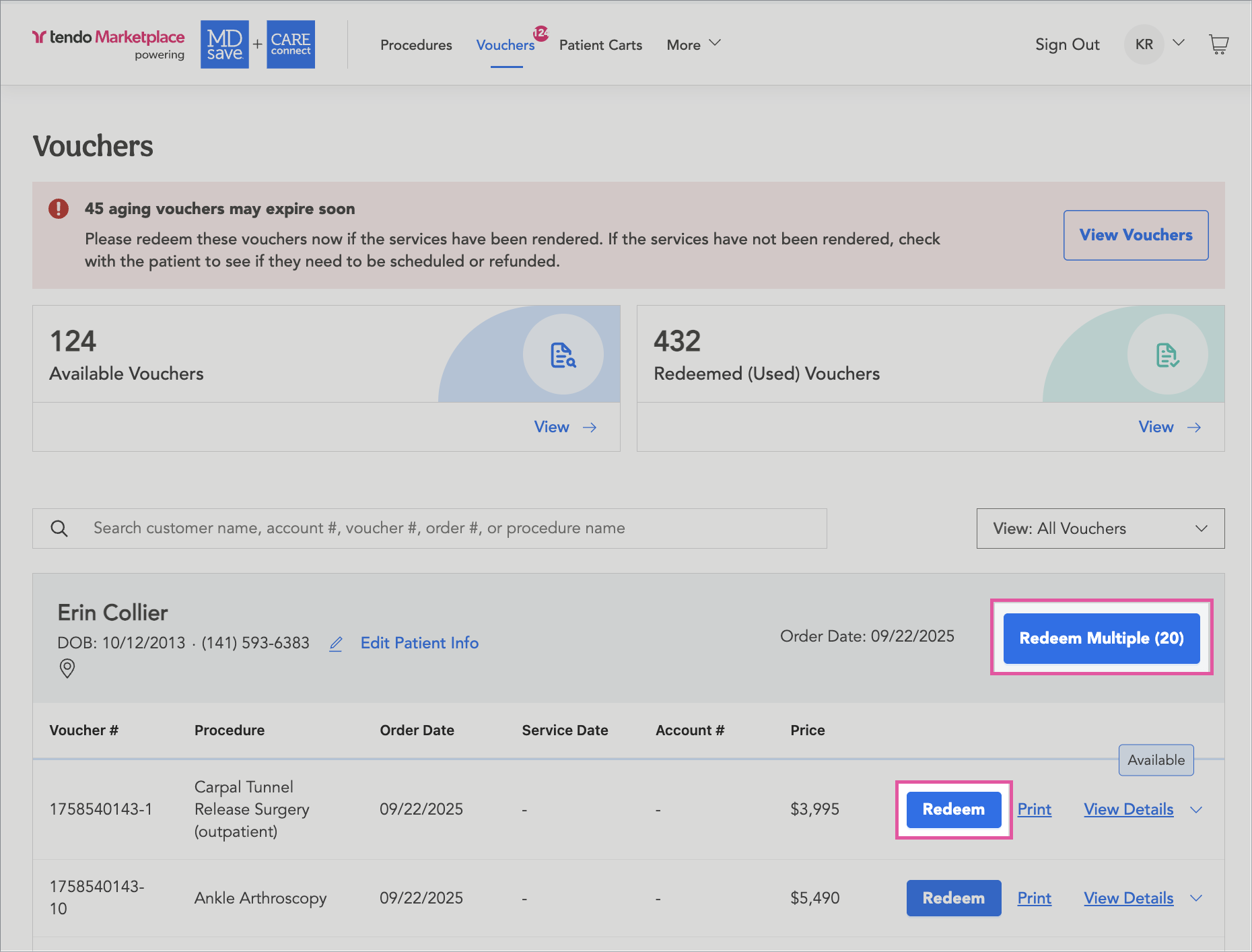
On the voucher’s row, select the Redeem or Redeem Multiple.You can select multiple vouchers to redeem if the patient is having more than one procedure performed at the time of service.
Step 4
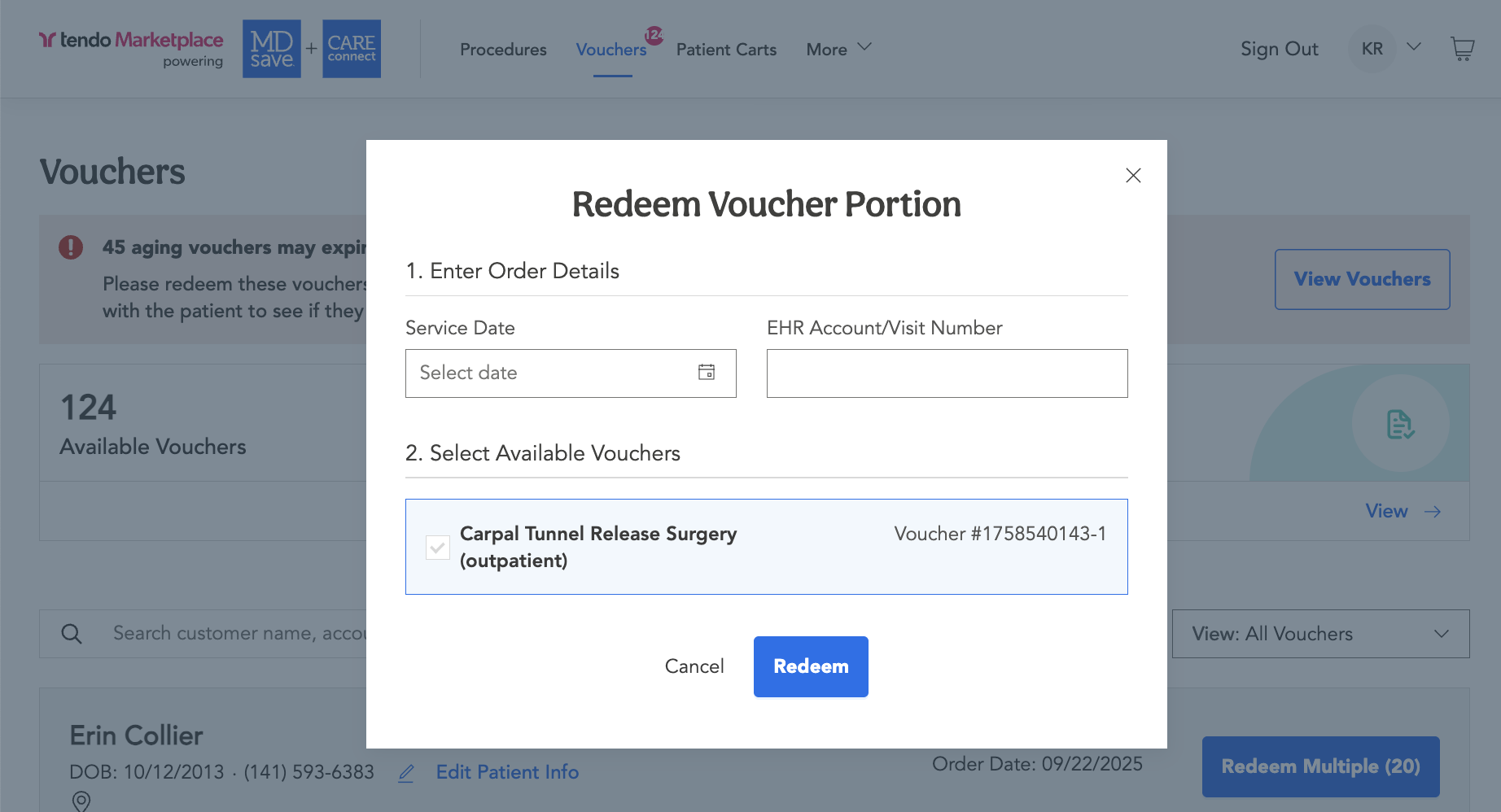
- In the popup that displays, enter the Service Date. This is the date the services were rendered. For this exercise, use today’s date.
- Enter the EHR Account/Visit Number from your EHR system. Enter 987654321 for this exercise.
- Click Redeem to redeem the voucher.
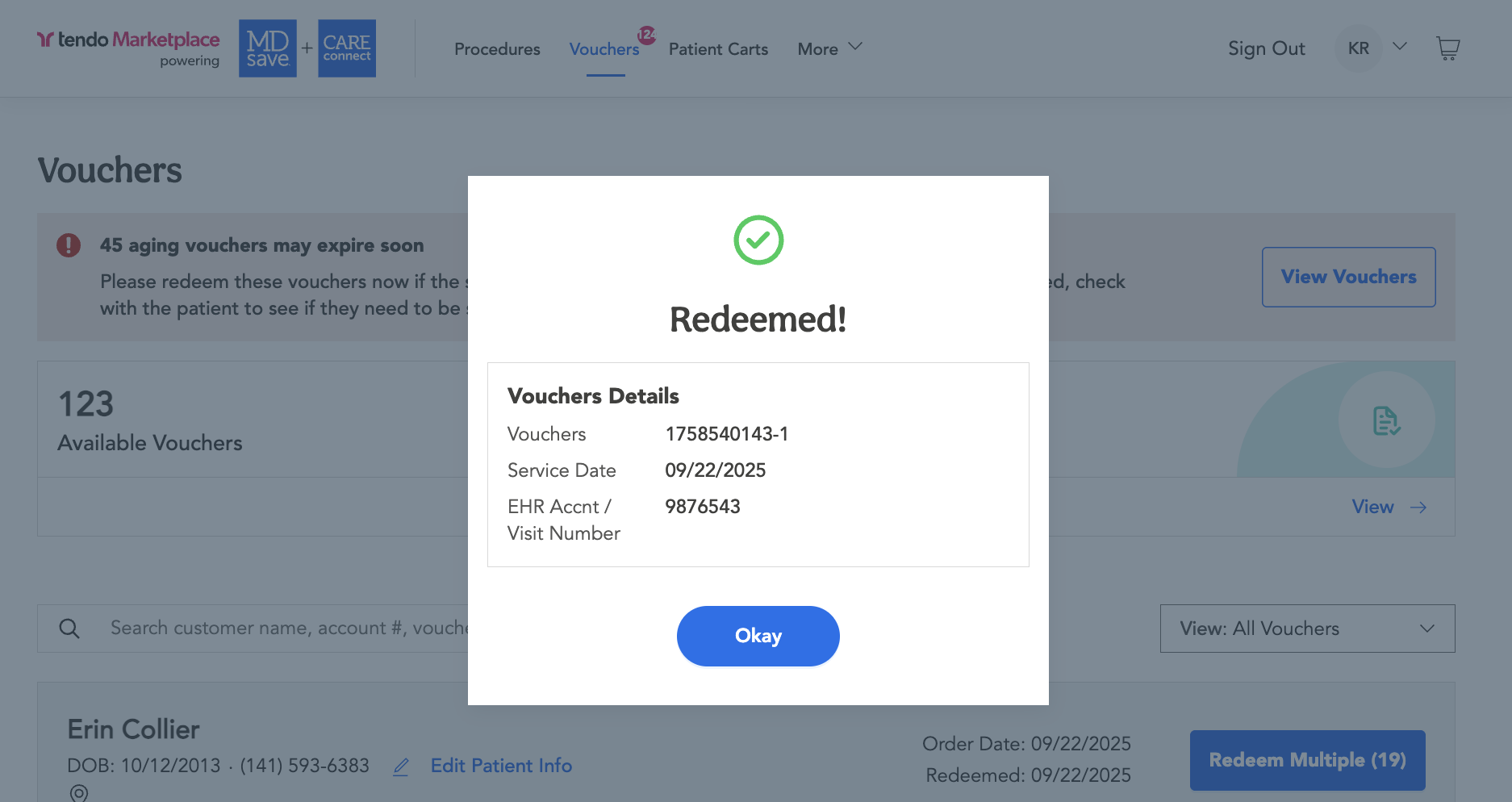
A Redeemed! popup will display.
Step 5
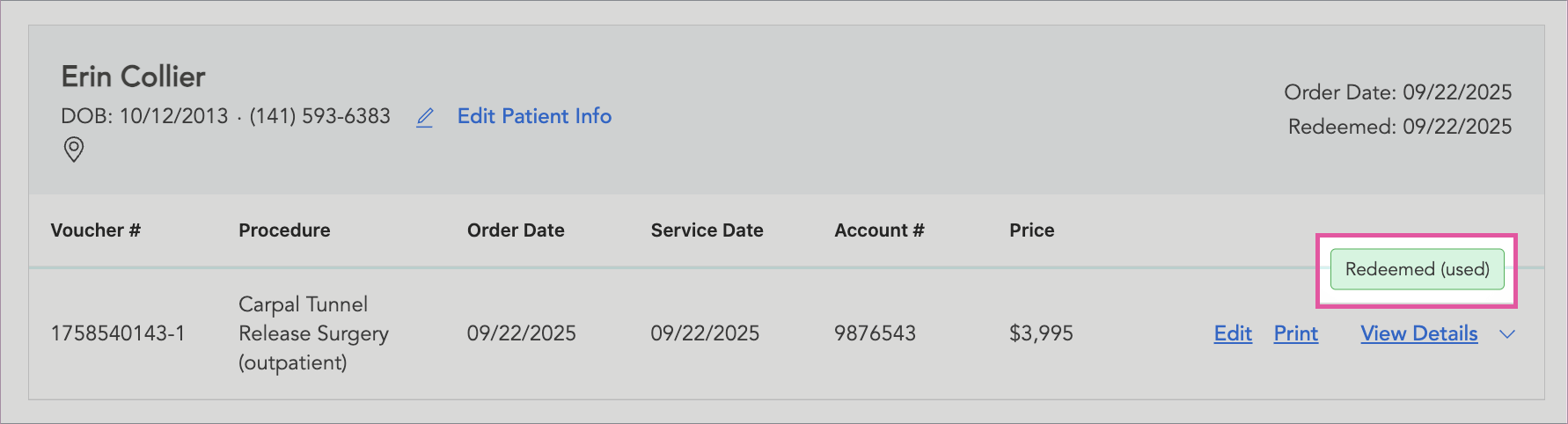
To find the voucher, click the Vouchers tab. Search for your voucher in the list and make sure that its status is Redeemed (Used).
Step 6
To edit the voucher, click the Edit button.
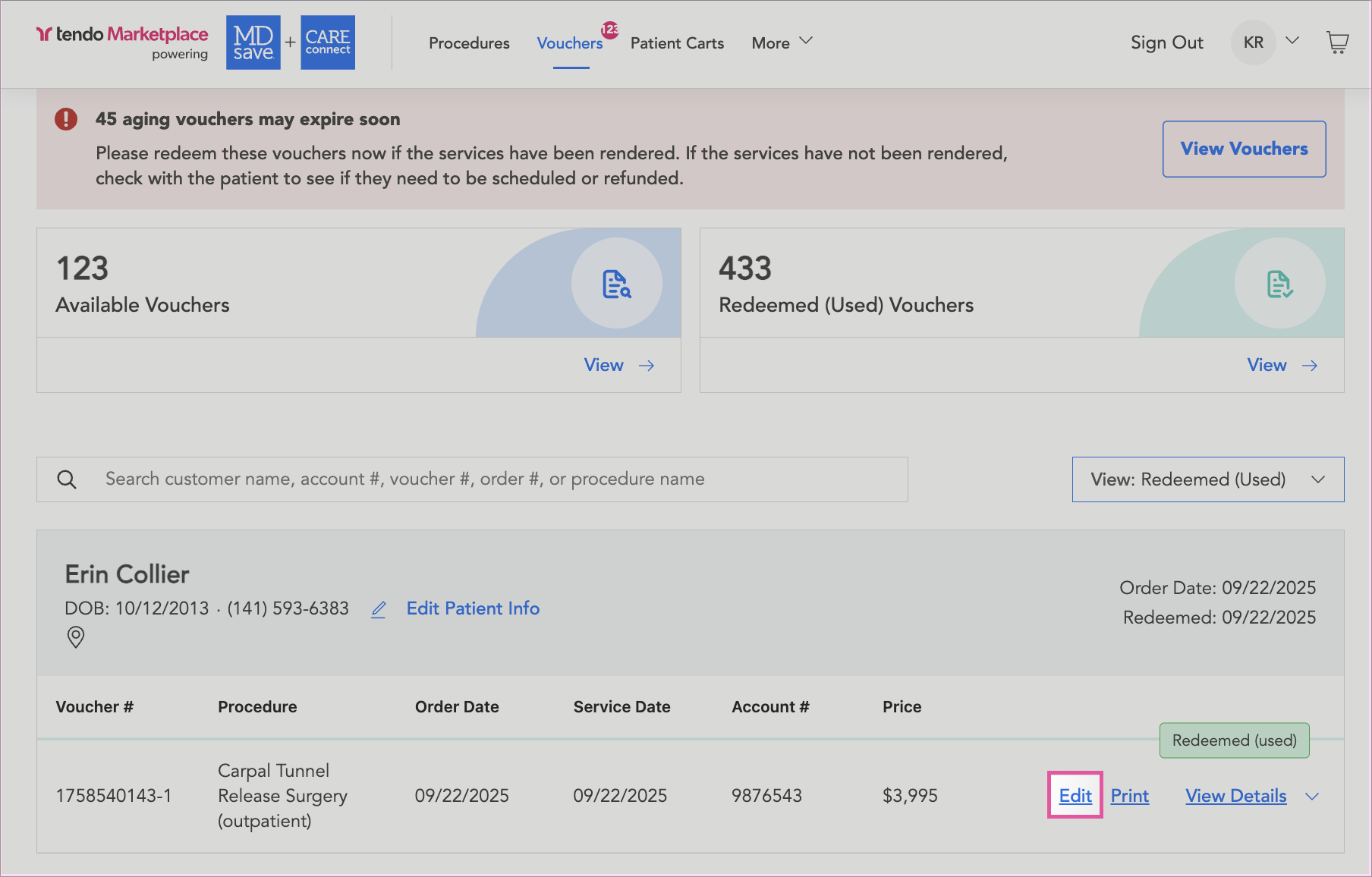
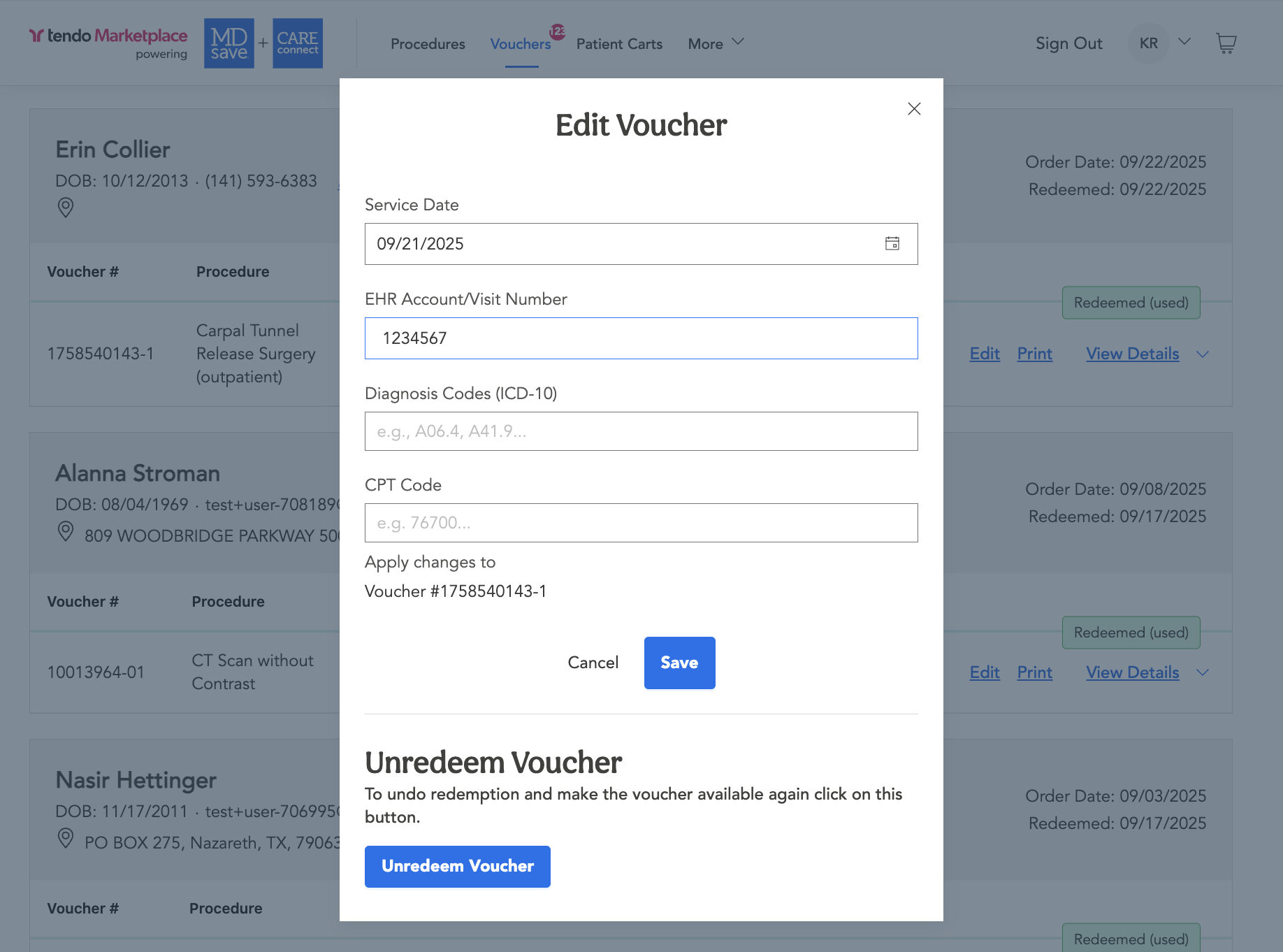
An Edit Voucher popup will display.
- Move the Service Date back by one day.
- Update the EHR Account/Visit Number to 1234567.
- In the real world, you may have to add diagnosis/CPT® codes which you can find in the voucher details, but for this scenario, just click Save.
Step 7
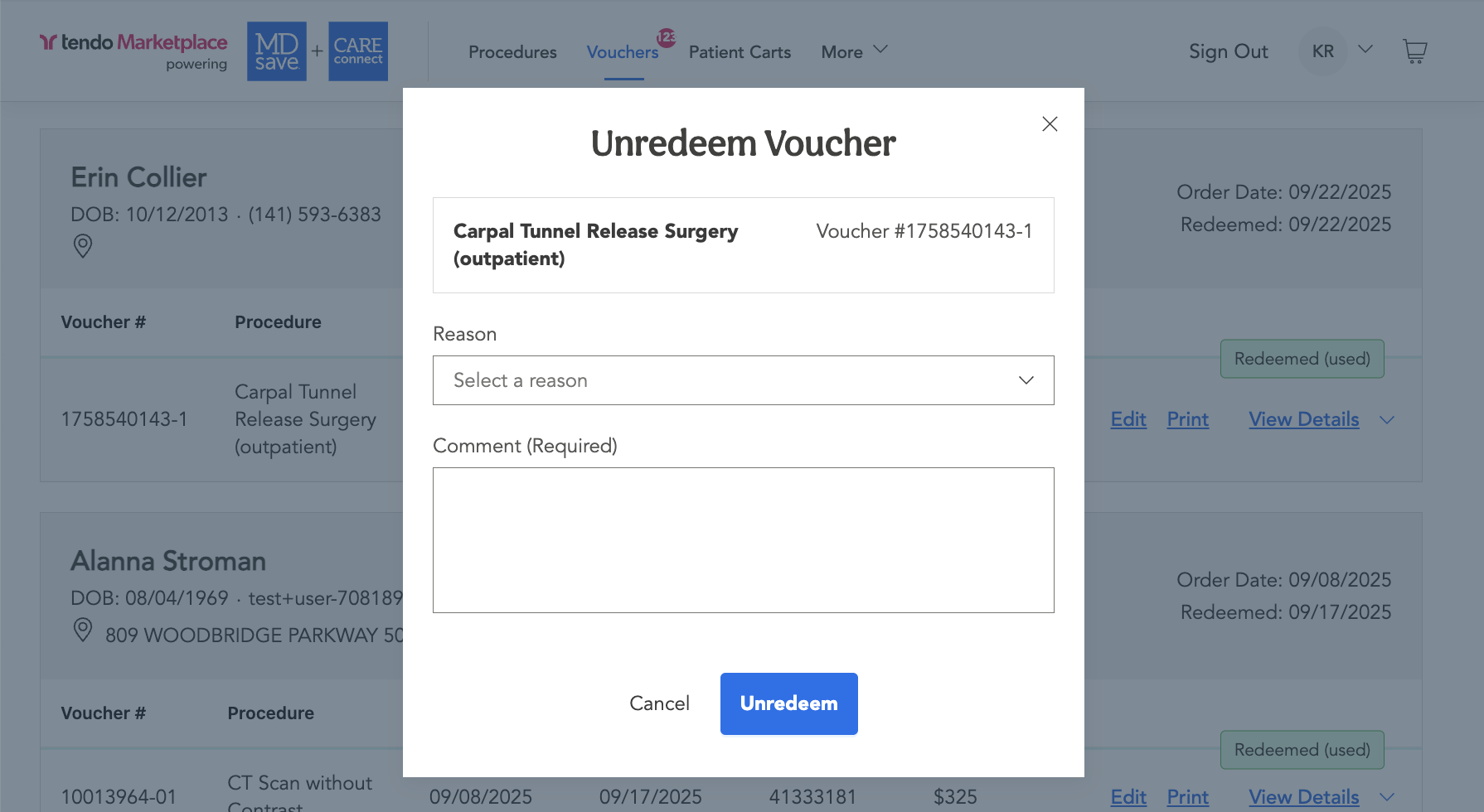
Click the Edit button again and at the bottom of the Edit Voucher popup, click Unredeem Voucher. In some cases, you may have to unredeem a voucher if the service date changes to a future date or the patient needs a different procedure.
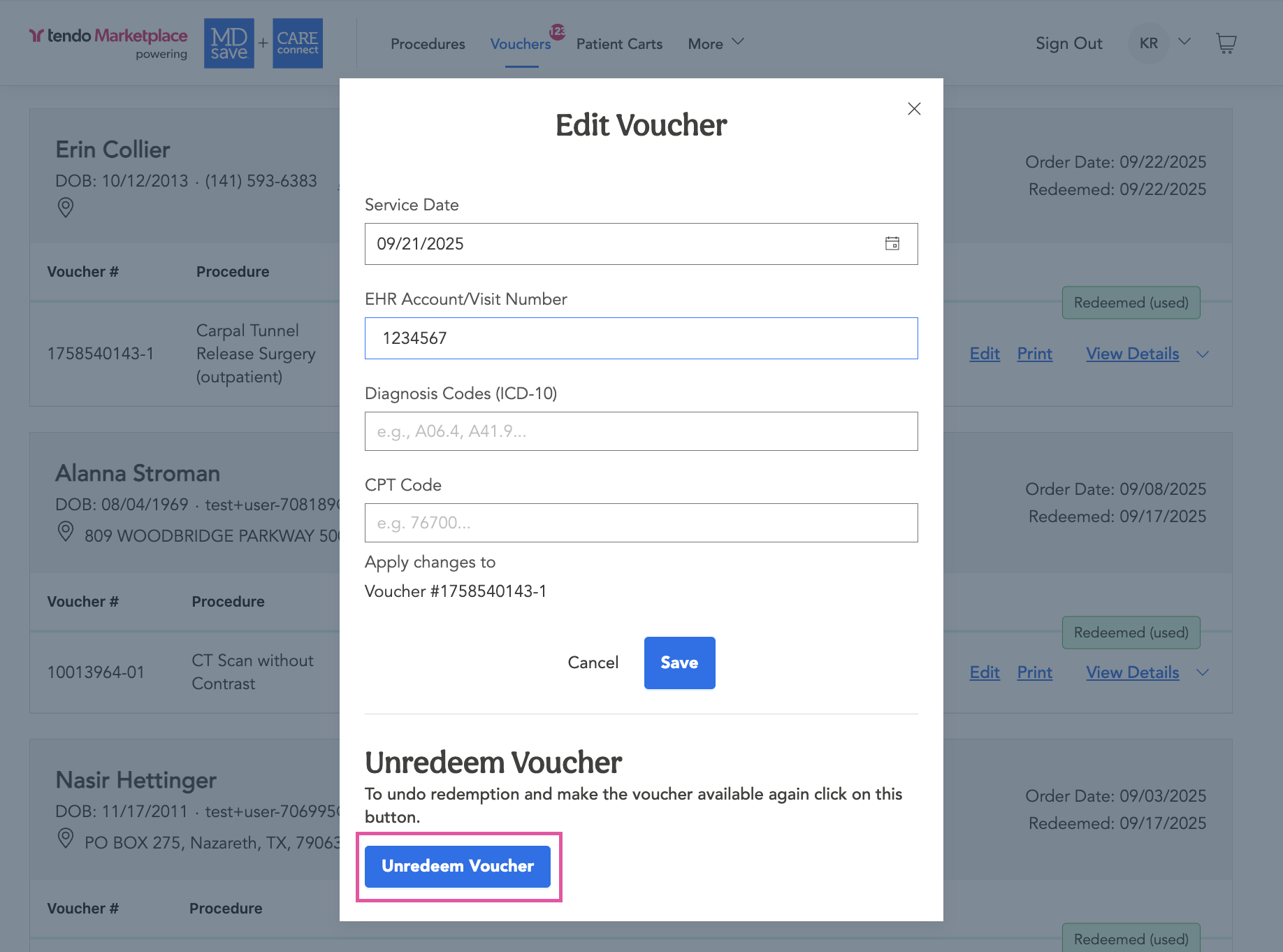
- On the Unredeem Voucher pop-up that displays, select a reason for unredeeming the voucher. For this example, choose Incorrect Procedure Purchase from the dropdown.
- Enter a comment in the Comment (required) field.
- Click Unredeem.
Step 8
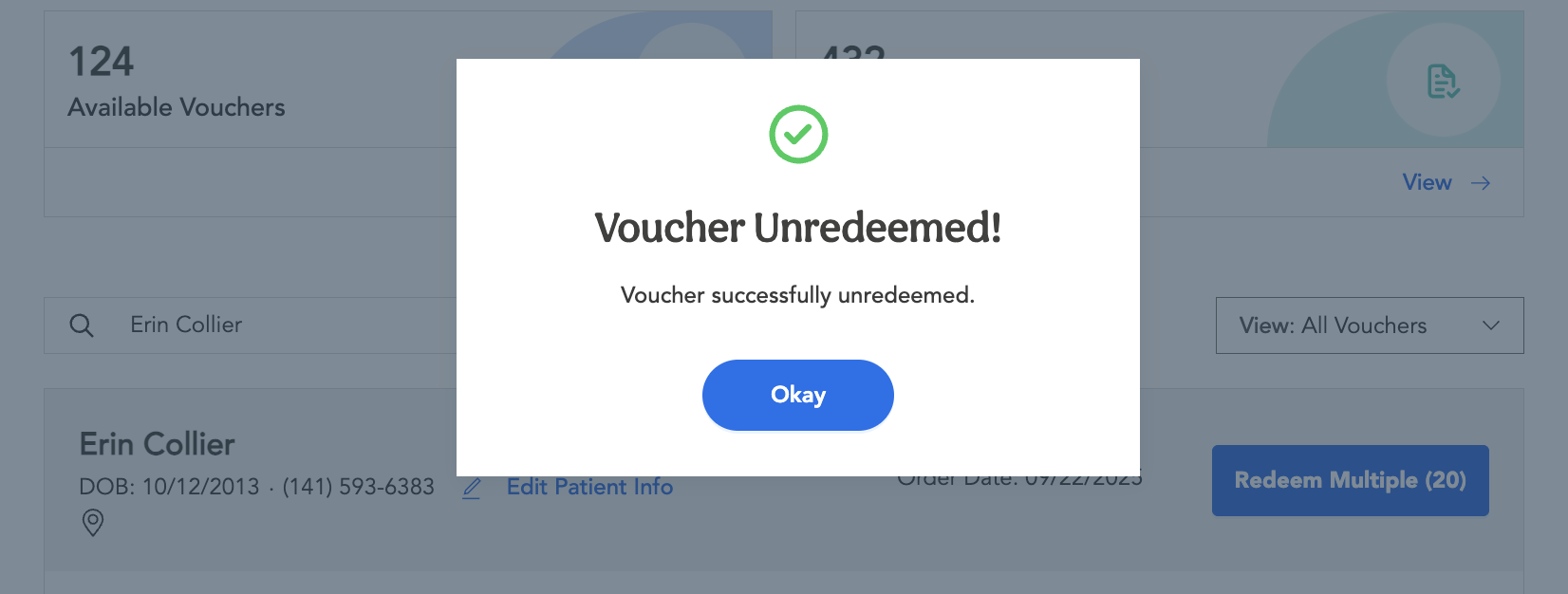
A pop-up will appear confirming that the voucher has been unredeemed.
Press Okay.
Step 9
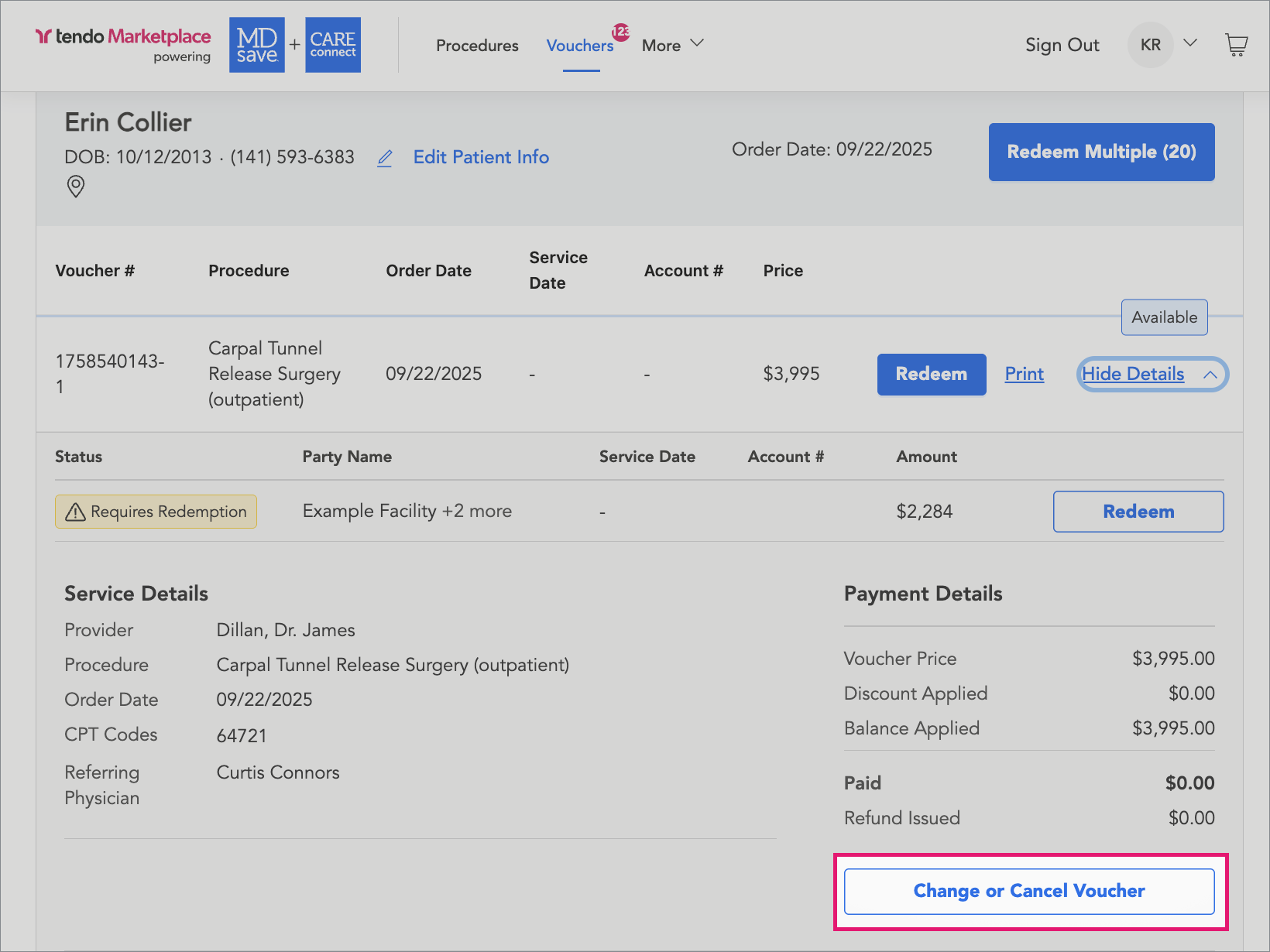
If the patient purchased an incorrect procedure or the voucher is no longer needed, you can request a change or cancellation of the voucher.
- Click View Details to expand the voucher.
- Click Change or Cancel Voucher to begin the request.
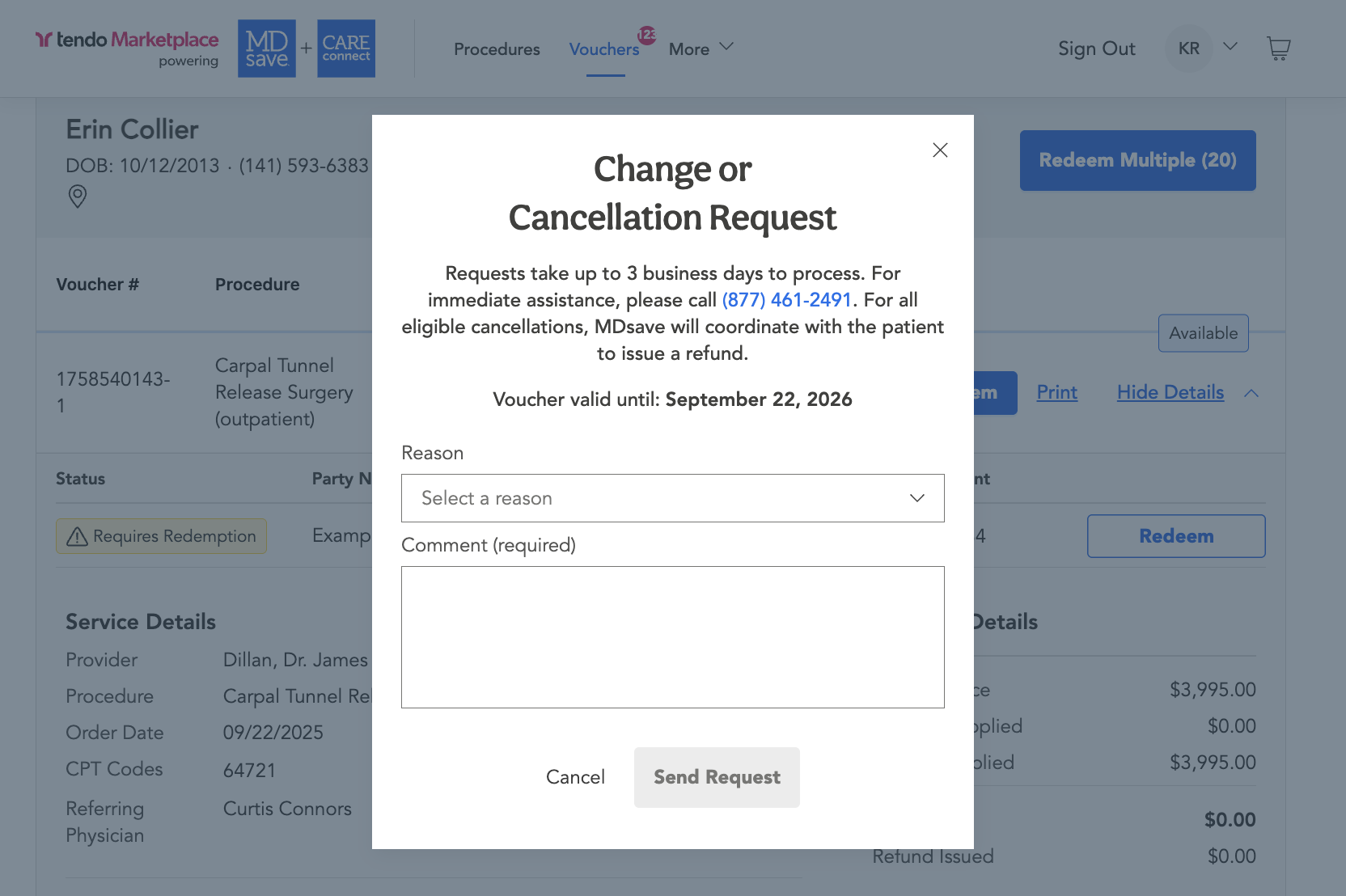
- In the popup that displays, select a reason for the request.
- Enter a comment explaining why the change or cancellation is needed.
- Click Send Request.
Conclusion
Congratulations! You have successfully learned how to redeem a patient’s voucher for payment, unredeem a voucher, and request a change or cancellation of a voucher.
Vouchers need to be redeemed before Tendo can pay the providers who participated in the procedure.
Critical Thinking Exercise: When was the last time you had a patient who could have benefited from using Tendo Marketplace? Did they move forward with care or would this help them move forward today?
When you've completed the sandbox exercises, you're ready to start working with real patients in your Tendo Marketplace account. Log out of this demo environment, and then log in again to go to your account. Check in the upper left corner to make sure you are in your facility's portal, not the Example Medical environment.
Any question? Email Tendo Support or call 844-256-7696.