
Patient Carts
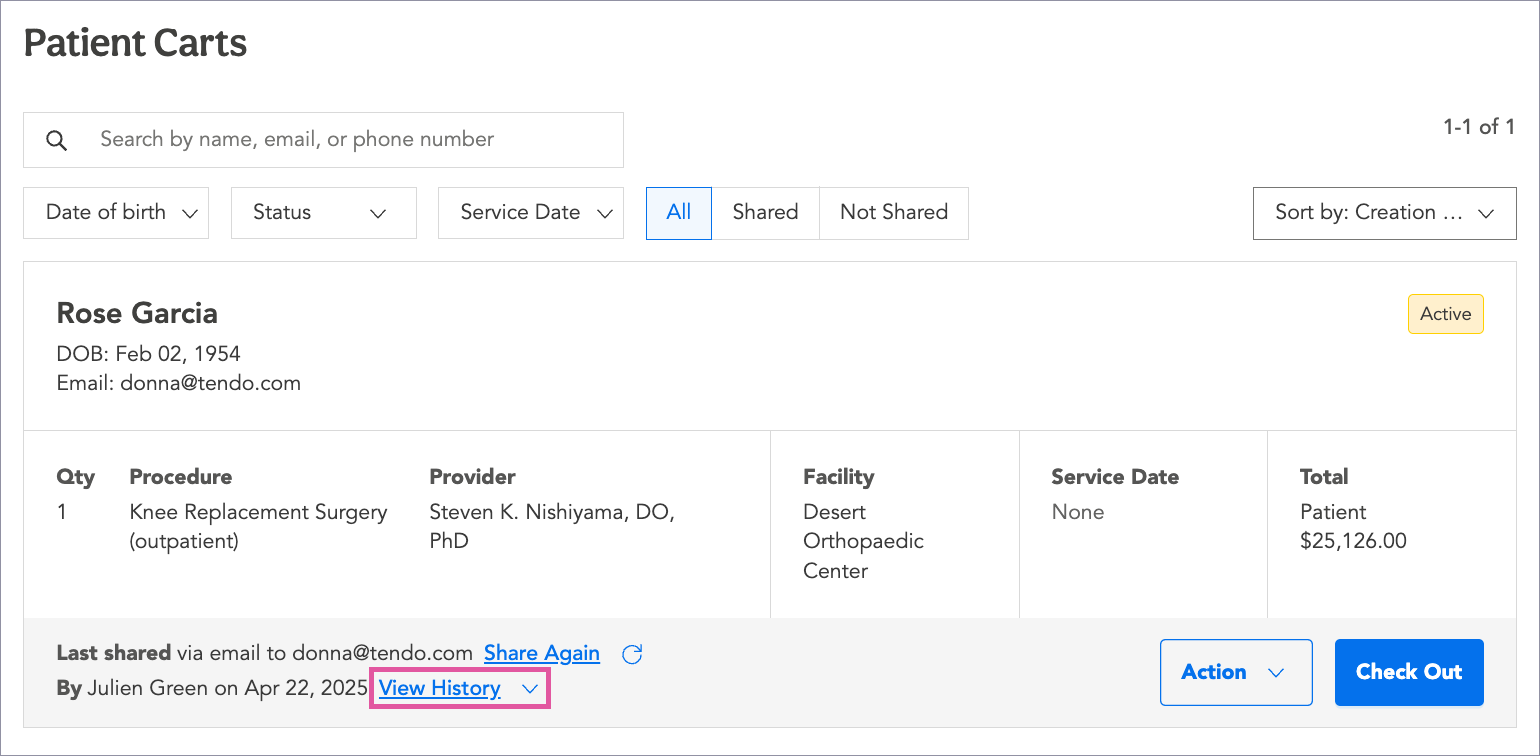
When you share or save a cart, it will display in a list of saved carts under the Patient Carts tab, where you can view and manage saved carts. You will see a list of patients carts like the sample one below:
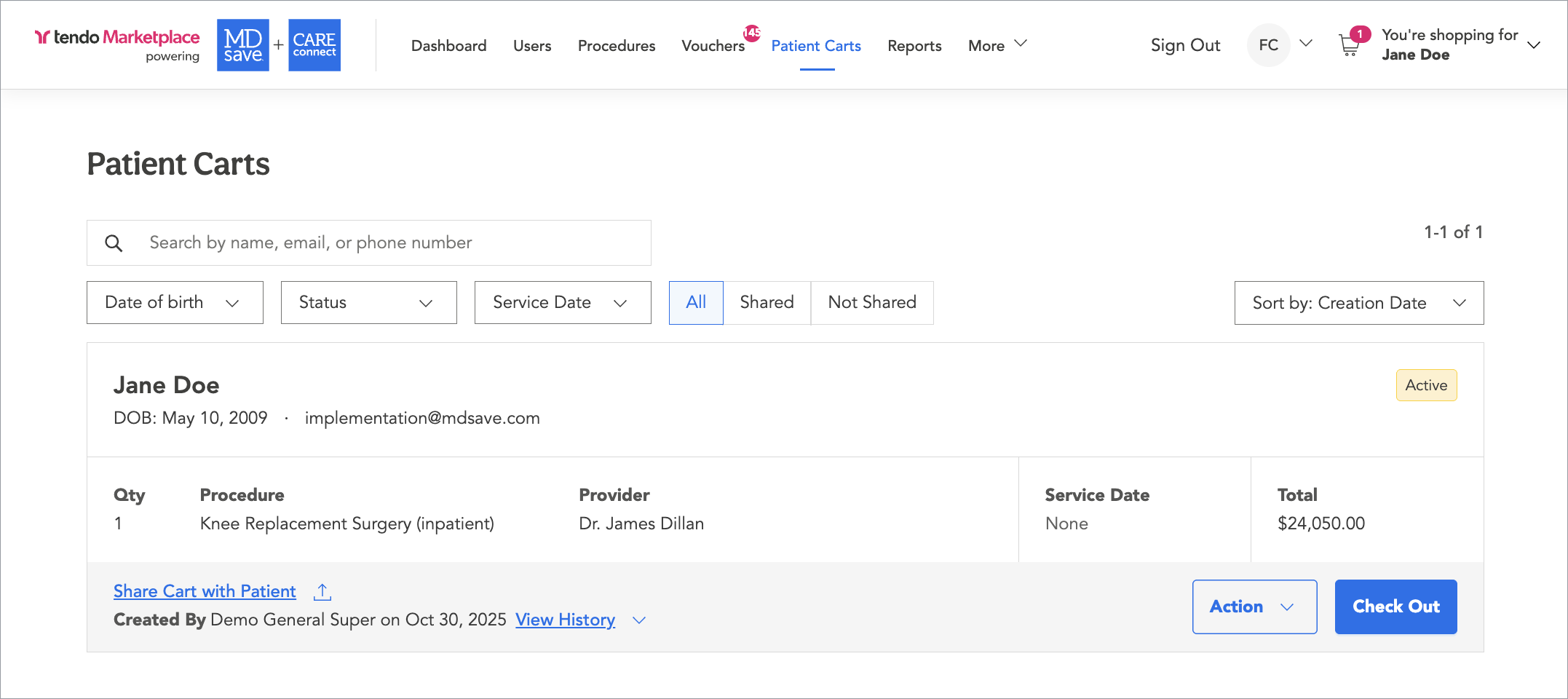
Note that it's important to share or save a cart if you want it to appear in this list.
Search for a cart in the search bar at the top, or filter by the following:
- Date of birth of the patient
- Status of the cart - Active, Expired, Purchased, or Deleted
- Service Date - Date of the procedure if available
- All, Shared or Not Shared - All is all carts. Shared is carts that have been shared with the patient, and Not Shared is carts that have not been shared with the patient.
You also can sort by Creation Date, Patient Name, or Service Date to the right.
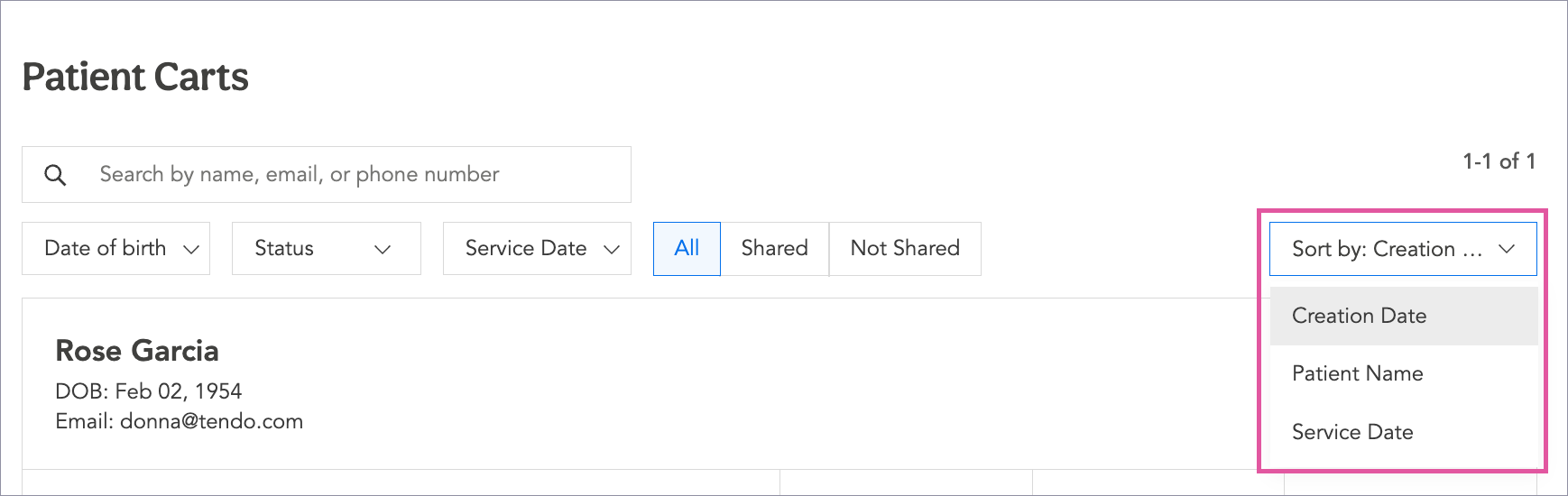
On a cart, you can see the patient’s name, date of birth, and email, the Procedure, Provider, Facility, Service Date, and total cost.
You can take the following actions by clicking on the Actions dropdown on the bottom right of a cart, and choosing one of these actions:
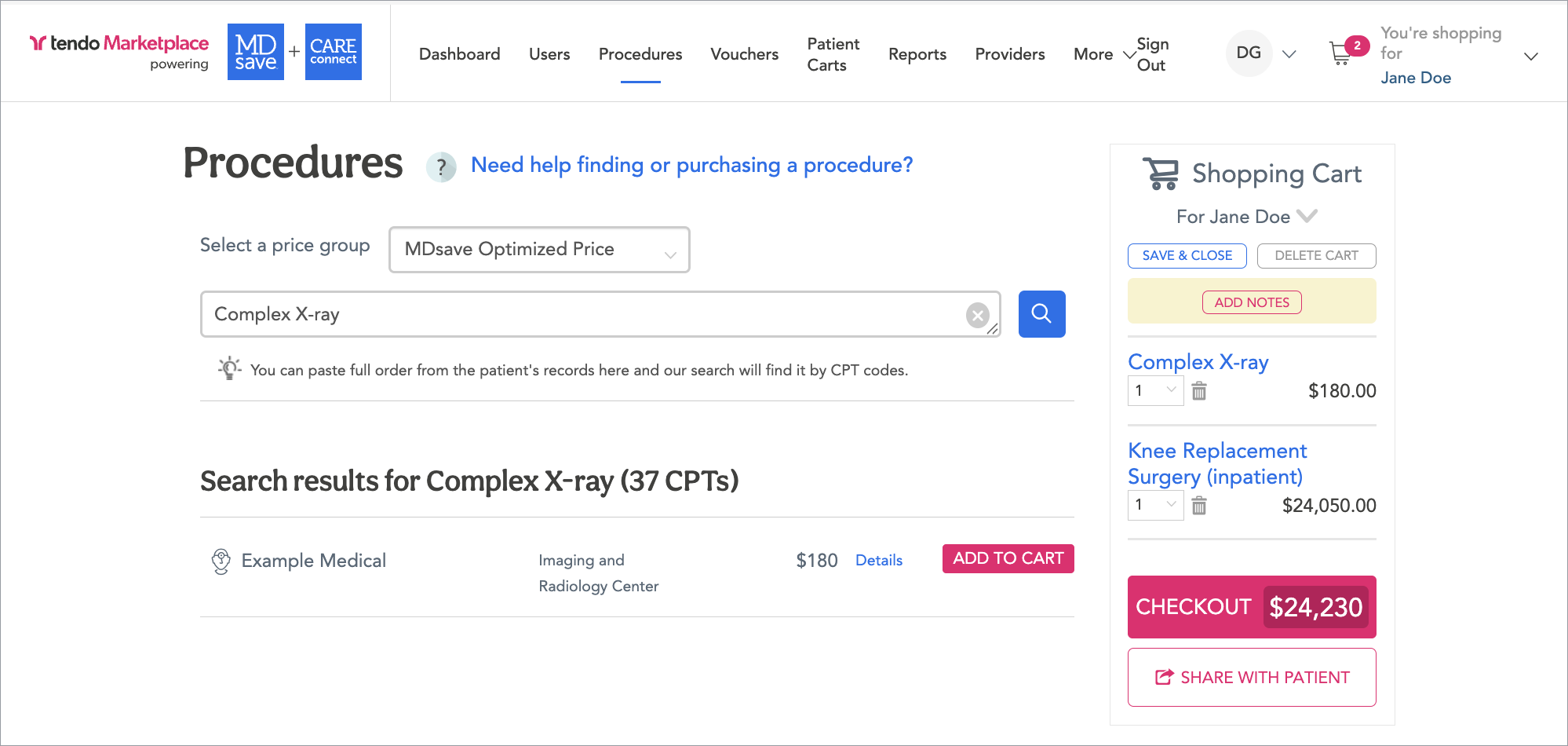
- Edit Cart - This will take you back to the Procedures page with the Shopping Cart on the upper right corner. You can Delete Cart, add a new procedure or delete one, or add notes to the cart. Then click Save & Close to save the revised cart and return to the Patient Carts page, where your changes will display on the cart in the list.
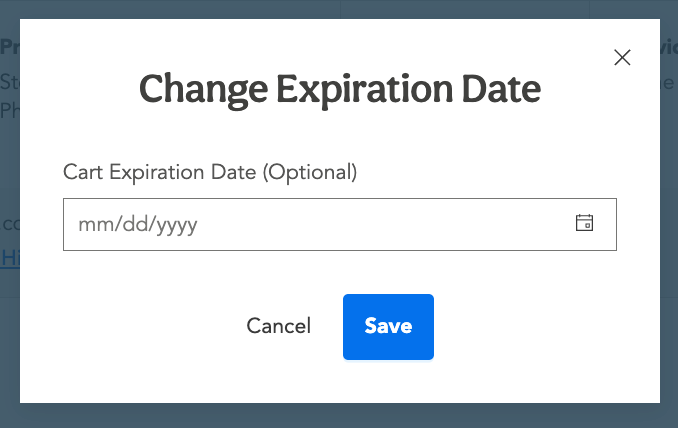
- Add Expiration Date - This brings up a popup on which you can change the expiration date.
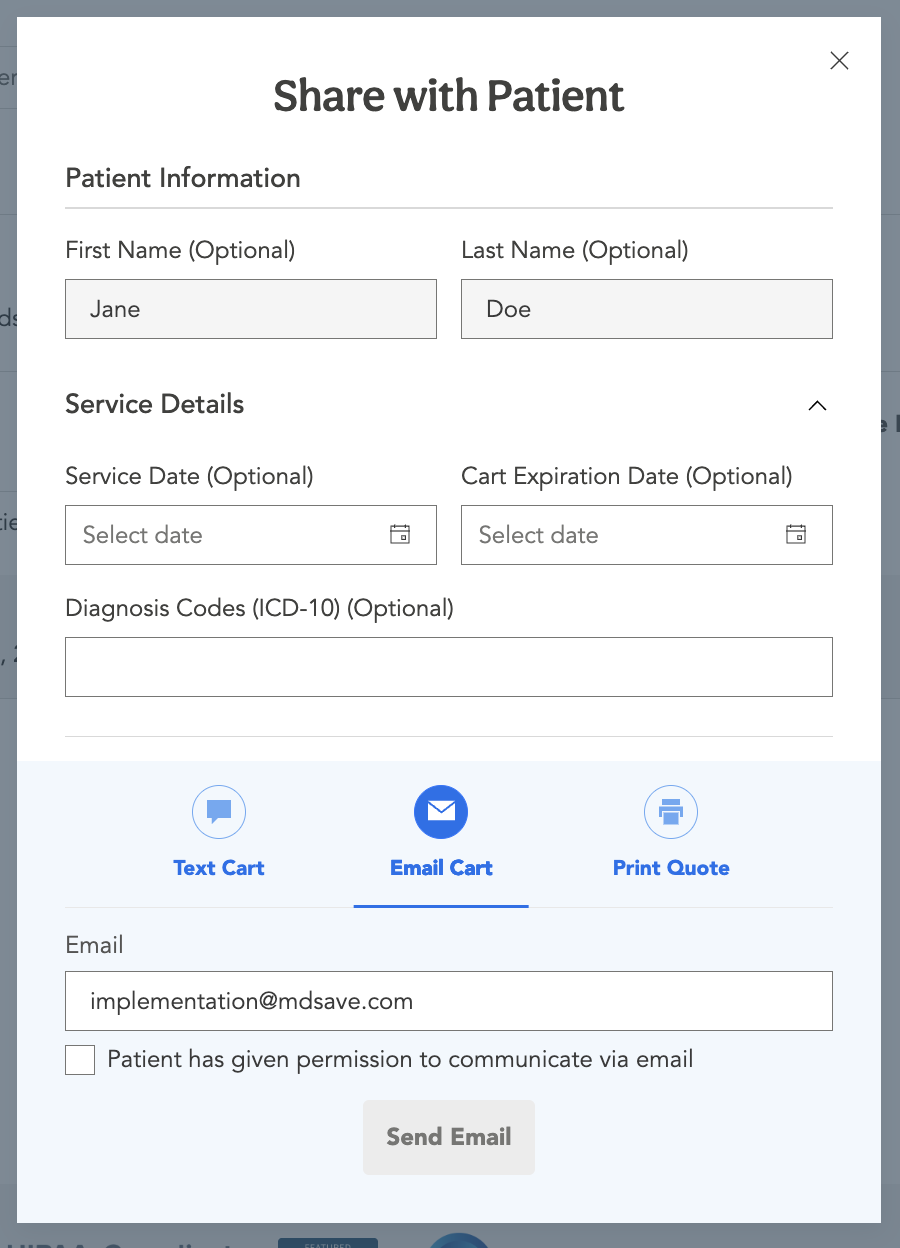
- Share - This brings up the Share with Patient form which you can use to share the cart with the patient. There also is a Share Cart with Patient link at the bottom of the cart that you can use.
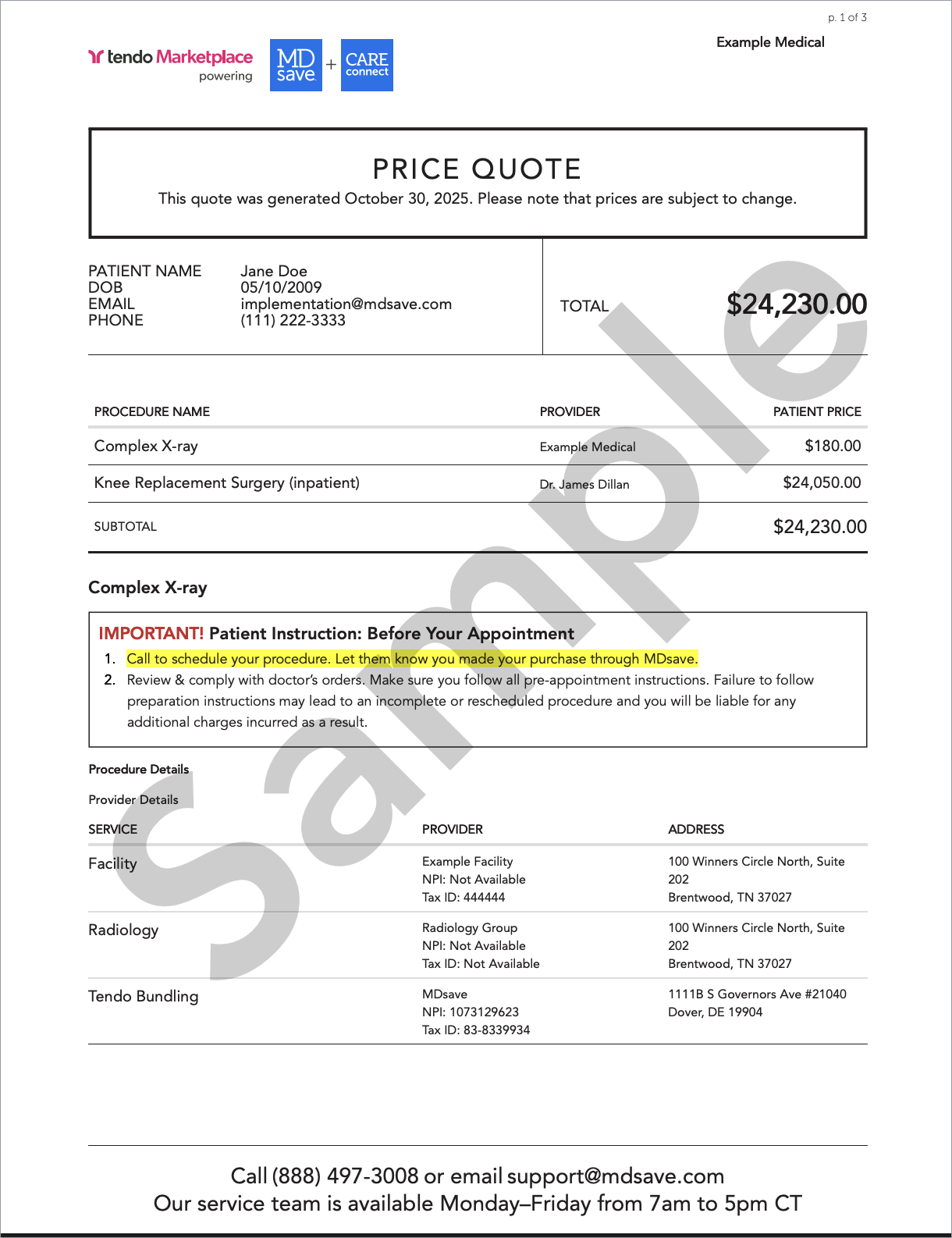
- View PDF - You can view the voucher.
- Delete Cart
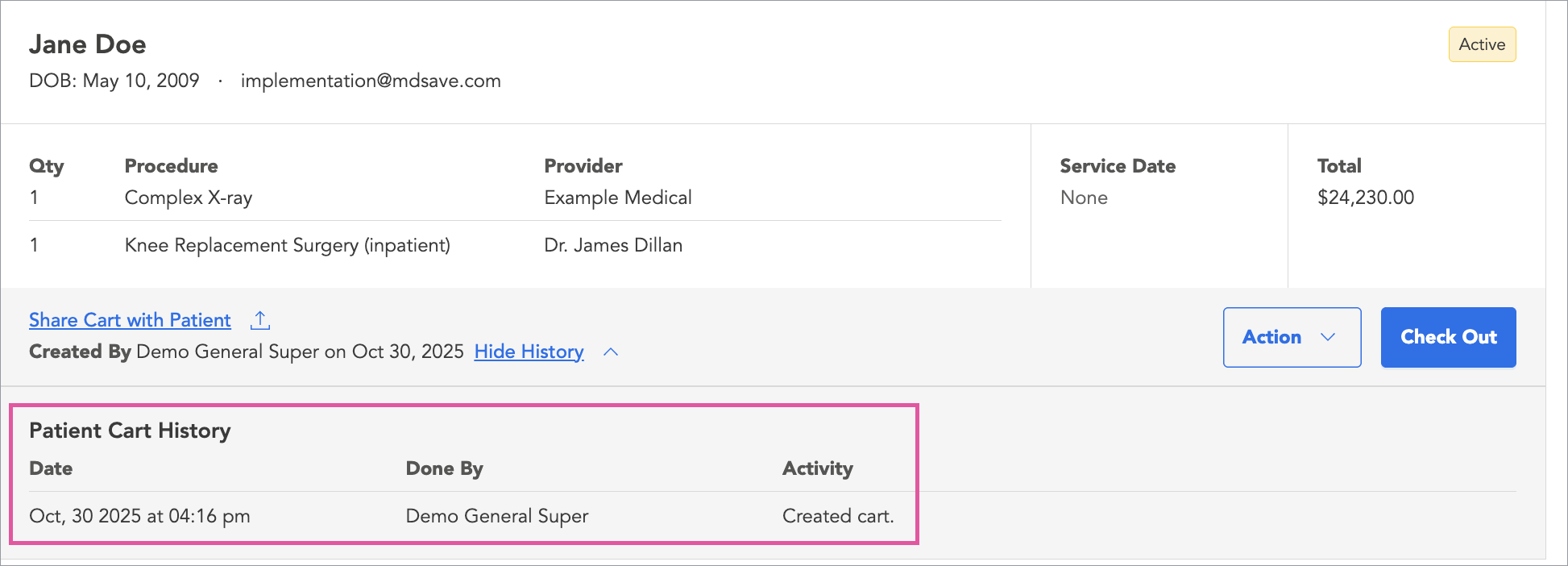
At the bottom of the cart, click View History to see the cart’s history.
The link will expand to show the cart’s history.
Click the Check Out button on the right to go to the regular Check Out page and purchase the cart for the patient.