
Care Connect API Usage Policy
IN THIS ARTICLE
About the API
The Care Connect API is available as a GraphQL API as well as a JSON data feed whose specification is available upon request. The usage of the API is governed by the MDsave website Terms and Conditions.
We also require partners to abide by the following presentation requirements for usage of the Care Connect API. Before receiving a production API key, Care Connect will review your proposed implementation for compliance with these terms and other recommendations at our discretion.
Care Connect rotates API keys approximately every six months for security purposes. Before launching your application in the production environment, you must provide a technical contact to receive new keys and make updates.
Presentation Requirements
Attribution
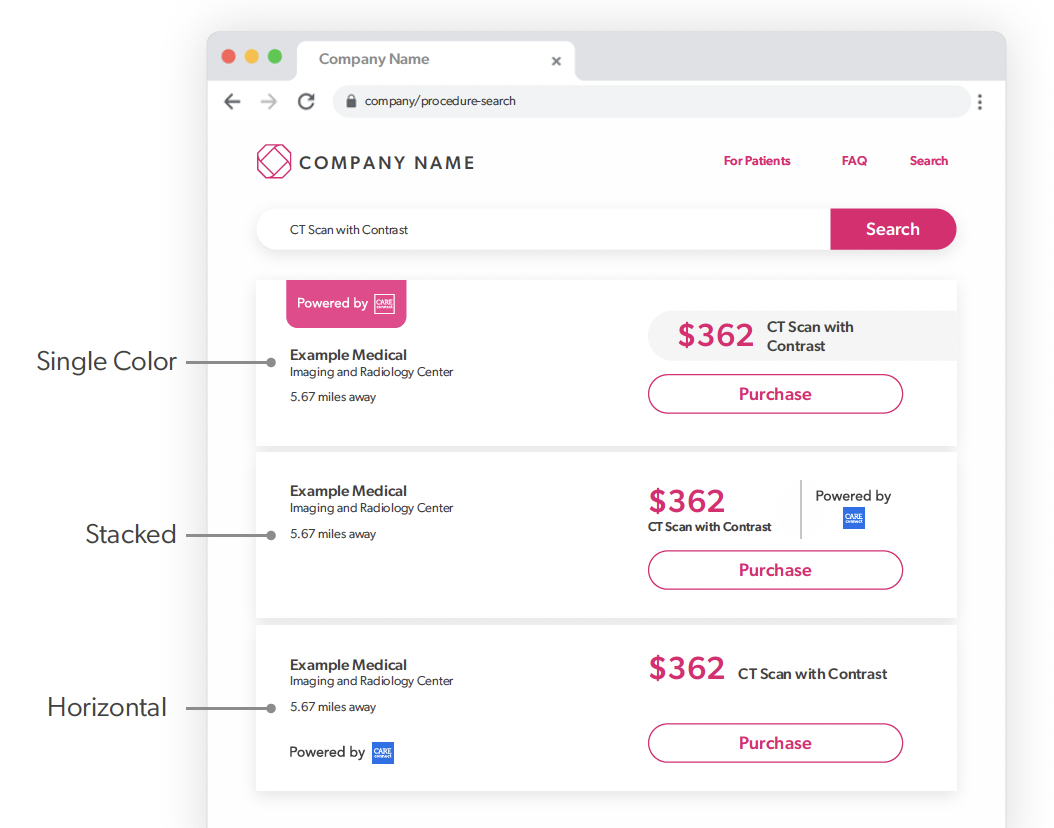
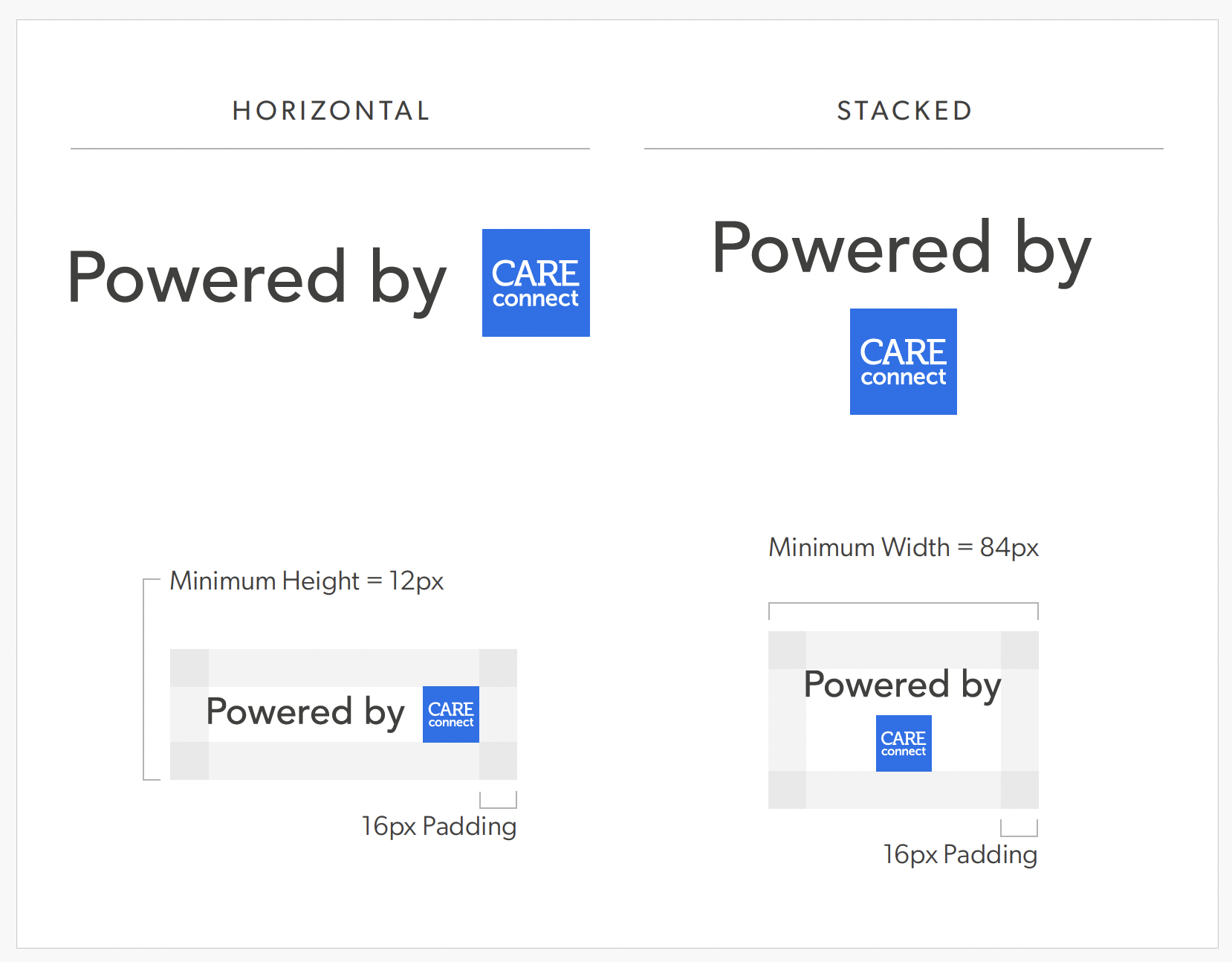
On any page where a Care Connect offer is presented, partners must include a Powered by Care Connect logo:
- If all offers presented are from Care Connect, a single logo at the top of the results is required.
- If offers contain a mix of Care Connect offers and providers from other sources, a Powered by Care Connect logo should be included in each offer listing from Care Connect.
The full suite of logo assets in various file formats (SVG, PNG, JPG) can be downloaded here.
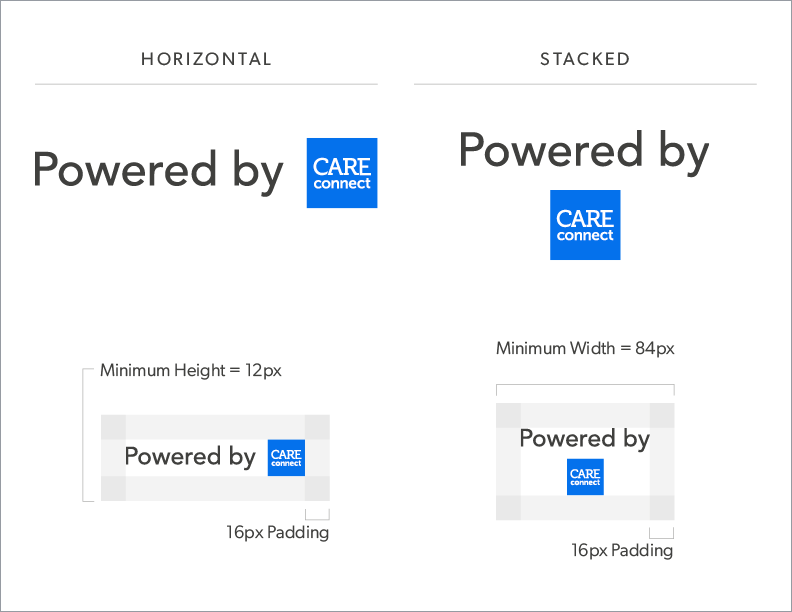
Clear Space
A recommended 16 px of padding surrounding all sides of the logo should be implemented to maintain visibility and integrity of the logo.
Minimum Sizes
To retain legibility, the horizontal logo should not be sized below 24 px height, and the stacked logo should not be sized below 84 px wide.
Color Application
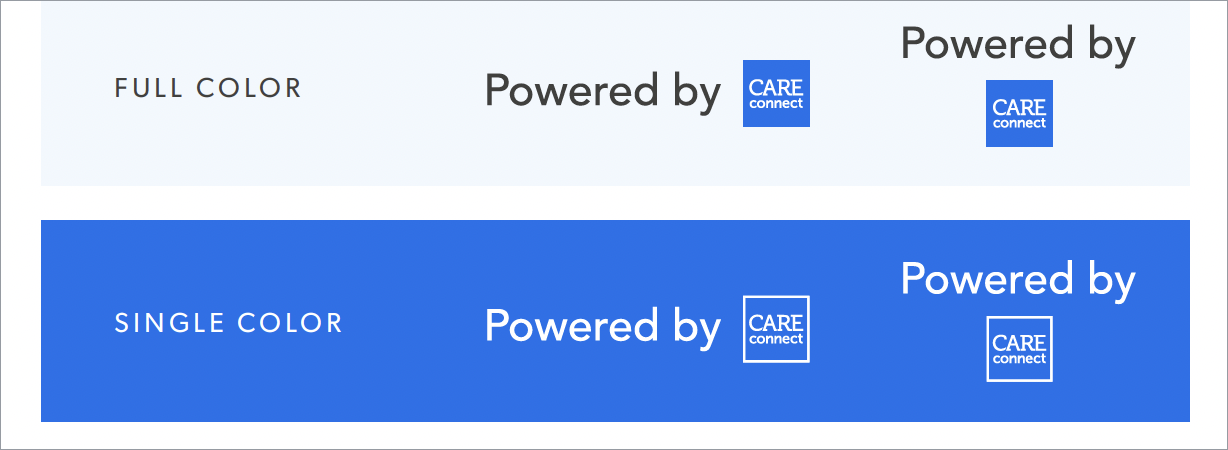
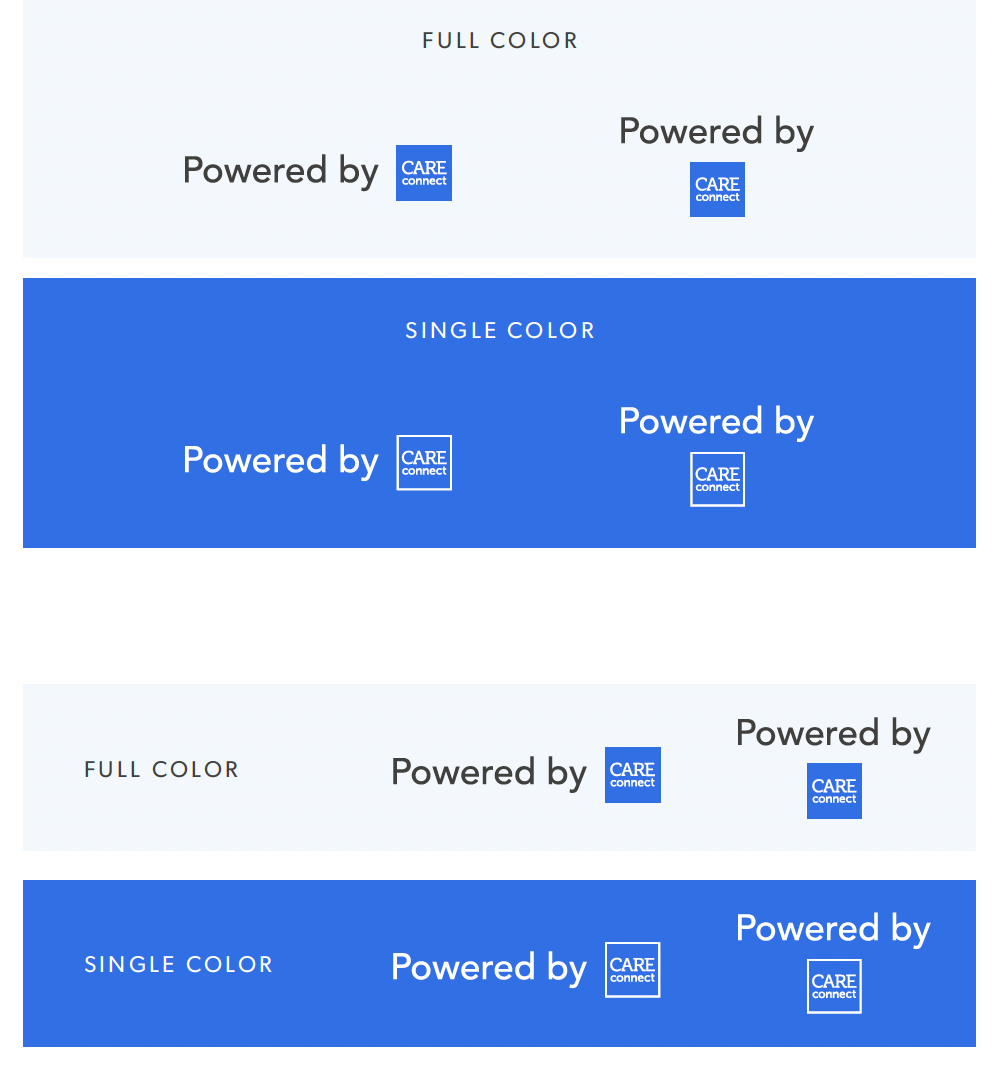
The logo can be used in full color, or using a white, single color application for use on a dark background as needed to work within the partner’s design system.
When using the white, single color version, ensure the logo lock-up maintains WCAG 3.0 Compliance for color contrast.
Interface Stylization
To minimize confusion between the partner’s applications and MDsave’s application, partners should utilize their own design and color systems for interfaces they develop and should not use Care Connect’s colors, fonts, or layouts.
Usage Examples
Use the examples shown below to visualize how the logo can be integrated into your interface design using various logo lock-ups and color applications.
Transparency
There are several different pieces of content that must be displayed next to Care Connect offers in order to provide transparency about what is included in and required of their purchase. A list of the required items to display for each Offer can be found using the notifications field.
- Care Connect’s Procedure and Price Details, explaining which services and parties are included or excluded from the bundled price are required to be presented to the end user through an intuitive interface. These details are available in the description attribute of the Offer in the API.
- Partners also must display the following text adjacent to the Procedure and Price Details:
Note: This Care Connect bundled price includes the cost of your procedure and the fees listed above. These fees are for the services most frequently packaged together with this procedure. Any services provided at the time of treatment that are not listed here will not be covered in your purchase.
- If the procedure requires an office visit (specified by requiresOfficeVisit in the Offer), that information must be available through an intuitive interface associated with the offer:
This procedure requires a consultation with the provider. If you don’t have one scheduled already, you’ll need to do so before the patient receives care.
- If the procedure requires a physician’s order (specified by requiresOrder in the Offer), that information must be available through an intuitive interface associated with the offer:
This procedure requires a physician's order. For out-of-state orders, please contact this provider to confirm that they will accept it.
- If the procedure is performed virtually, partners must specify that the procedure being purchased is a virtual visit. This is specified by placeOfService=Virtual in the Offer. In addition, purchasers must be informed that:
Patients must take the video from one of the following locations:
And the list of states the provider is licensed in must be displayed.
Shopping Cart Requirements
Care Connect offers may be discounted, a factor which should be communicated to the patient to avoid confusion. The totalPrice in ShoppingCart and the price in ShoppingCartItem will always show the actual price the patient will pay for the procedure that has been added to the cart. In addition, the following types of discounts should be visible to the user:
- The Multiple Procedure Payment Reduction (MPPR) is a 50% discount applied to procedures when more than one surgical procedure is to be performed at the same time. This is provided as the MPPRDiscount on ShoppingCartItem and represents the amount discounted from a procedure. It will be non-zero when there are multiple surgeries added to the cart.
- An on sale procedure will have a promotionalDiscount set on its Offer, which is also reflected in the originalPrice value. This can be displayed on the offer listing as well as on the shopping cart page.
If you do not wish to manage all of the varieties of discounts and requirements for the shopping cart and checkout page, you also may utilize the url attribute of the ShoppingCart to direct the patient to a Care Connect hosted checkout page to complete their purchase.
Post Purchase Information
After completing a purchase, the patient must be provided with information from the CheckoutResponse so that they can successfully schedule and receive their care. If the application being developed makes use of a care coordinator or other patient support, the information may be presented to the patient through other means (such as if the coordinator schedules on behalf of the patient), subject to MDsave’s approval. Specifically, the following information must be provided:
- A link to download the Care Connect Voucher PDF for the purchase
- Status messages, including whether or not the purchase was successful. (Note that you can test some error states using the various credit card test information from Authorize.net.)
- The scheduling instructions for contacting the provider to schedule the procedure, which are found within the Offer objects within the Voucher. (Vouchers can be retrieved using the SearchVouchers query based on the voucher numbers provided in the CheckoutResponse.)
Procedures Purchased through Third Party Providers
Care Connect sells some procedures via partnerships with third party networks, such as One Call. For this reason, it is very important to make sure the patient has access to download and/or print their voucher, as it contains special instructions for these particular procedures and providers.
Upcoming Requirements
The following details about third party providers will be available soon in the API. Once available, the post purchase page must include the following additional information.
- The text, “Be sure to bring a copy of the voucher to your appointment.”
- The text, “Call or schedule your appointment online with the following provider. Let the provider know your visit should be billed to <name of third party provider>. MDsave has partnered with <name of third party provider> for this provider, so the provider should follow their typical <name of third party provider> billing process.”
Additionally, the following attributes related to purchases will be made available and must be displayed in the future:
- Information on where to submit the physicians order for each procedure, if available.
Compliance
On checkout pages, partners must display the following text adjacent to their purchase button. Note that “Terms & Conditions” must link to https://www.mdsave.com/termsandconditions.
By clicking "[label of purchase button]", I agree that: a) I am not (the patient is not) covered by Medicare, Medicaid, or any other state / federal healthcare program for the service(s) being purchased and b) I have read and agree to the MDsave Terms & Conditions and c) I agree (the patient agrees) to receive a text message confirming the order. MSG and Data Rates May Apply.
Canonical URLs
For any publicly accessible web pages that represent an MDsave object with the canonicalURL value set in the API, such as a page describing a provider or offer from MDsave, the web page’s canonical link tag must point to the value specified in the MDsave API.
Support Information
On any application page or other materials that you (the Care Connect partner) develop, do not include any @mdsave.com support email addresses or the Care Connect/Tendo Marketplace support phone number. Only include your own support contact information.