Intro to Using Care Connect
The Care Connect User Guide walks you through how to use the Care Connect portal and provides answers to many of the questions that may come up while you are working in the portal.
If you have questions or other issues you need to discuss, please contact your account manager or customer success manager at Care Connect to help you work through them. If you don’t know your Account Manager, send us a message.
IN THIS ARTICLE
Logging In
Account Activation Email
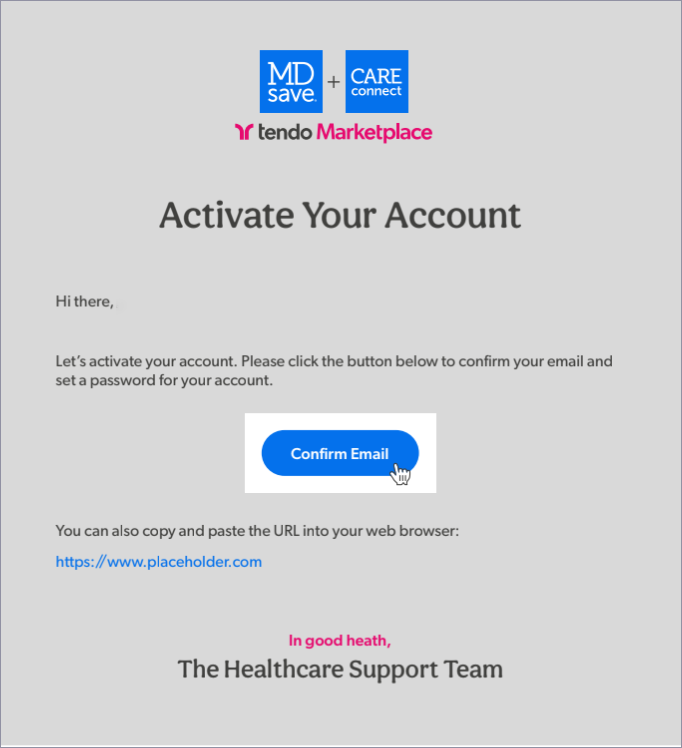
When your Care Connect account manager adds you as a user to Care Connect, you will receive an invitation email. Click Confirm Email.
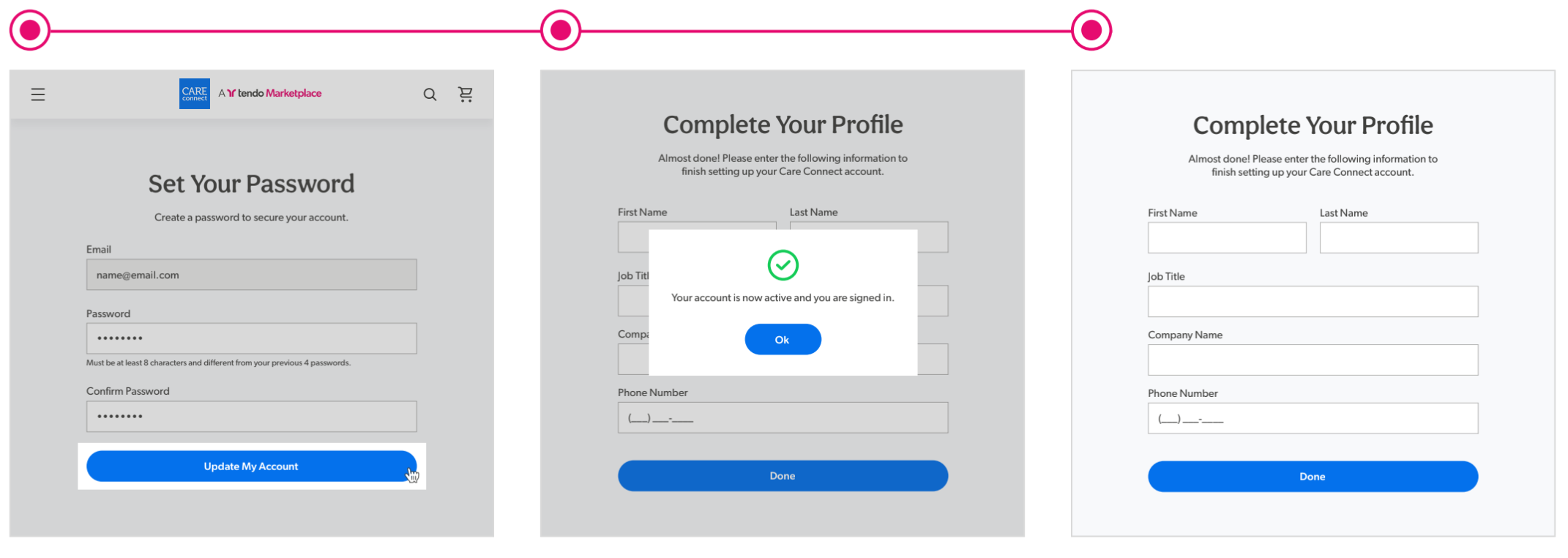
In the form that appears, enter your name and password, then the password again to confirm. Click Update My Account.
A popup window will inform you that your account is now active. Click OK.
You will be taken to a Complete Your Profile form.
Enter the requested information, and click Done.
You're now ready to get to work in Care Connect!
Note: If you received the email but for some reason did not activate it, contact your account manager to ask them to resend the email.
Using Care Connect

This is the generic flow for you as a care navigator to use Care Connect. Specific Care Connect workflows may vary somewhat.
- 1. A patient who needs a procedure contacts a care navigator for your organization.
- The navigator gathers patient data, CPT® codes, and physicans' orders if needed. The navigator often calls the provider before purchasing a voucher to resolve any qualification questions, check about appointment availabiity, or verify the details of the order.
- The navigator searches the company’s Care Connect portal for the needed procedures.
- The navigator reviews and presents options to the patient. The navigator and patient agree on a procedure option.
- The navigator purchases a voucher through the Care Connect portal.
- The navigator may schedule the procedure for the patient. Alternatively, the patient can schedule the procedure themselves. If necessary, the provider contacts the patient to verify patient details.
- The navigator provides the patient with a copy of the voucher and instructs the patient to show a digital version of the voucher on their phone to the provider's staff, provide the voucher number, or bring a printed copy of the voucher to the appointment.
- The patient receives the care.
Patient Followup
Optionally, the navigator follows up with the patient to ask how the procedure went and verify whether additional care is needed.
Provider Followup
To insure accurate billing, the navigator can follow up with the provider to find out whether additional care was performed in addition to the voucher.
The navigator may be able to retroactively purchase a voucher for the additional care, although there may be some restrictions on doing so. Work with your account manager or contact support@tendo.com to ensure that the correct vouchers can be purchased, and that the provider is aware of the additional purchases.
If you don't know who your account manager is, send us a message.
Invoicing
After performing the procedure, the provider redeems the voucher in the MDsave system or, if the provider uses claims with Tendo Marketplace, the voucher is automatically redeemed. The company for which the care navigator purchased the voucher receives a regular invoice, usually on a weekly basis, that includes services performed so the company can pay for procedures.
Claims
Tendo integrates with 837 claims and 835 remittance transactions for payments.
See the Care Connect for TPAs Integration Guide for more information.
Common Issues and Questions
Common concerns that you may need to work with your account manager to resolve include:
- Adding providers who are not listed on MDsave
- Deactivating providers from MDsave
- Adding new facilities
- Adding or discontinuing procedures
- Changing pricing
- Editing, canceling or transferring vouchers
Please call your account manager about these or send us a message.
Accessing Help Documentation
When you need help using Care Connect, click the Help button in the lower right corner to open a list of articles with documentation pertinent to the page you are on:
• Click on an article or search for the information you need in the bar at the bottom of the window.
Click the Expand icon to see the article larger.
Click any image to view it full screen.
If you still need help or have a question about a specific patient voucher or procedure, click Ask at the top of the popup window and fill out our form to send an email. We try to respond as quickly as possible. If you have a question that you need an immediate answer to, call Tendo Support at 844-256-7696.
• When you have found what you need, click Close at the bottom of the popup window.
In addition, you can access these guides :
Care Connect User Guide - This guide takes you step-by-step through using Care Connect.
Care Connect Set Up Guide - This guide walks you through the set up and update processes for integrating your processes with Care Connect.
Both are in the Tendo Marketplace documentation library.
You can create/print pdfs of articles the library by clicking the print icon at the top of an article's page in the library.
About Tendo Marketplace
In October 2023, Tendo acquired MDsave, uniting MDsave's nationwide healthcare marketplace and robust provider network with Tendo's scalable technology platform and applications.
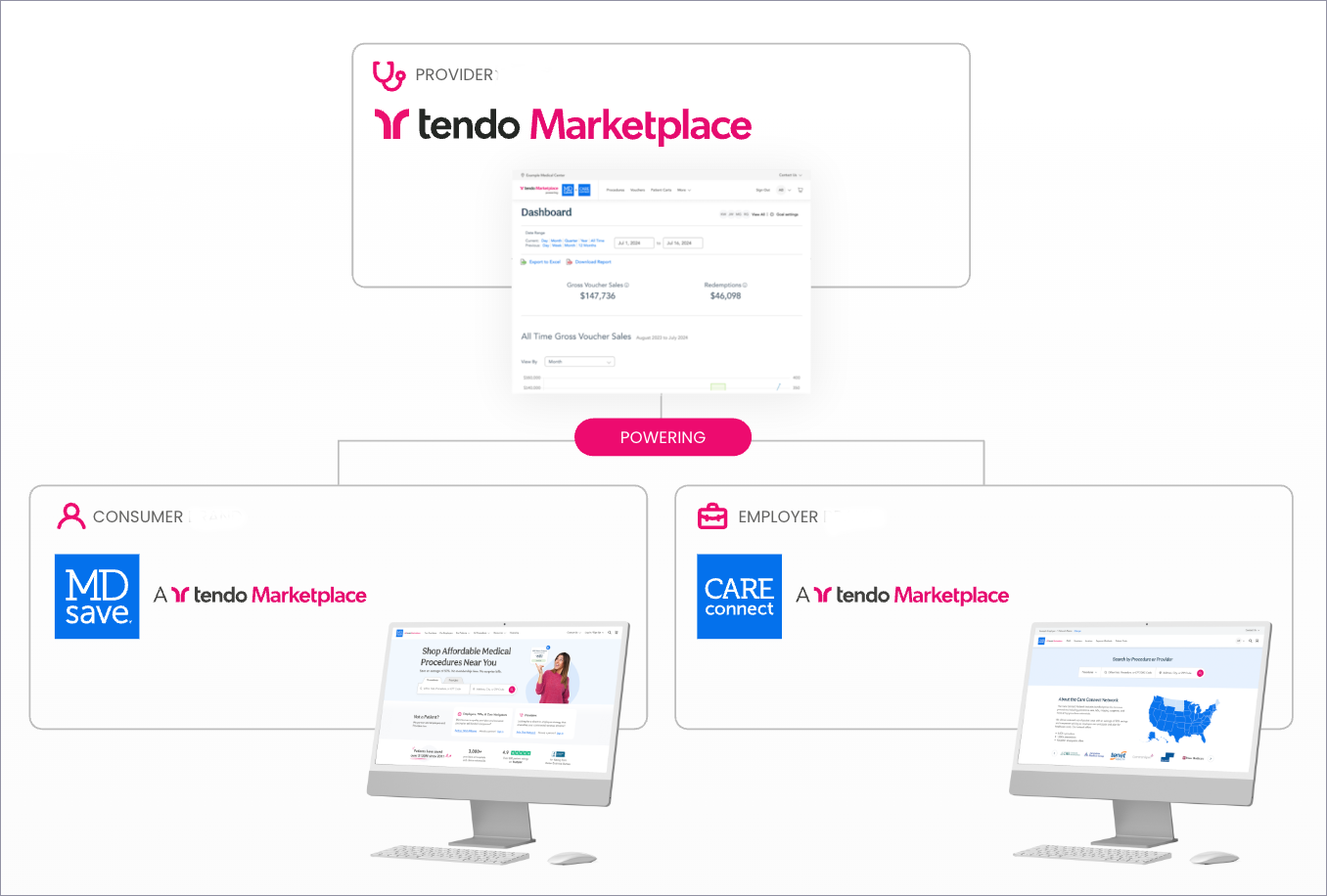
The Tendo Marketplace on MDsave is a nationwide platform that provides high-quality, all-inclusive healthcare bundles at affordable and predictable prices. The Tendo Marketplace powers products for patients, providers, employers, members of self-funded employer health plans, care navigators, and third-party administrators (TPAs). Patients use MDsave to access the network, while members of self-funded employer health plans, care navigators, and TPAs utilize Care Connect, a tailored solution designed for their needs.
MDsave is a direct-to-consumer channel for the Tendo Marketplace. It is similar to Care Connect but is targeted to and optimized for a consumer experience. Your Care Connect patients will encounter the MDsave brand through their shared cart purchase journey. They will see it referenced in their voucher literature and may hear it mentioned by the provider’s staff when they redeem their voucher. Assure them that their Care Connect voucher is good wherever MDsave vouchers are accepted.
Patients redeem both Care Connect and MDsave vouchers the same way at their appointments. Tell them that if they encounter any confusion, they should use the name MDsave, and the provider’s staff will assist them. Providers are familiar with MDsave, but some may not yet have heard of Care Connect as it is relatively new.
Transactional materials including the vouchers themselves have both Care Connect and MDsave branding to help patients and providers understand their relationship. Contact our general support team for more information.
There can be a difference between estimated prices on Care Connect and mdsave.com. This is because the estimated prices on Care Connect are intended to show typical payments by commercial insurance providers for a procedure. The estimates on mdsave.com incorporate self- and cash-pay prices in addition to contracted commercial rates in order to reflect typical payments by cash-pay consumers purchasing a procedure.
If you have questions or feedback about any specific prices displayed, please let us know.