
Shopping For and Purchasing Procedures
Your main task as a care navigator using Care Connect is to shop for prescribed medical procedures that patients need. You will add these procedures to shopping carts that your company and/or the patient recipients can use to purchase vouchers for the procedures.
After purchasing a voucher, either you or the patient can schedule an appointment for their procedure following the scheduling instructions provided. The patient then takes the voucher to the appointment. After the procedure has been performed, the provider will redeem the voucher.
To shop for an employee who needs a procedure, you can search for procedures or providers on the main page.
IN THIS ARTICLE
Finding a Procedure
You can search for procedures in the following ways:
Free Text
If you are conducting a broad search for a procedure, enter a general term, such as "knee replacement" in the search field. Then enter the city and state in the field to the right. Click the search icon to the right.
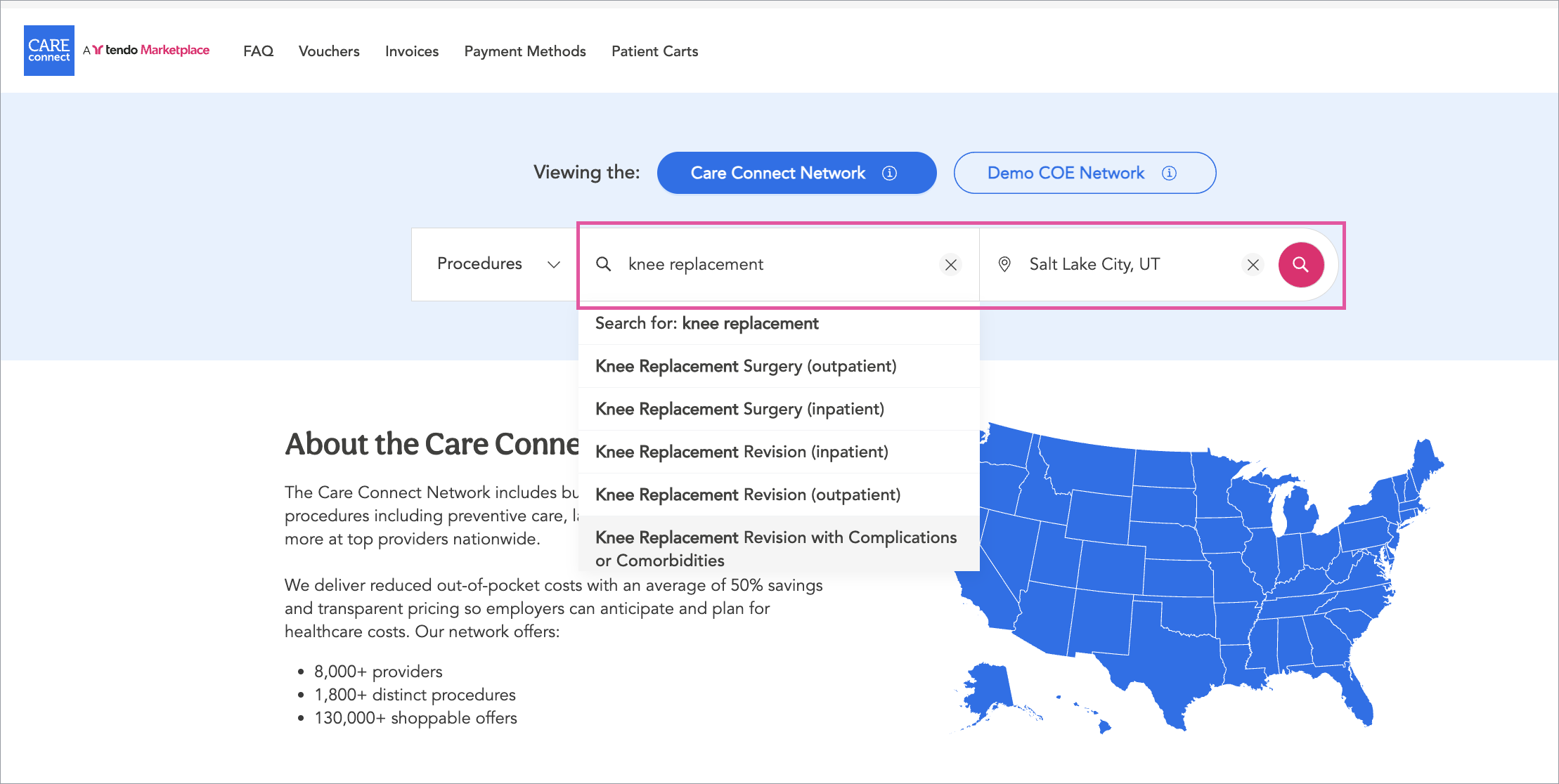
A list of procedures will appear, with a filter panel on the left so that you can narrow your search. Click the checkboxes that apply to the procedure you're looking for.
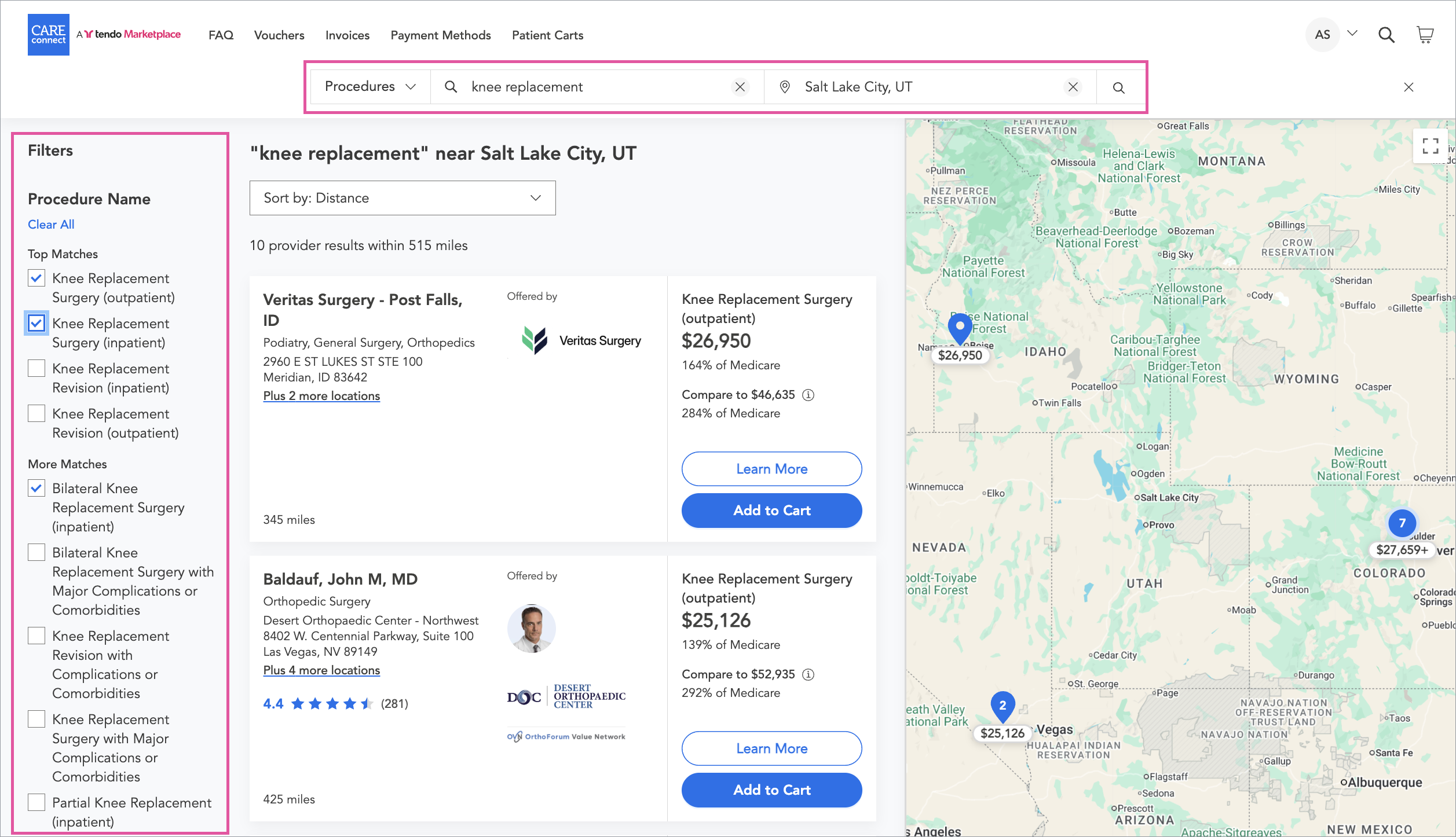
Searching by Procedure
If you know the exact type of procedure that is needed but need to comparison shop for a specific provider to perform it, select Procedures on the first filter to the left on the search bar.
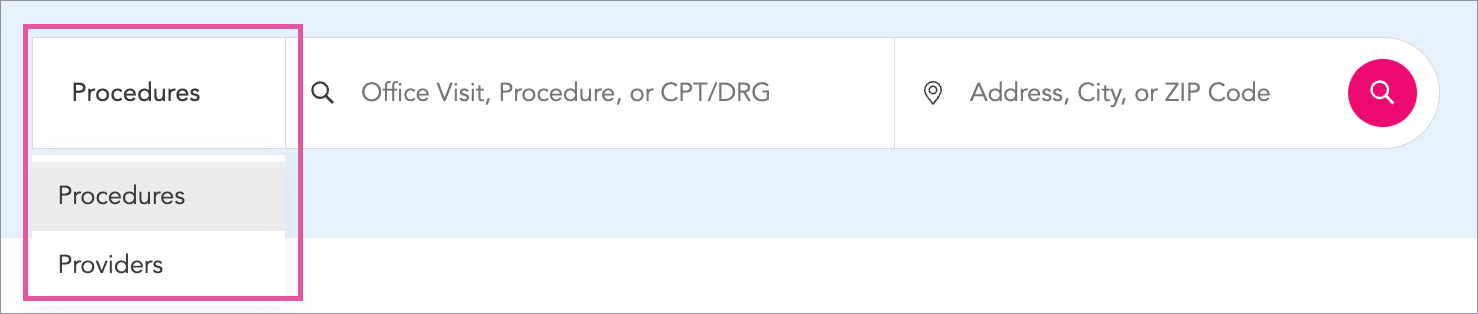
In the center field, input the prescribed procedure. You may need to choose from several different types of procedures. Again on the right, input the city or zip code near which the employee wants to have the procedure. Click the search icon on the right. You will be taken to a detailed list of procedures.
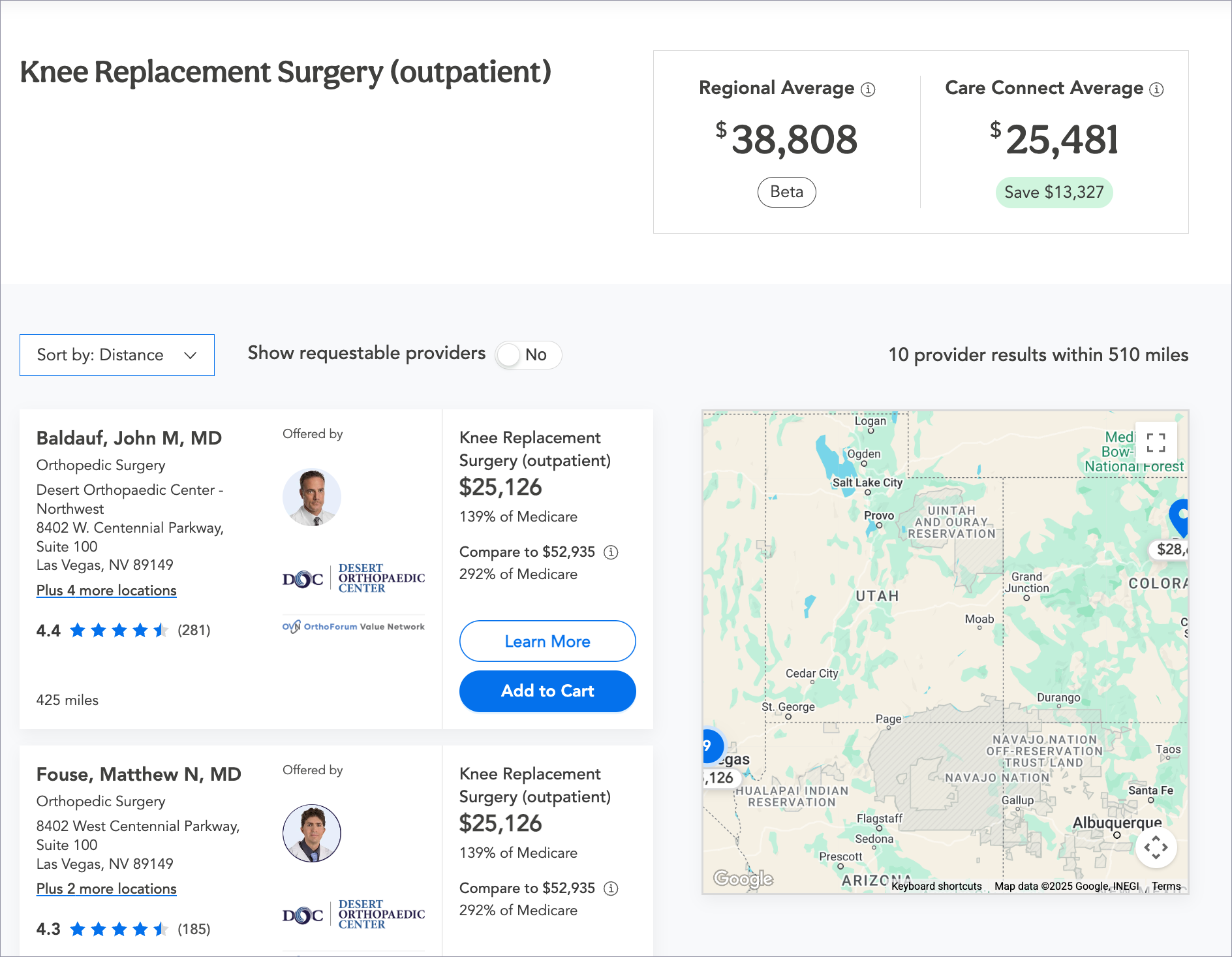
At the top of the page, you will see a comparison between the Regional Average cost of this procedure based on the location entered and the Care Connect average cost for the providers in the search results set. For more information about the data behind these costs, see Estimated Costs and Savings.
You can sort the list of providers by Distance, Price, Alphabetic order, Patient Rating, or Tendo Quality rating, depending on your company settings and the availability of the ratings in the results. You can toggle Show requestable providers on or off to include or exclude providers who don't offer the specific procedure you searched for, but who may be willing to offer it.
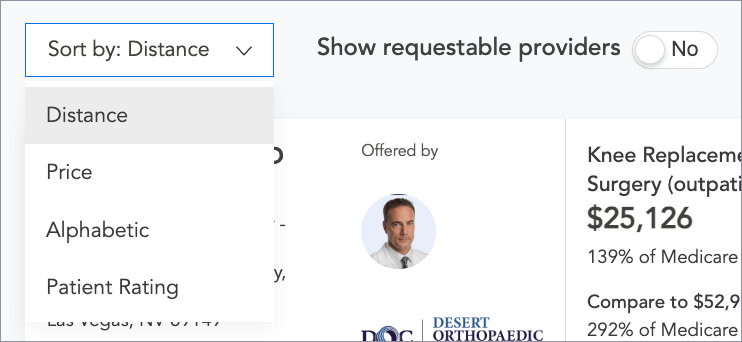
When the option is on, click the Request button on a provider's card to submit a request for the procedure. Tendo will follow up with the provider.
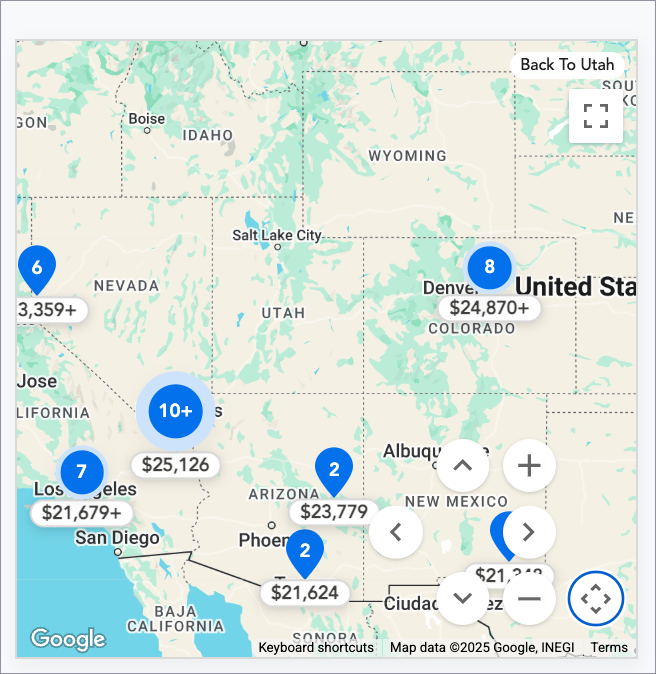
You also can use the interactive map to see where providers who perform the selected procedure are located so you can select a provider near the patient.
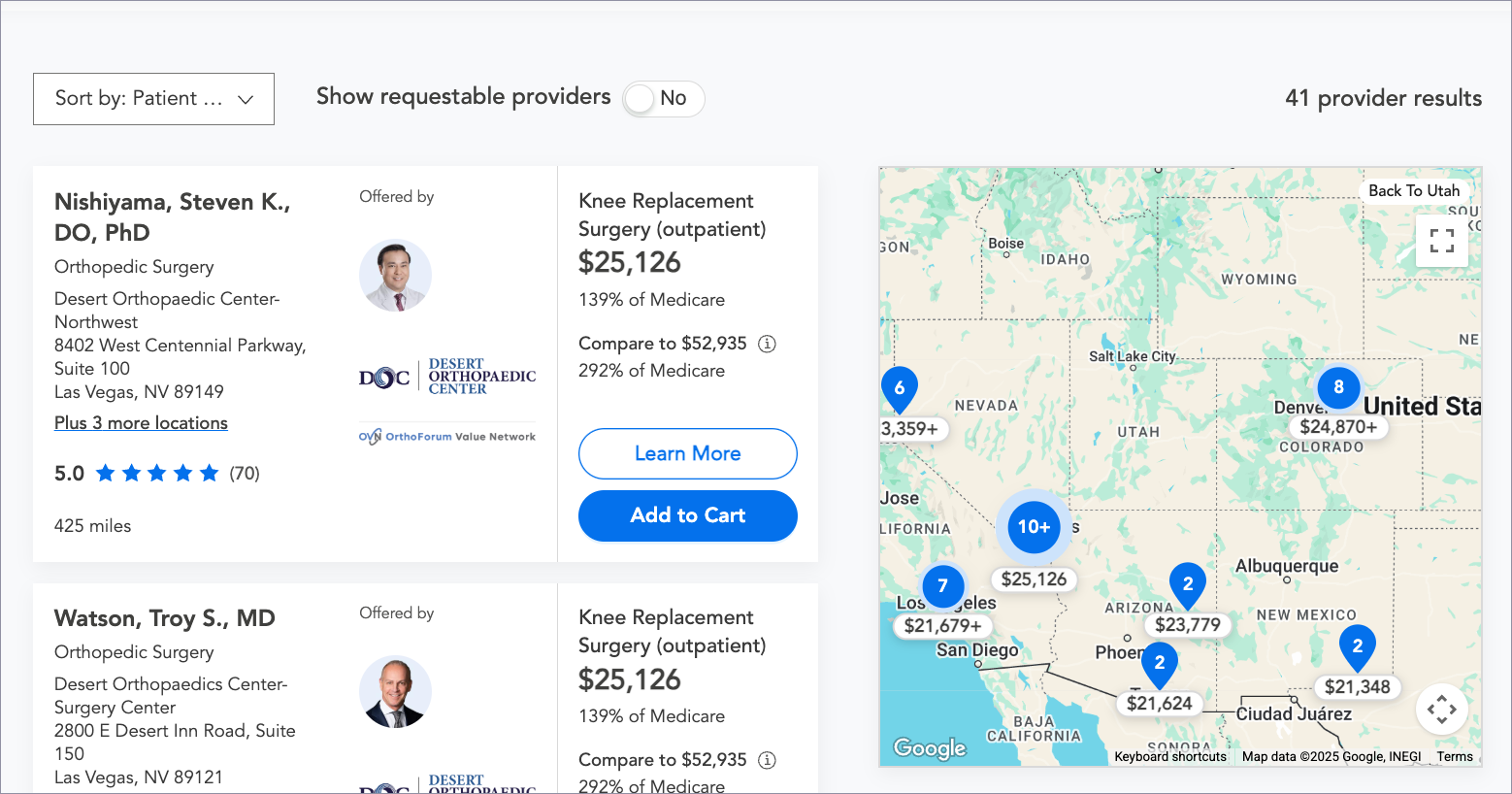
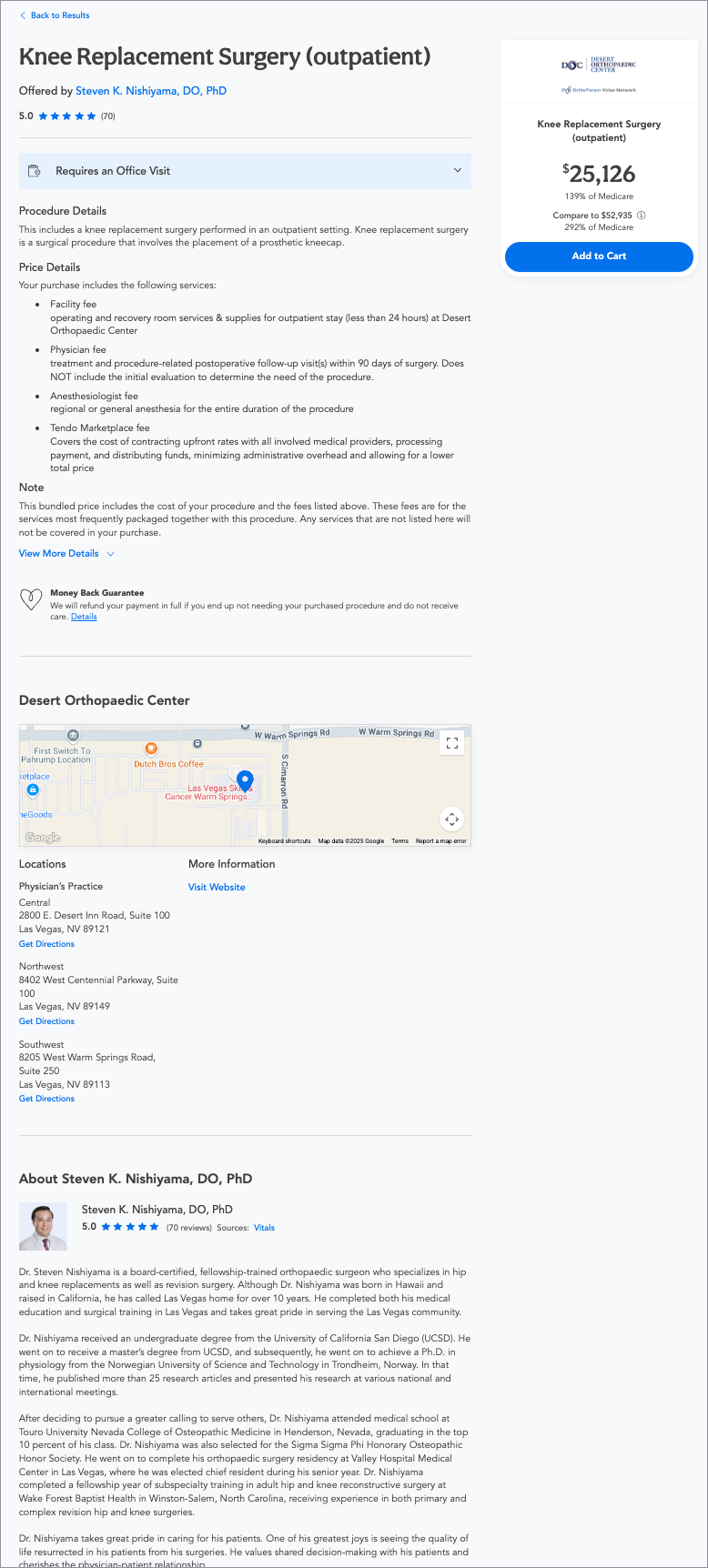
To find out more about a physician, click their name or the Learn More button. This will take you to a page that describes the provider's offer in detail including:
- The specific services included in this procedure
- A link that expands open a section describing what will happen if the procedure results in additional services with additional costs
- Information about locations where the physician operates, linked to directions and their website when available
- A biography of the physician with links to patient ratings for them, when available.
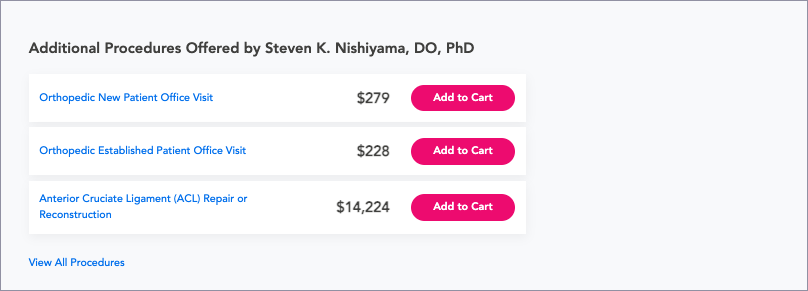
A list of the other top procedures this physician performs, each with its own Add to Cart button, will display. Below it is a link to a list of all of the procedures that the physician performs.
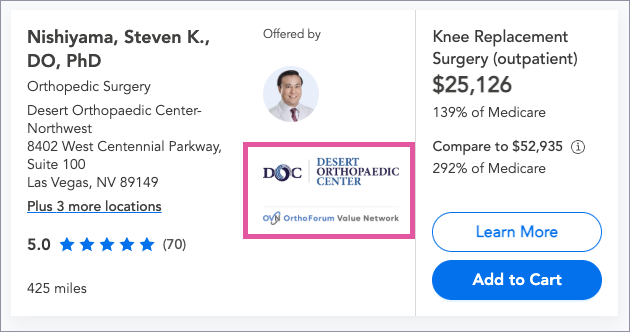
To learn more about the facility where the procedure will be performed, click the logo for the health organization where the provider works.
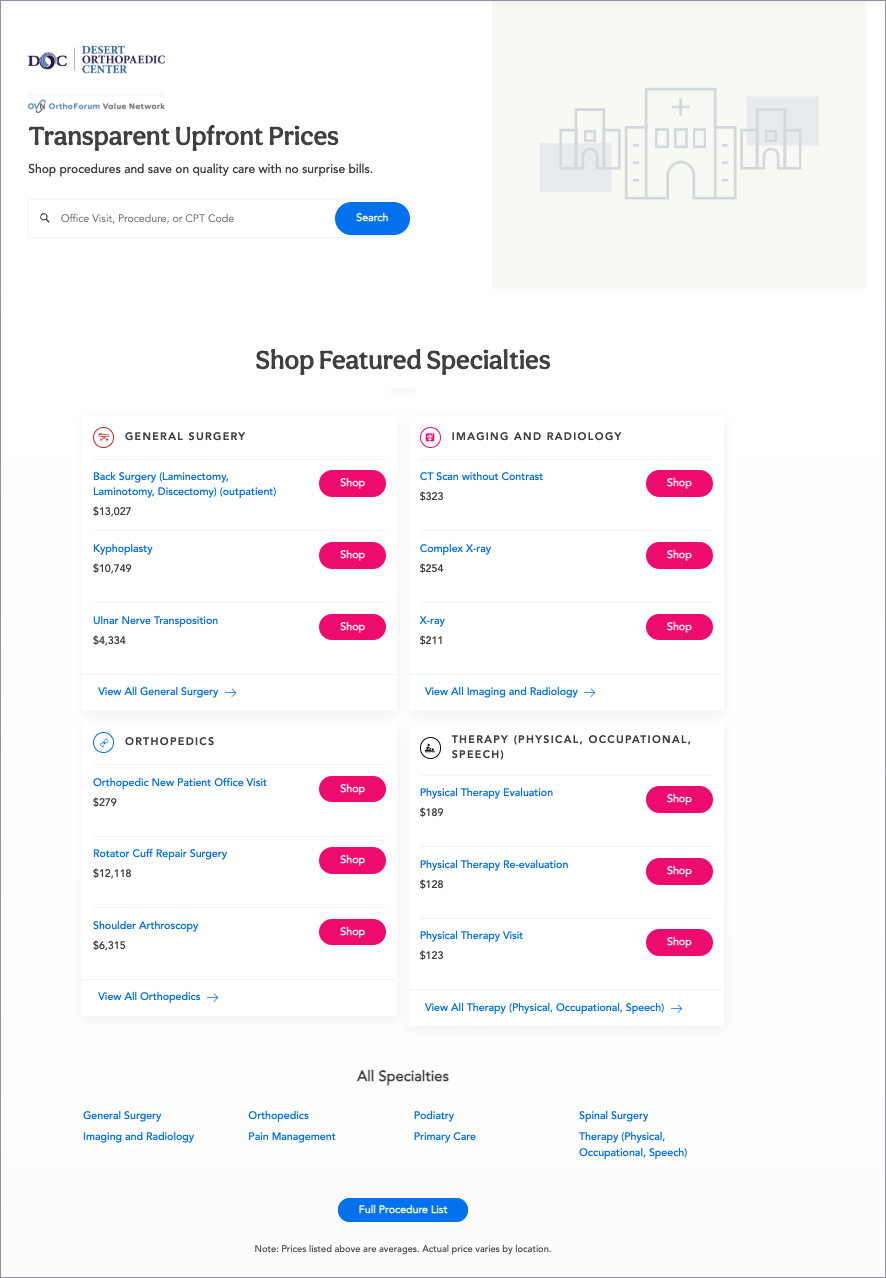
This page provides detailed information about the organization, its specialties and services, locations, and all of its providers.
Searching By Provider
If you know the provider who will be performing the procedure, you can search by provider on the home page by clicking the filter on the search bar and choosing Providers, entering the Provider’s name, then clicking the search icon.

This will bring up a list of the top procedures that this physician performs, with a Add to Cart link for each.
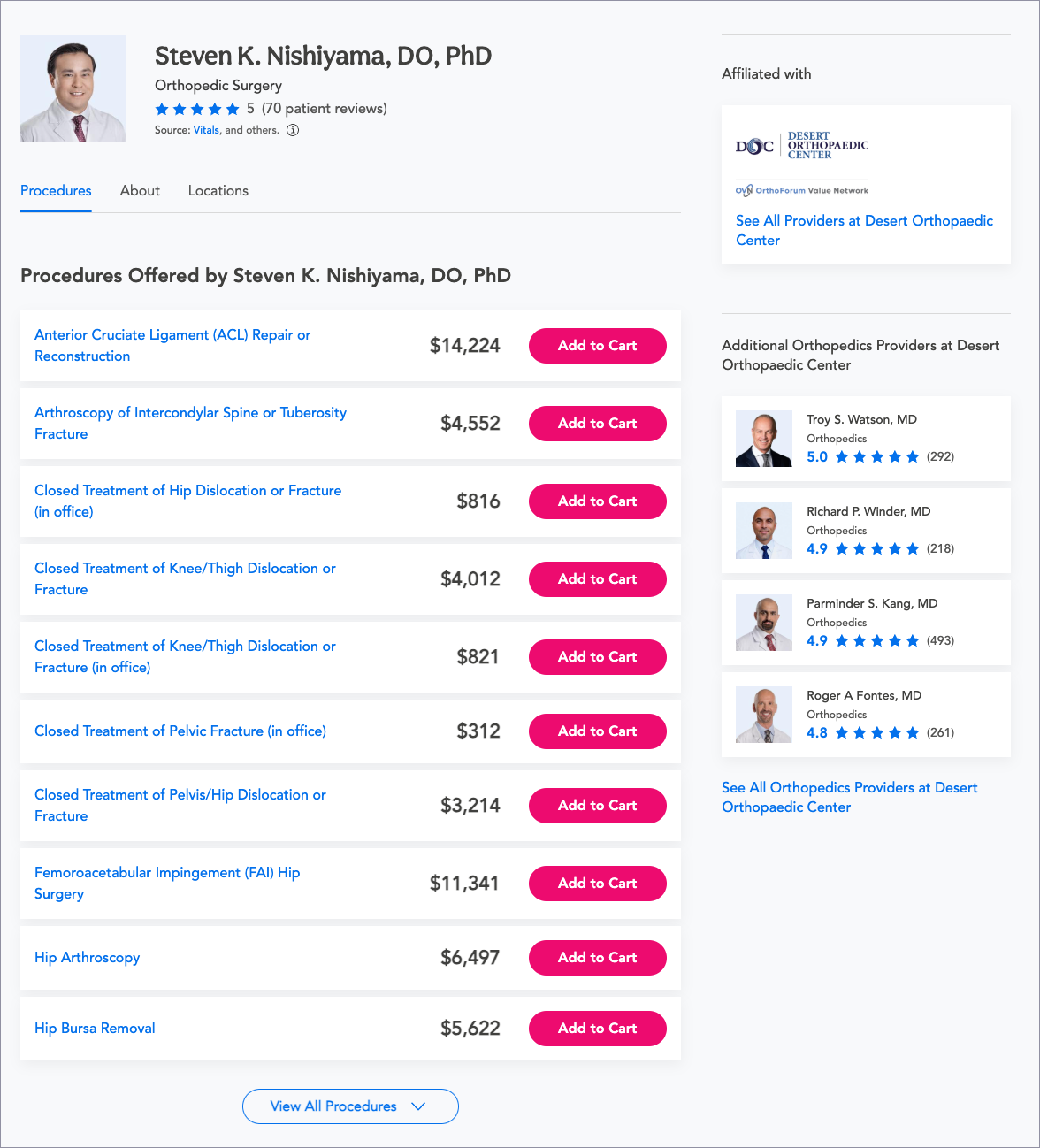
This page includes tabs at the top - the About tab contains the physician’s biography, and the Locations tab has information about each location where the physician works.
Search by Order or CPT® Codes
If you have access to the physician's order for the procedure, you can copy and paste the order or the CPT® codes for the procedure into the search field, choose location, and click the Search icon. The system will locate the procedure.
Add to Cart
To add a procedure to your shopping cart click its Add to Cart button. The procedure will display in the shopping cart in the upper right corner.
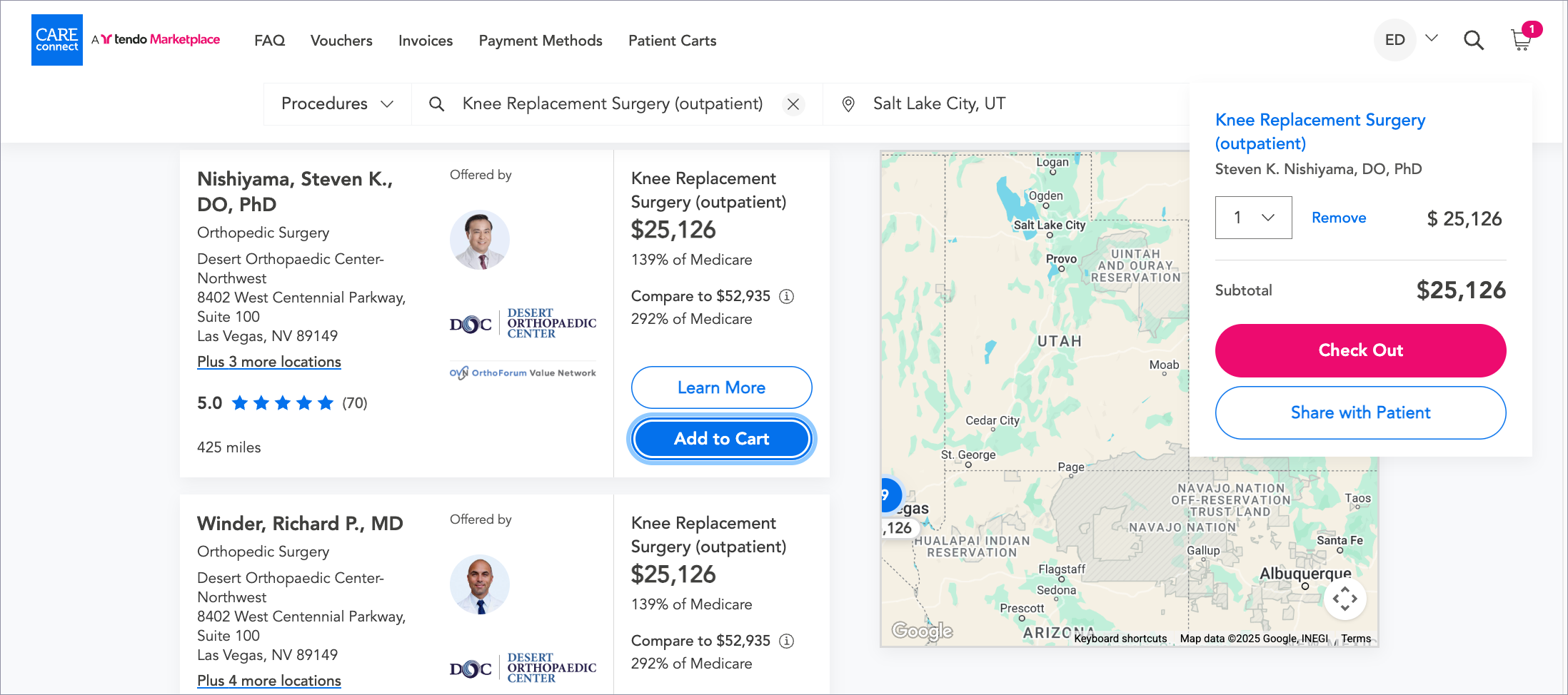
You can click the name of the procedure to see what is included in it or remove the item if you want to.
Checkout
To check out, click Checkout to see the Order Summary. This is where you connect the procedure to the patient.
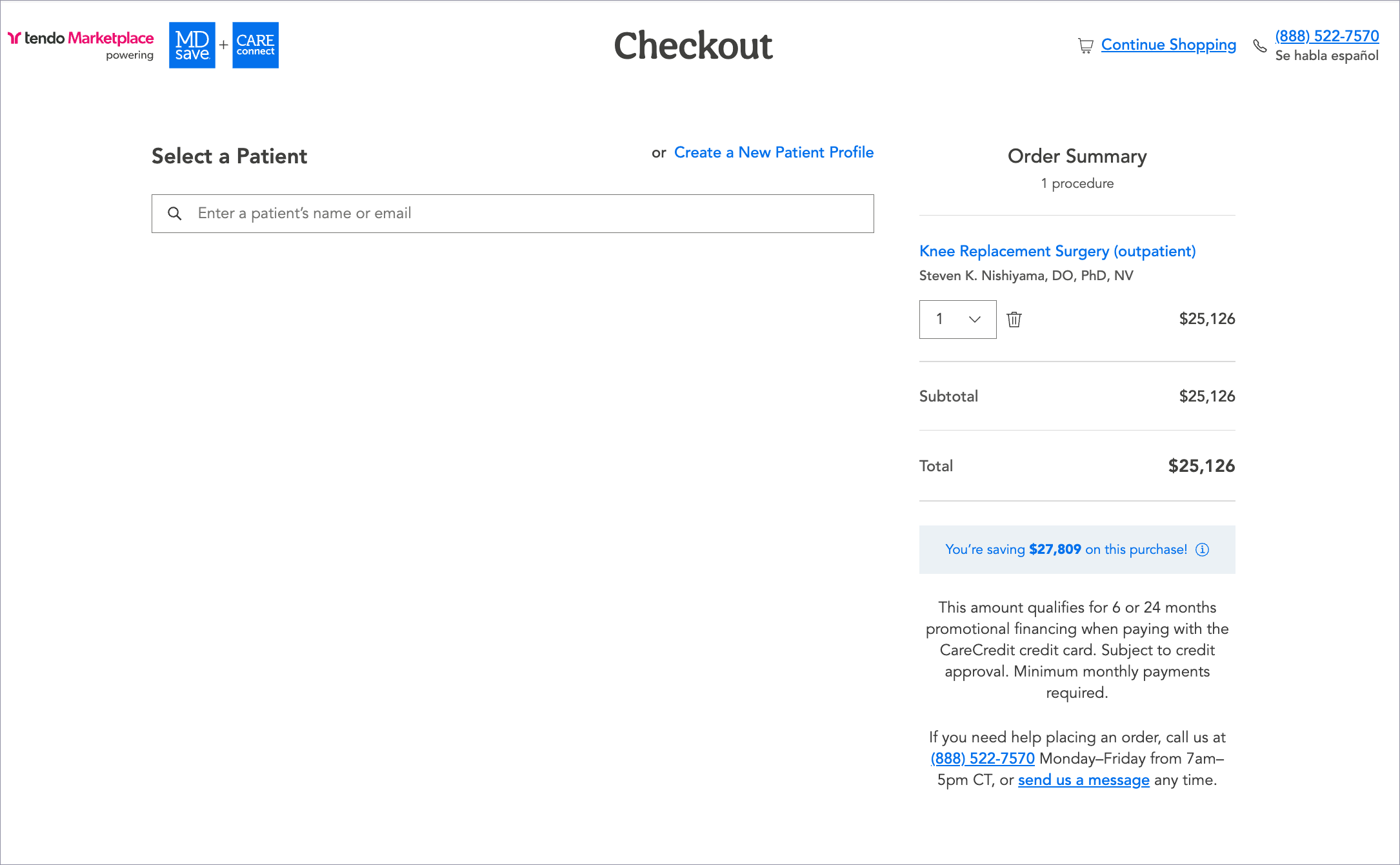
A patient may exist in the Care Connect system if a voucher was previously purchased for them. If so, you can search for the patient by name or email address. If not, click Create a new patient profile, and enter the patient’s information into the form that appears.
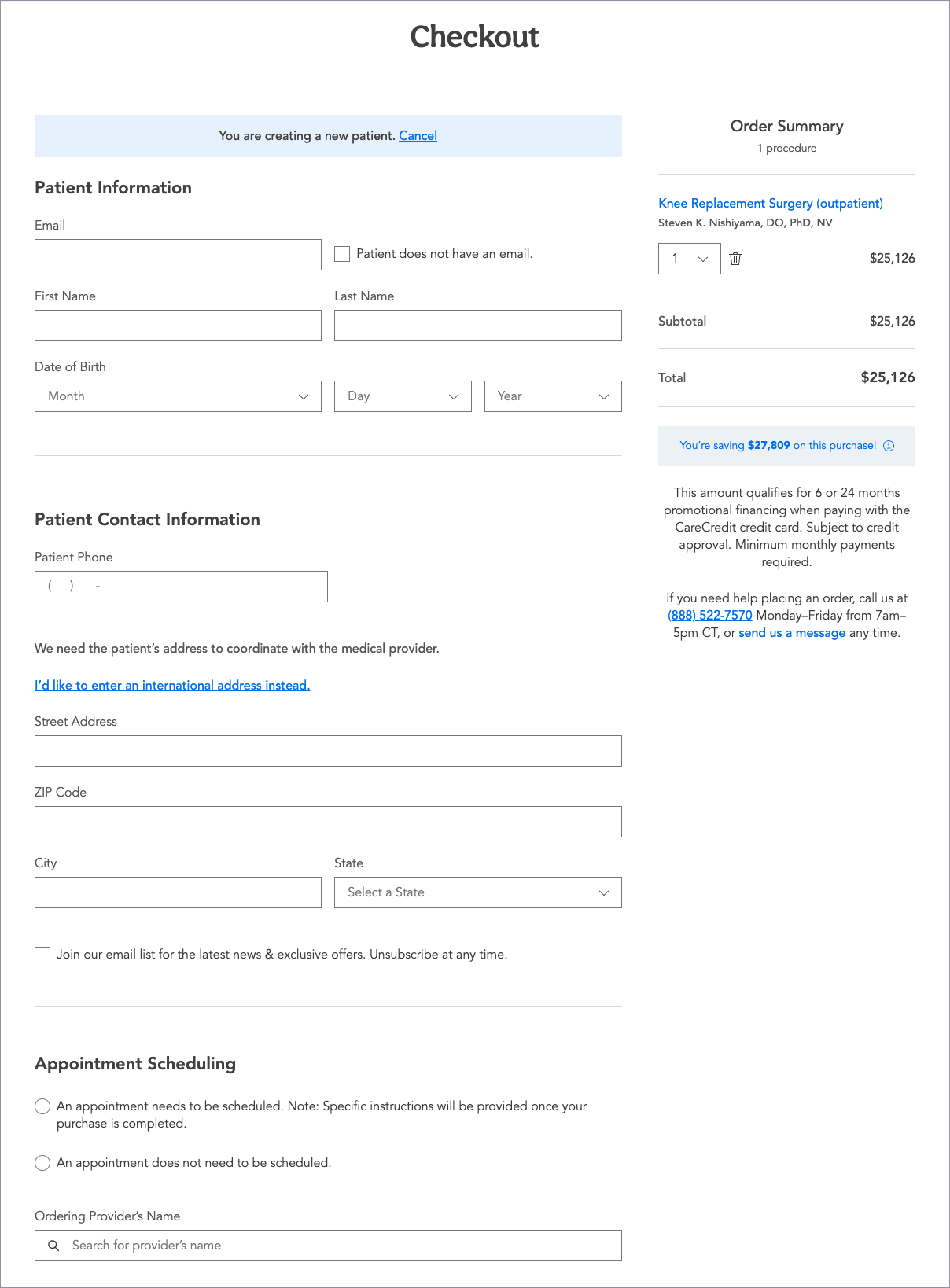
Check whether an appointment needs to be scheduled. If so, instructions to do so outside of Care Connect will be provided when the purchase is complete.
Specify the name of the provider who ordered the procedure.
Check the circle next to the payment method for the procedure.
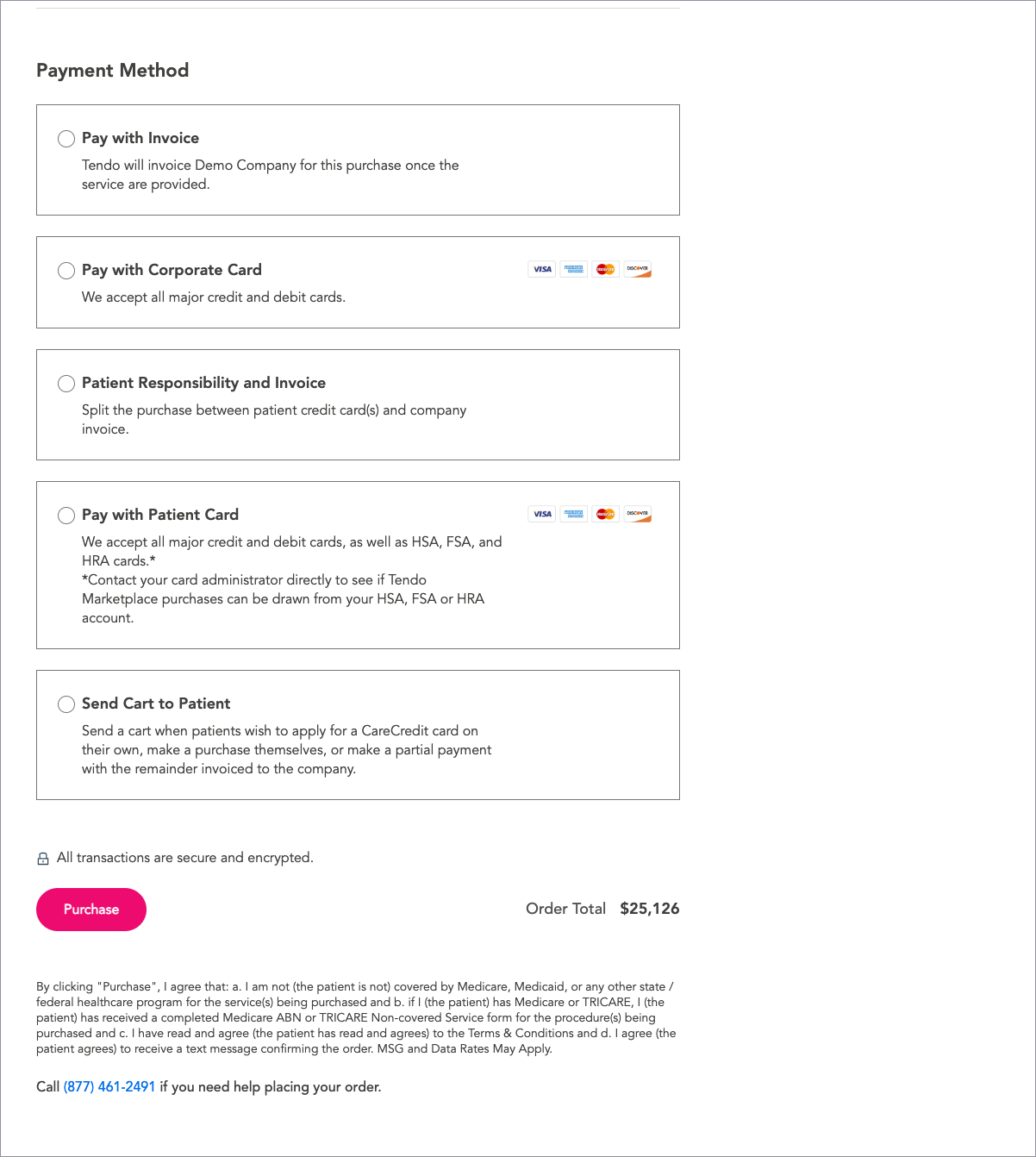
The payment options you will see depend on the settings for the company you are logged in under. Options include:
- Pay with invoice - The company will pay for the procedure, and will be invoiced for it by Care Connect after the procedure is completed.
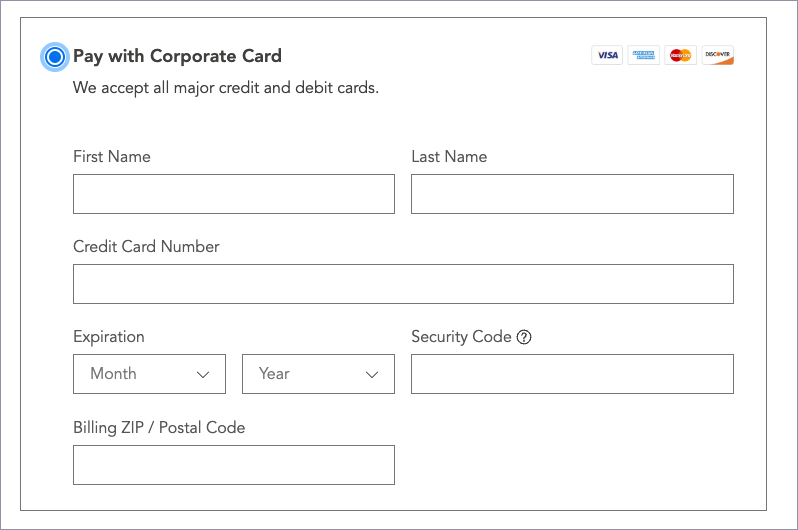
- Pay with Corporate Card - The company will pay for the procedure using a corporate credit card. You can add the card information in the form that expands open when you check this option.
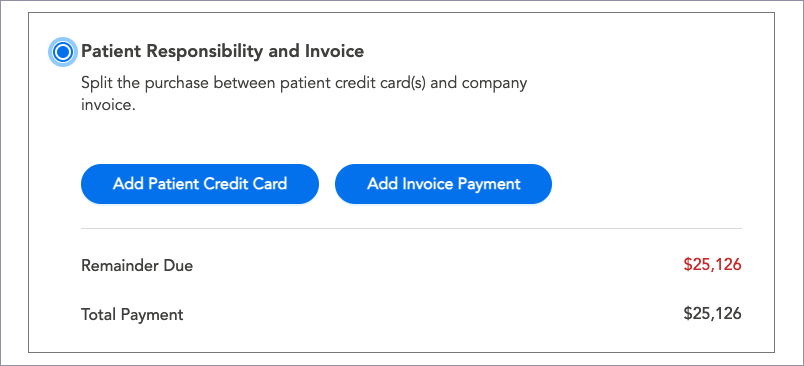
- Patient Responsibility and Invoice - The patient will pay for part of the procedure using their credit card or credit cards, and the company will pay the remainder by invoice after the procedure is complete.
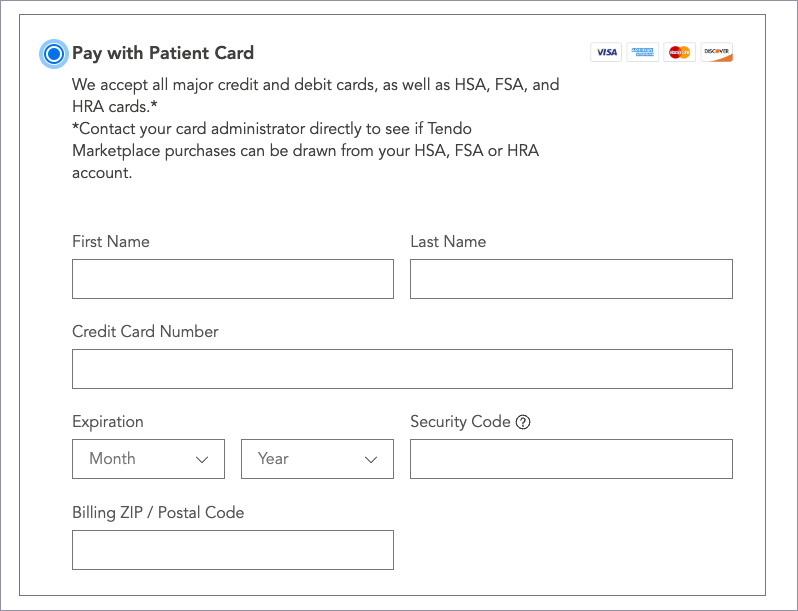
- Pay with Patient Card - The patient will pay the entire cost by credit card. You will enter the patient’s credit card information in the form that expands open when you click this option.
- Send Cart to Patient - Check this option when patients want to purchase the procedure themselves with options to use credit cards, CareCredit, or PayPal or make a partial payment with the rest of the cost invoiced to the company.

Click Purchase.
For the Patient Responsibility and Invoice and Send Cart to Patient options, you will determine the amounts to be paid by the patient and the company based on the patient’s plan and where the patient is on their deductible. You may have access to non-Care Connect sources to determine this.
Care Connect offers companies an option to use our deductible checker on Checkout so that you can enter the patient’s plan information and look up the deductible amounts for supported payer plans before sharing a cart or splitting a payment between the company and the patient. If the Deductible Checker tab doesn't display at the top of the page and your company would like to use it, talk with your account manager.
Providers Purchasing a Care Connect Voucher for a Patient
If a patient is the employee of a Care Connect Company that has authorized the provider to purchase procedures for them, and Tendo has enabled this option in the provider's Tendo Marketplace portal, the provider can purchase the procedure. Tendo will invoice the company and pay the provider.
For more information about this option, see Purchasing a Care Connect Voucher for a Patient in the provider User Guide.
If a company has not authorized the provider to purchase procedures for them or a provider has not opted to enable the option to do so in their Tendo Marketplace portal, the provider should work with the patient and Care Connect navigator to purchase the procedure.