
Training Scenario: Purchasing a Voucher
Note: This training is for new users of Tendo Marketplace for Providers. You need a login for mdsave.com to access the sandbox environment used for this training. Our implementation team or account manager adds your facility's users and send invitation emails to users with the login information. Contact Tendo Support at support@tendo.com if you have questions.
Scenario: You are speaking with a patient who has received an order from their doctor for an MRI without contrast. The patient is concerned about whether they can afford the procedure, which they will pay for out of pocket because they have a $4000 insurance deductible.
Step 1
Go to mdsave.com/training-sandbox and log in.
Keep this browser window open for reference while you complete the scenario.
Step 2
- Make sure the Procedures tab at the top of the page is selected.
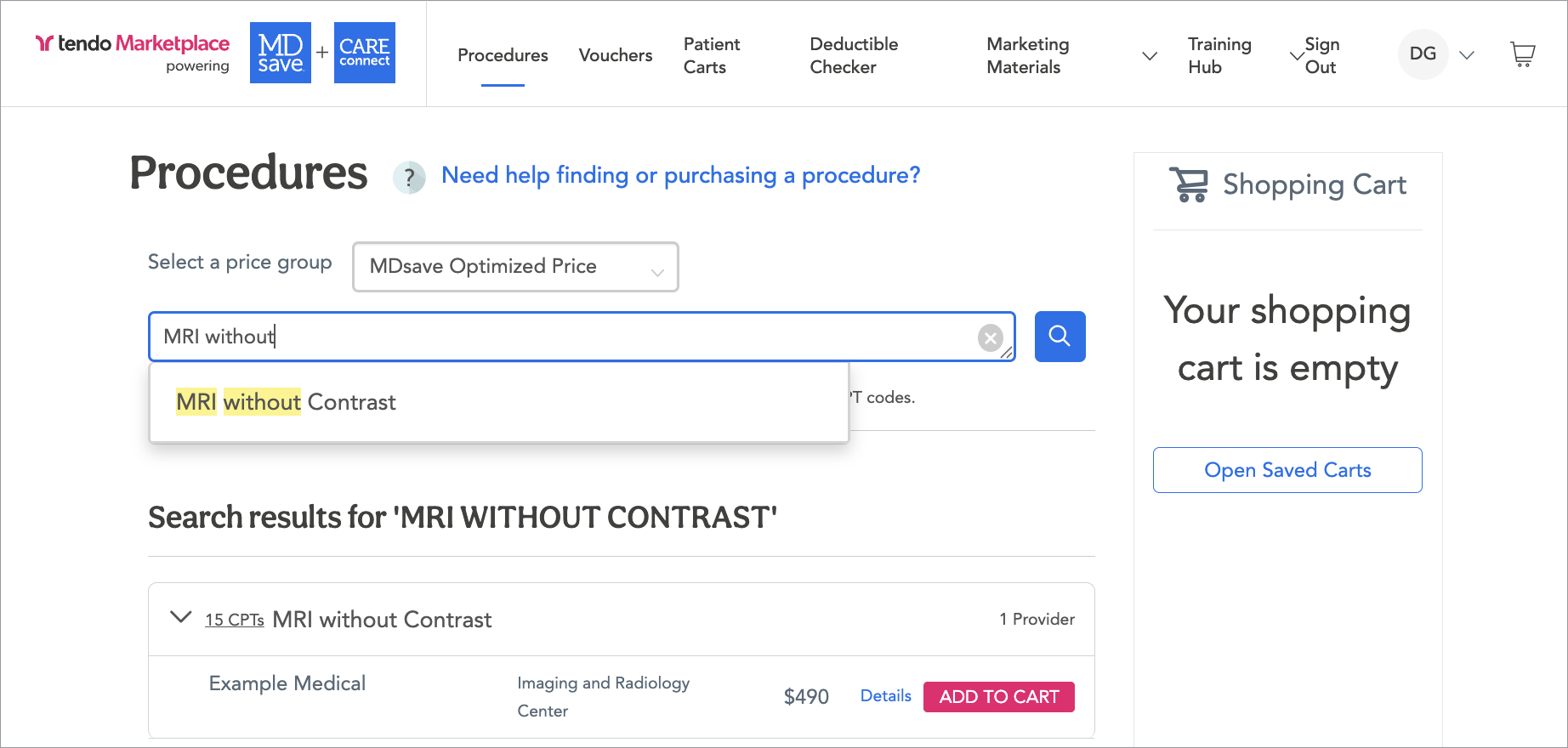
- Search for the procedure either using the CPT® Code (70336) or the procedure name (MRI without Contrast).
Step 3
Let the patient know how much the procedure costs.
Step 4
Click Details to view the procedure and price details so you can tell the patient what is included in the price.
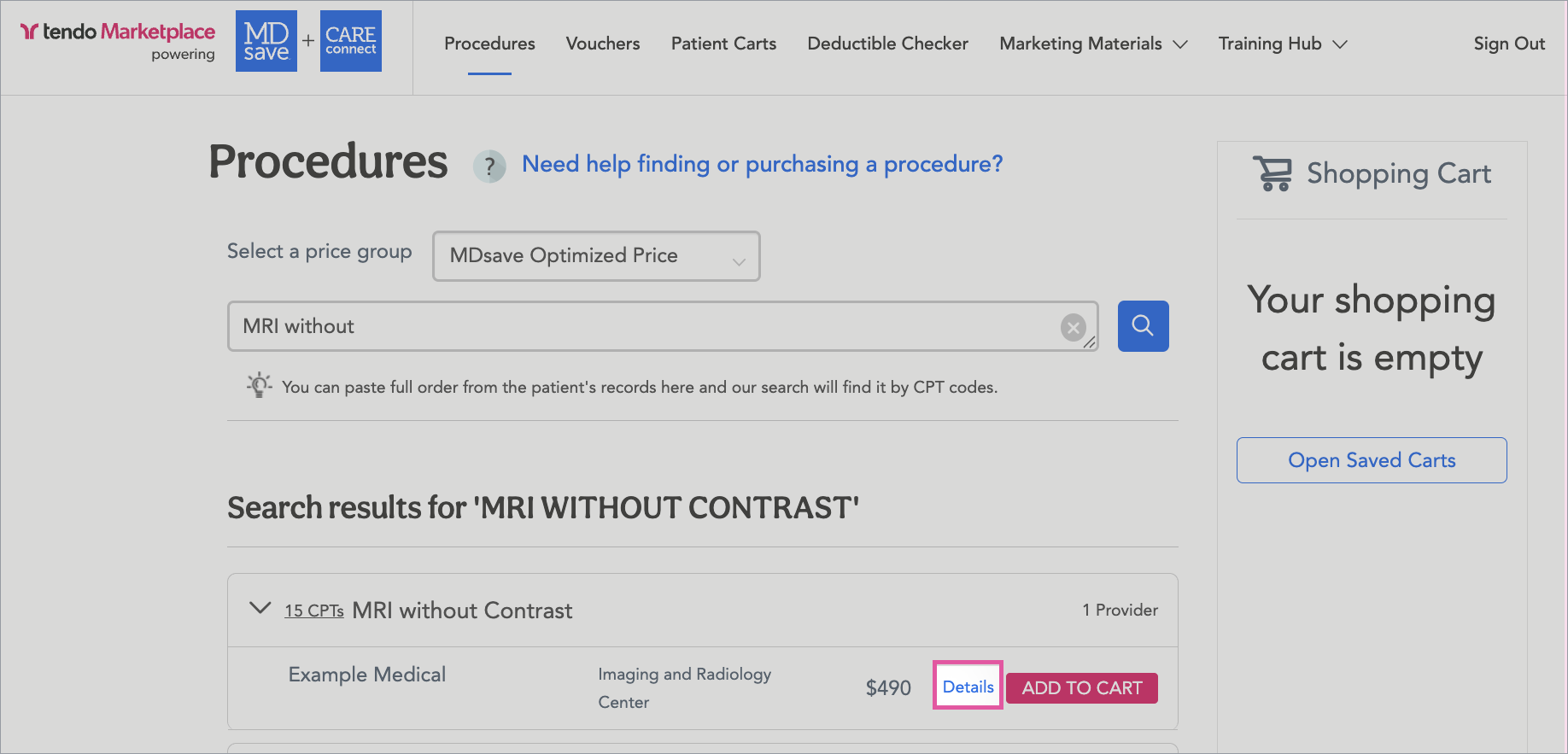
A popup will display on which you can see the details for the procedure bundle.

Step 5
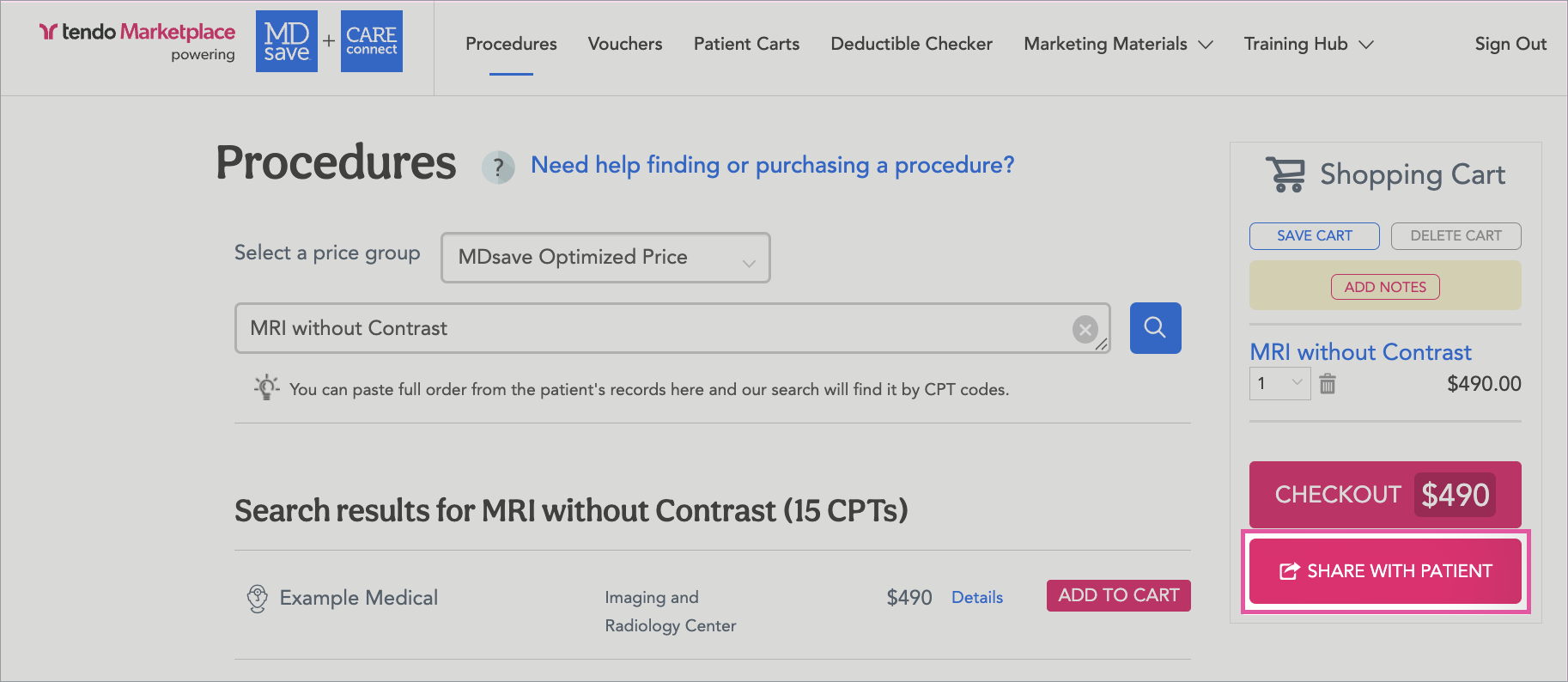
Create a shopping cart for the patient by clicking the ADD TO CART button
Step 6
If the patient is ready to purchase right now, you can select CHECKOUT to assist the patient with the purchase. If you are purchasing for the patient, you would skip to Step 10.
Step 7
If the patient is not ready to purchase right now, you can share the cart with the patient so they can purchase the voucher when they are ready.
Sharing the cart will send a link to the patient’s shopping cart providing them with the price information and the ability to complete the purchase. The link can be sent via email or text, depending on their preferences.
For this exercise, please follow the instructions below.
Click SHARE WITH PATIENT.
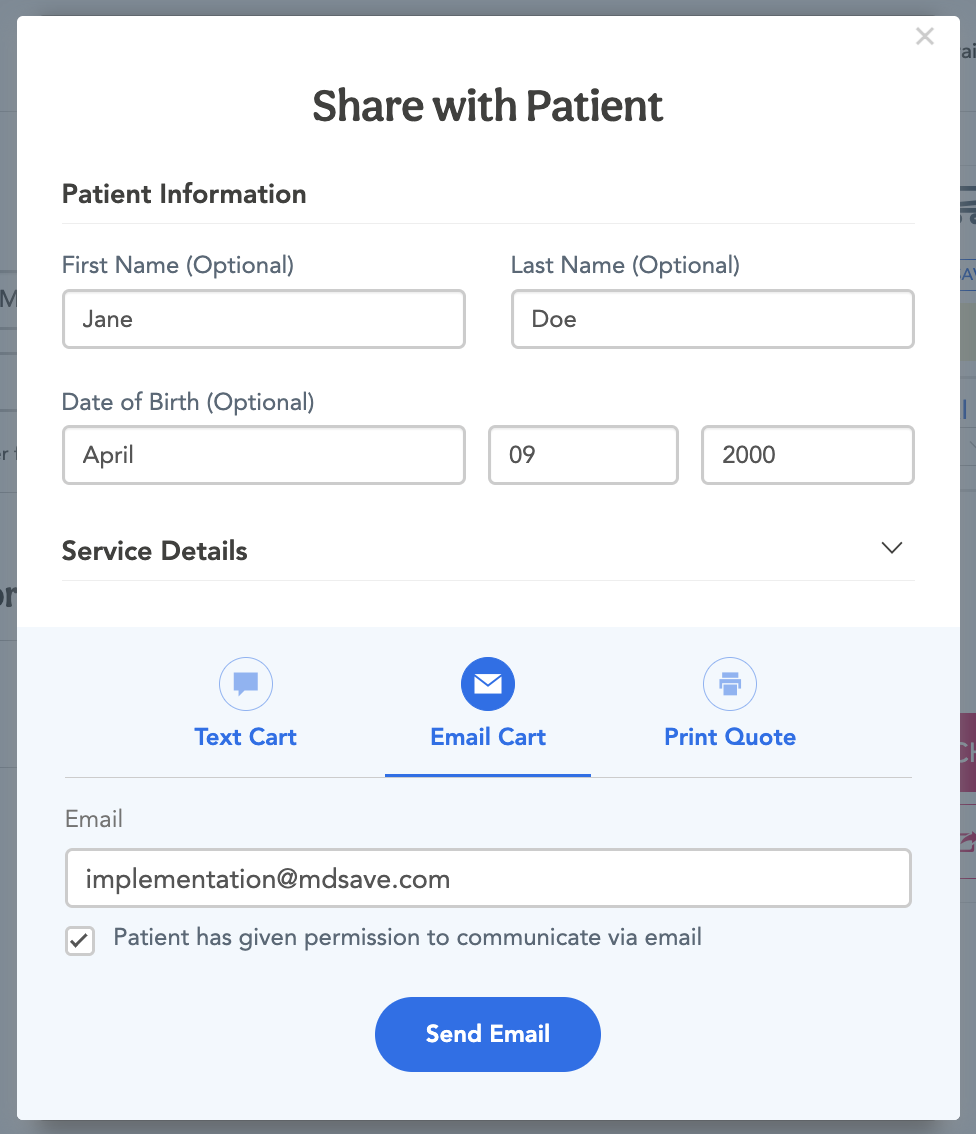
To share the cart with the patient, fill in the following information:
- Patient’s name - For this exercise, use your first and last name.
- Patient’s date of birth - For this exercise, enter any date of birth.
- Select how you are sharing the cart - For this exercise, Email Cart will already be selected by default.
- Enter the patient’s email and confirm that the patient has consented to receiving communication from Tendo Marketplace - For this exercise, enter implementation@mdsave.com.
After filling in the information, click Send Email.
Step 8
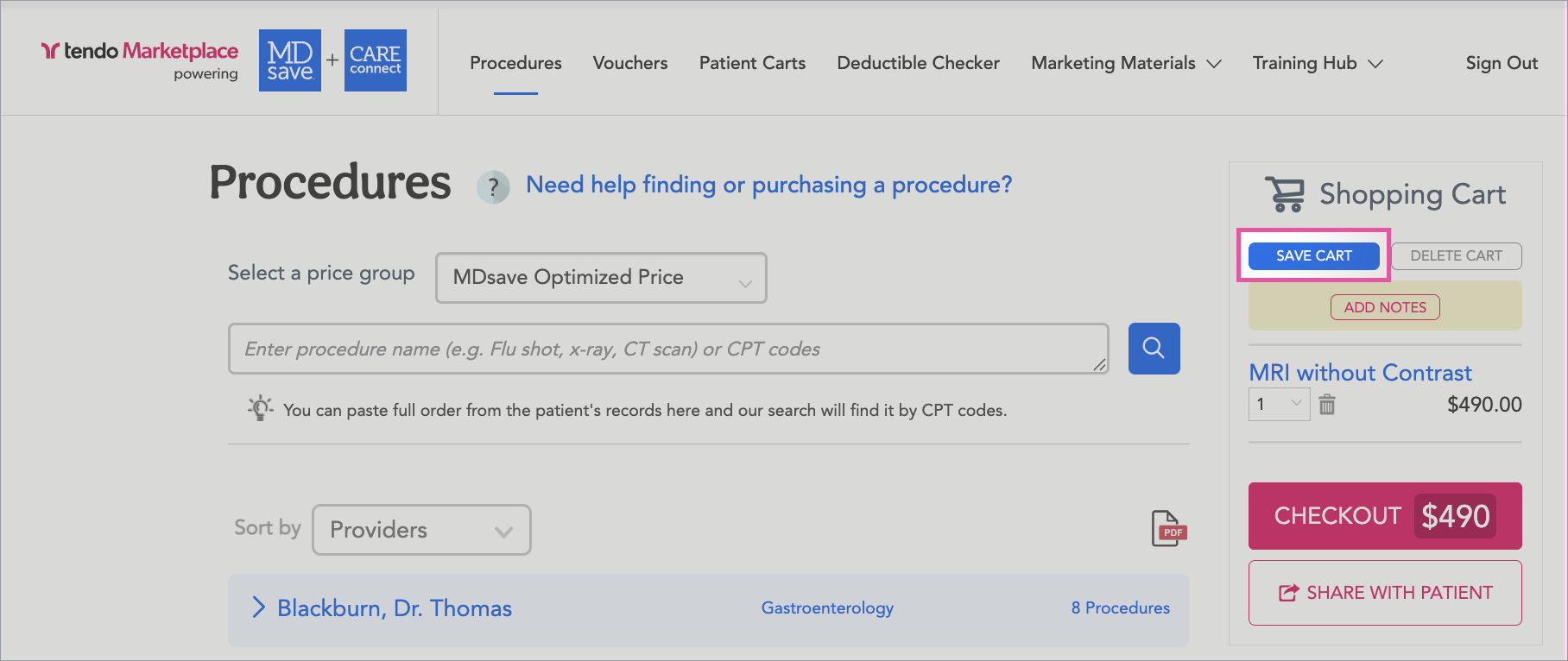
If you ever create a cart for a patient and need to save it to send to them later, click SAVE CART on the shopping cart’s upper left.
Step 9
To view a cart that you previously shared or saved for later:
- Go to the Patient Carts tab at the top of the page.
- In the Search field, search for the patient’s name.
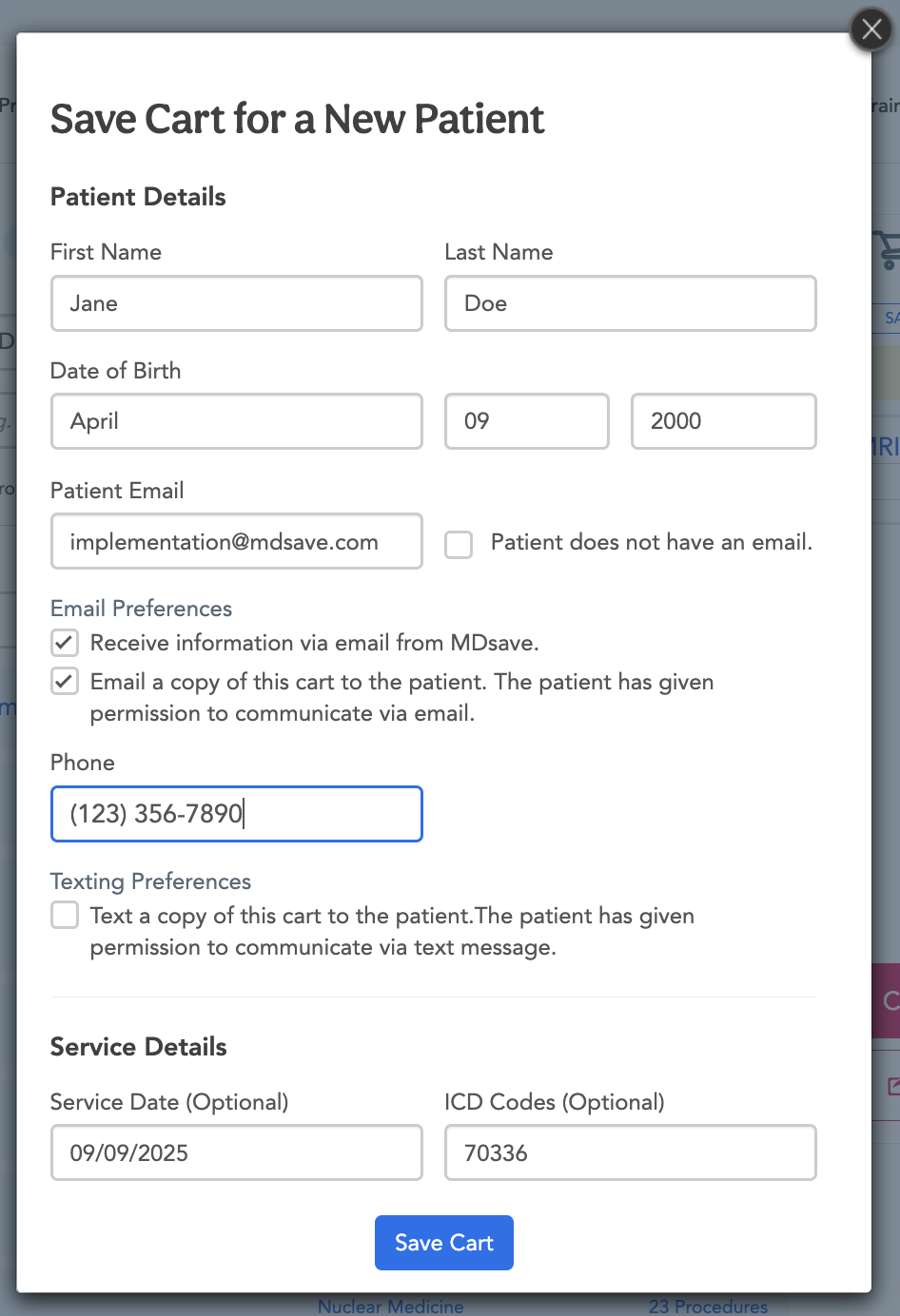
A Save Cart for a Patient popup will display with the option to either enter an existing patient’s name, email or account number, or if the patient is not in the system, Create a New Patient Profile. Click SAVE.
A second popup will display on which you can fill out information about the patient and the procedure. .
Step 10
When a patient is ready to check out, click Check Out either:
- On a shopping cart you just created for a patient
- Or, if you are helping a patient who you previously created and saved a cart for, go to the Patient Carts tab, find the cart, and click Check Out.

Both options will take you to the Checkout page, where you will enter patient, payment, and other information needed for checkout.
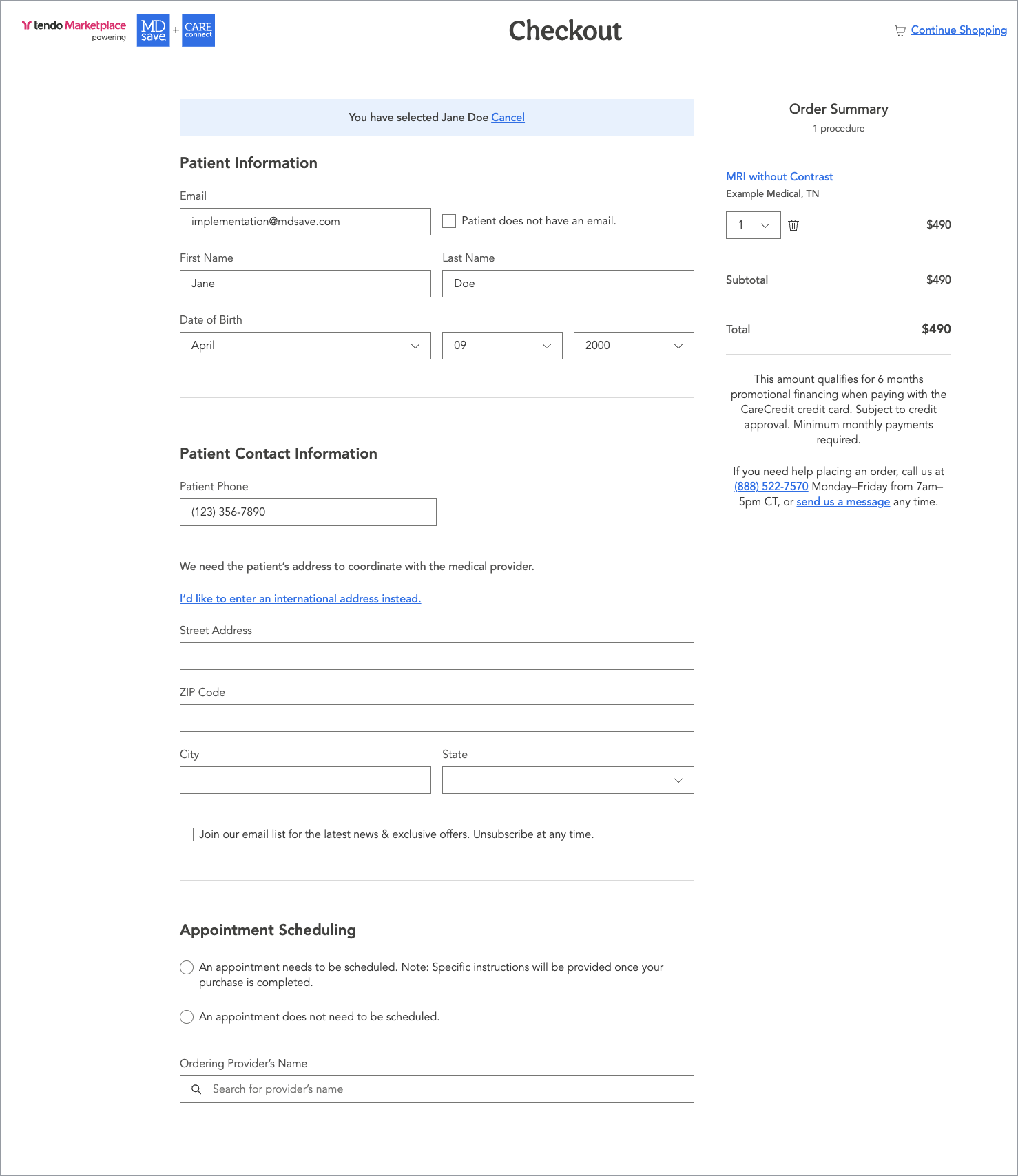
Select whether the patient needs to schedule an appointment. This information will be shared with the facility when the purchase is complete so that they can contact the patient to schedule the appointment.
Add an Ordering Physician’s Name.
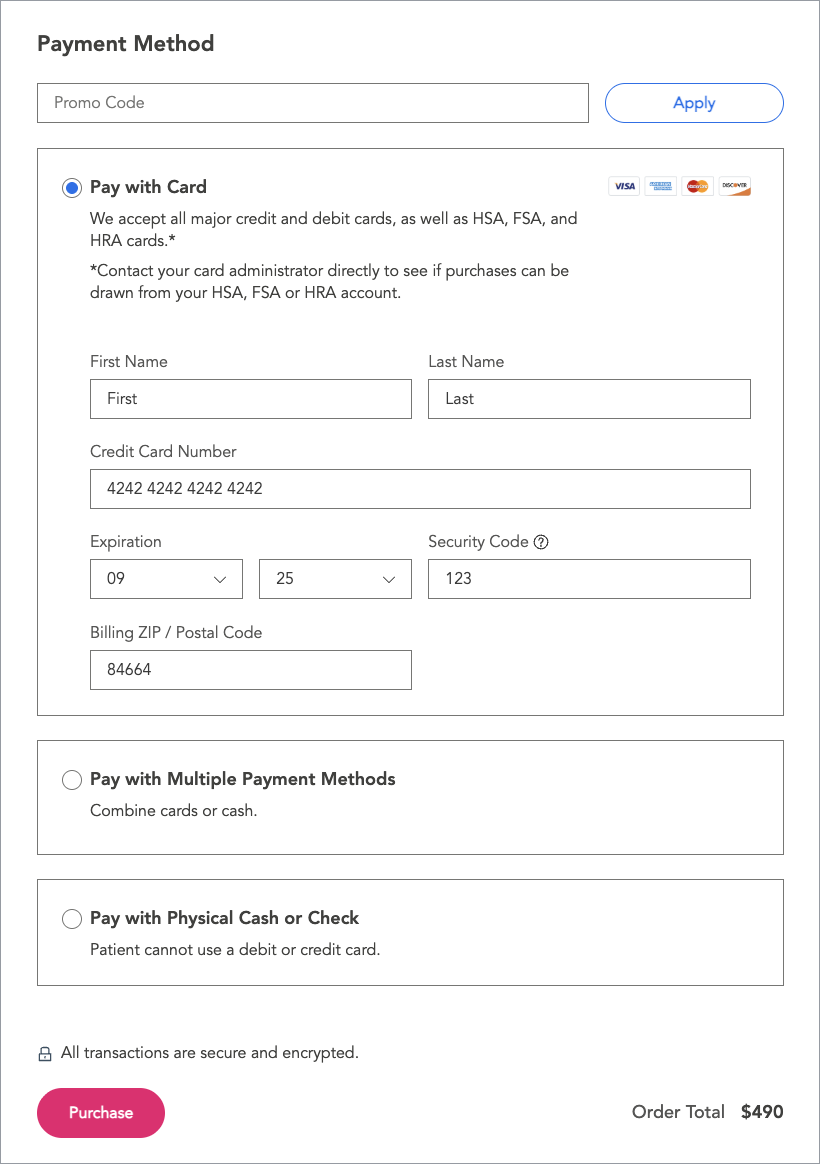
For this exercise, we’ll pay by credit card. Check Pay with Card to enter the patient’s credit card information under the Payment Method section.
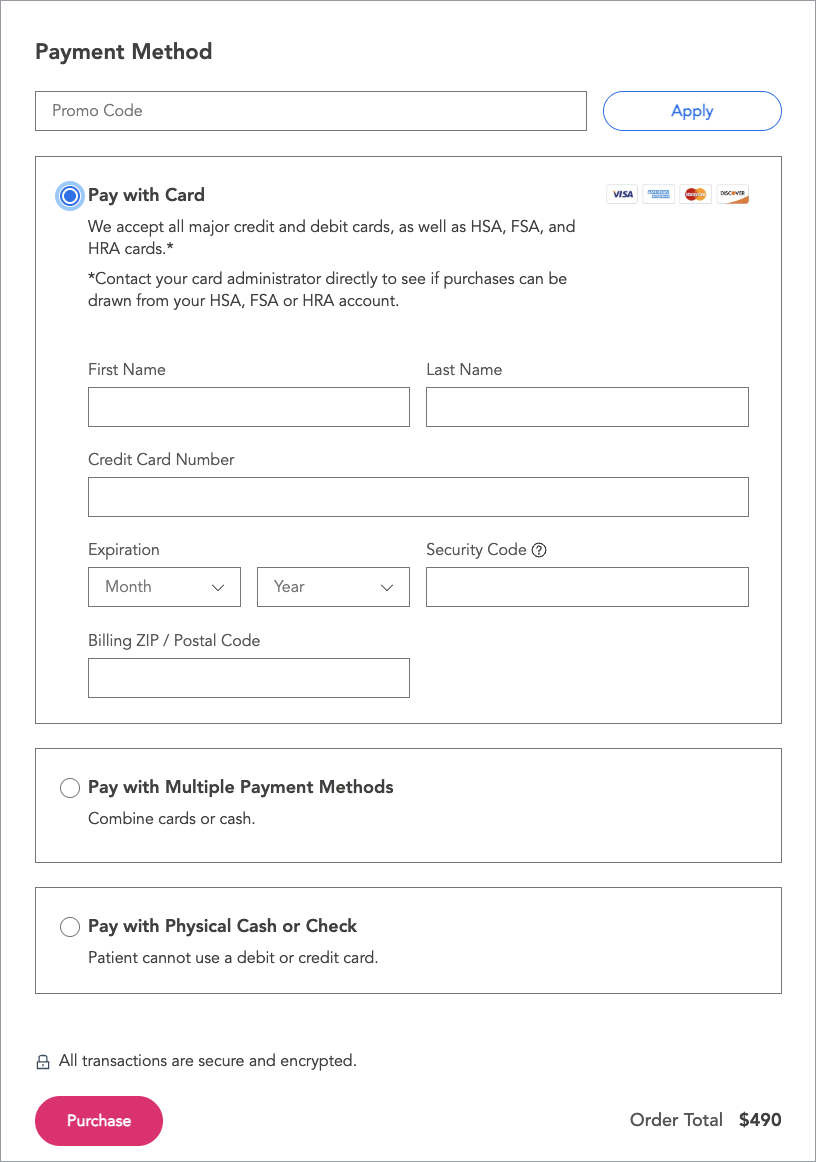
- For this exercise, enter “First” as the First Name, “Last” as the Last Name, the credit card number “4242 4242 4242 4242”, the current month and year as the expiration date, “123” for the security code, and your ZIP code.
- Select No for Would you like to save time by redeeming any vouchers now?
- When you’ve completed all of the required information, the Purchase button will be enabled. Click Purchase to complete the checkout process.
Step 12
Upon clicking Purchase, you will be directed to the Order Confirmed! page, where you can Print or Download the voucher PDF.

Conclusion
Congratulations! You have successfully completed a sample purchase for the patient, and they have a voucher that they can use immediately.
Food for Thought
When was the last time you had a patient who could have benefited from using Tendo Marketplace? Did they move forward with their care or would this process have helped them move forward today?
If your company manually redeems vouchers, move on now to Training Scenario: Redeeming a Voucher, which you also will do in the sandbox environment. If your company files automated claims with Tendo, you don't need to redeem vouchers and can skip that training.
When you've completed the sandbox exercises, you're ready to start working with real patients in your Tendo Marketplace account. Log out of this demo environment, and then log in again to go to your account. Check in the upper left corner to make sure you are in your facility's portal, not the Example Medical environment.
Any question? Email Tendo Support or call 844-256-7696.