
For Administrators
As a hospital administrator, you have access to all of the Tendo Marketplace features that a front desk or registration user does, as well as the following features:
IN THIS ARTICLE
Dashboard
When you log into Tendo Marketplace, you will see a Dashboard tab with charts that display information about your voucher sales.
Global Filters and Settings
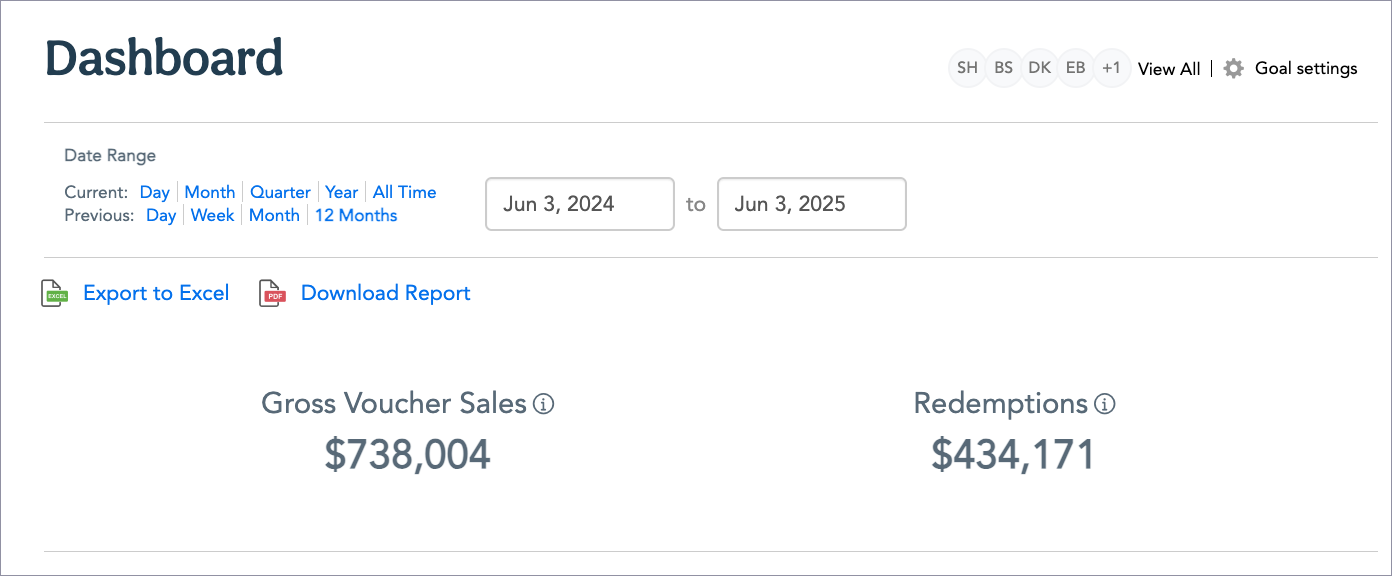
At the top of the dashboard, you can:
- Filter the data that populates the charts by date range.
- View users on the top right.
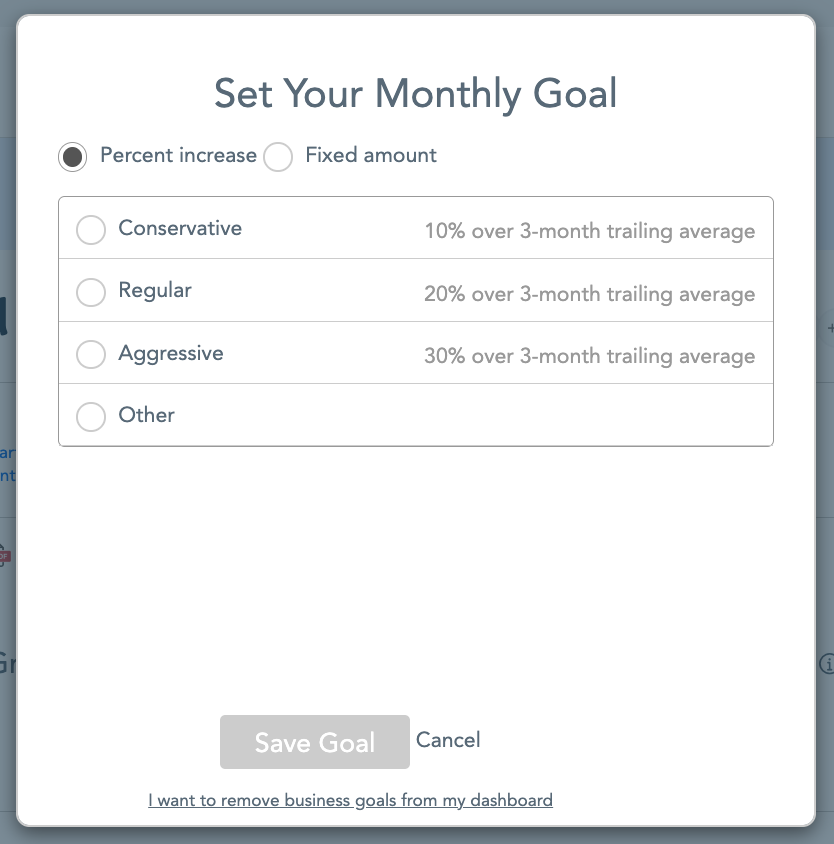
- Click Goal Settings on the top right to set voucher sales goals. You can choose the goal you want to set on the popup screen that appears after you indicate that you want to set a goal. Click Save Goal.
- Export the dashboard data to Excel or Download a report that includes both the dashboard charts and the data that populates them.
- View your Gross Voucher Sales and Redemptions numbers.
Charts
All Time Gross Voucher Sales
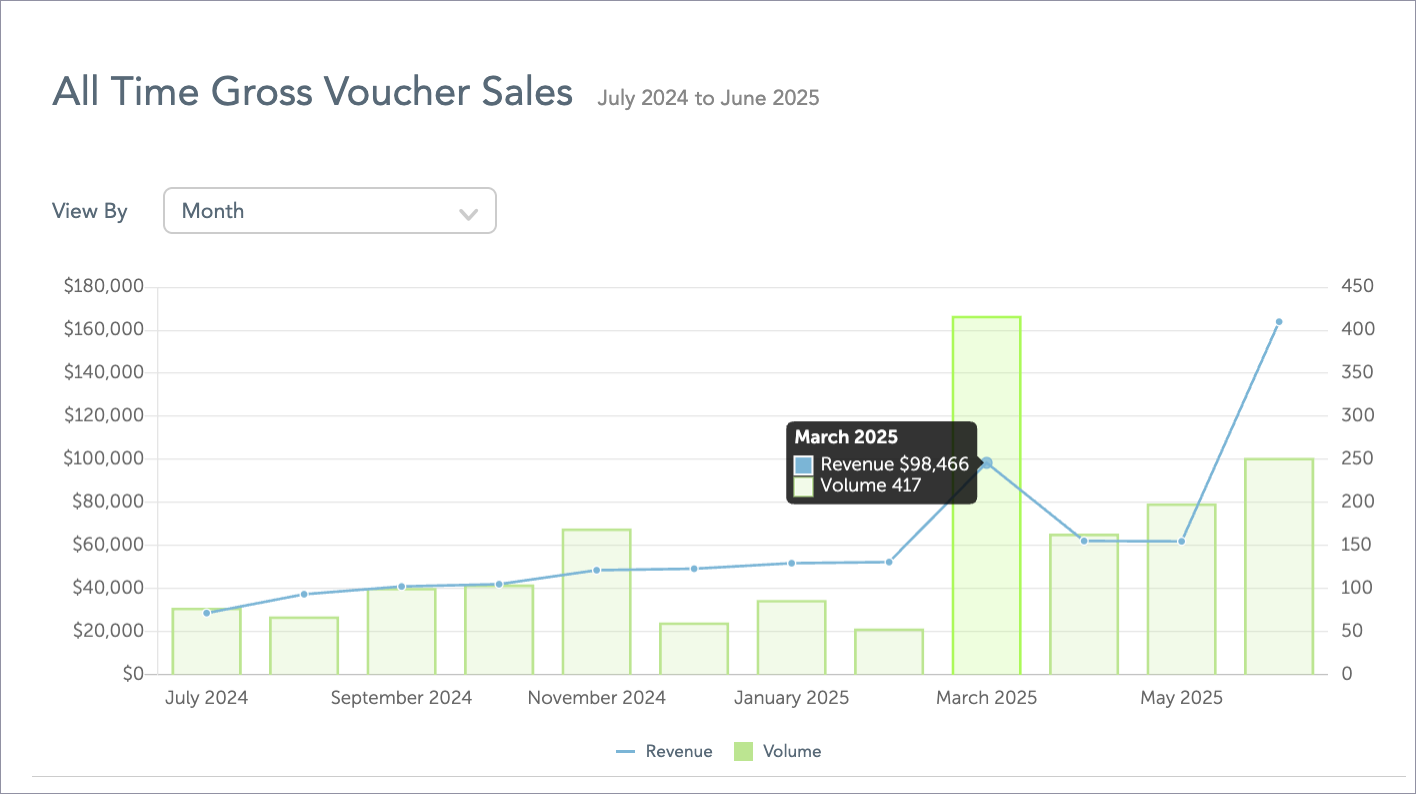
This Gross Voucher Sales chart combines a bar chart and a trendline so you can see the trend over time in voucher sales as well as hovering over each month’s or quarter’s bar to see revenue and volume for that month or quarter. Switch between month and quarter on the View by dropdown in the top left corner of the chart.
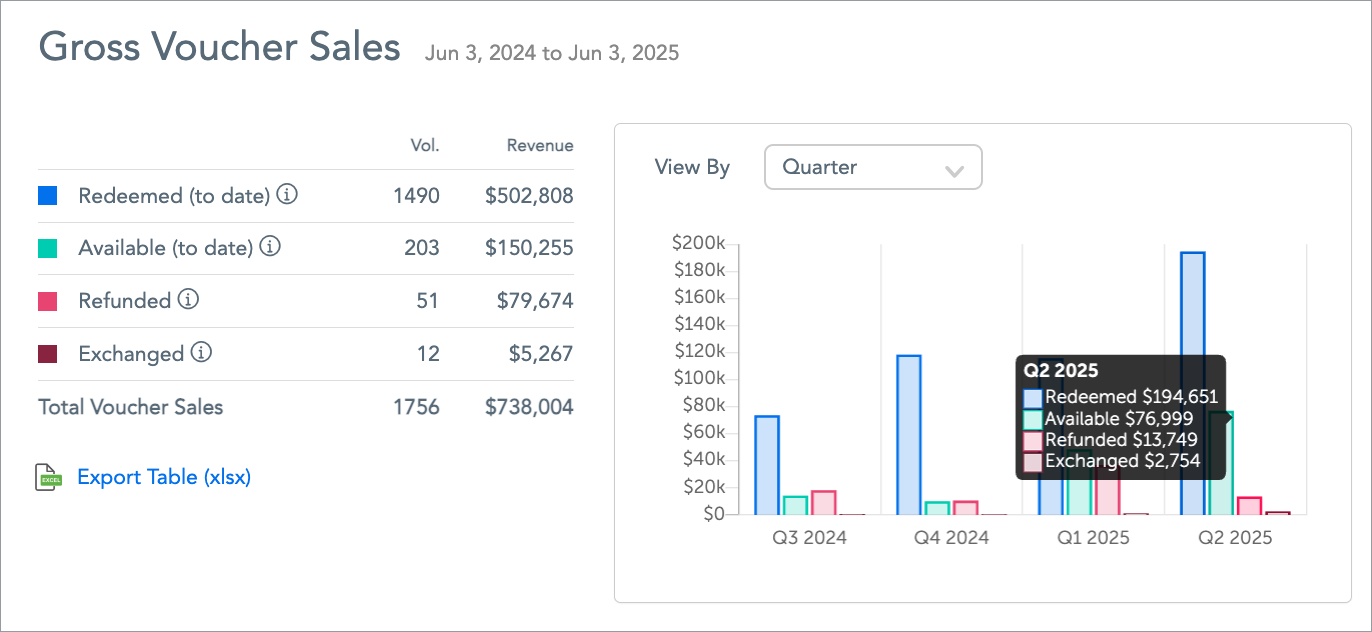
Gross Voucher Sales
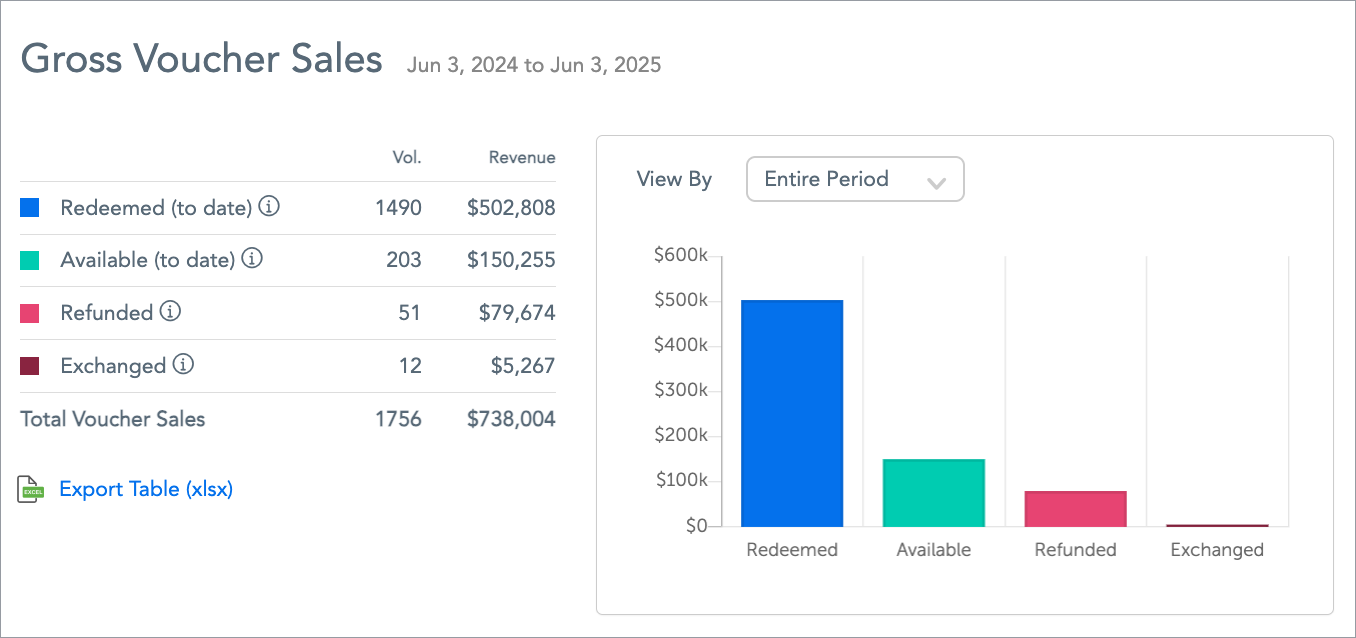
You can see details about your gross voucher sales on this chart - the number of vouchers redeemed and the revenue from them, the number available for purchase and the revenue they would represent if they were redeemed, the number that have been refunded and the revenue refunded, and the number exchanged and the revenue exchanged. You can export the table and filter the view by the entire period, month, quarter, and year.
The chart is color coded, as shown on the legend table on the left. You can filter for the entire period for which data is available - month, quarter or year. Hover over a bar to see the value of vouchers that were redeemed, available, refunded, or exchanged for the period. To export as a table, click Export Table at the bottom left of the legend.
Redemptions
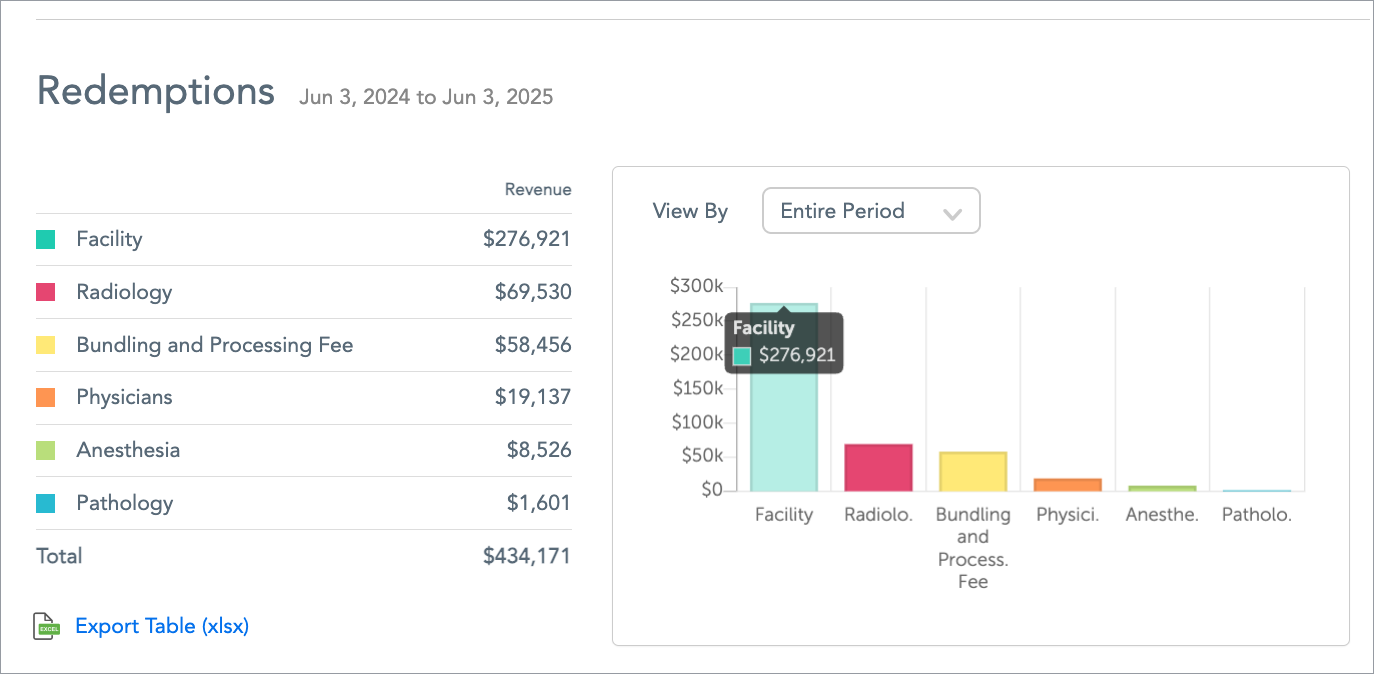
This color coded chart enables you to see the revenue from redeemed vouchers by provider type. You can filter for month, quarter or year; hover over a bar to see the revenue from that provider type; and export as a table by clicking Export Table.
Refunds/Exchanges
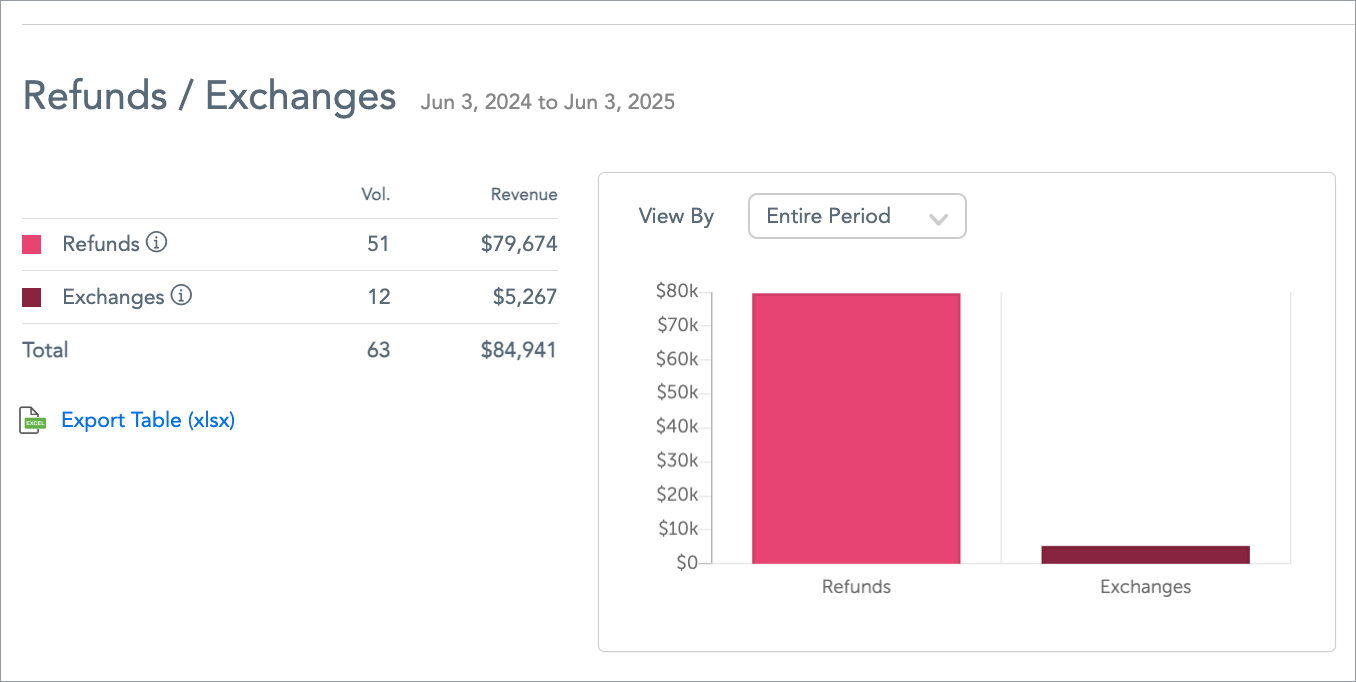
This chart is similar except that it shows refunded and exchanged vouchers.
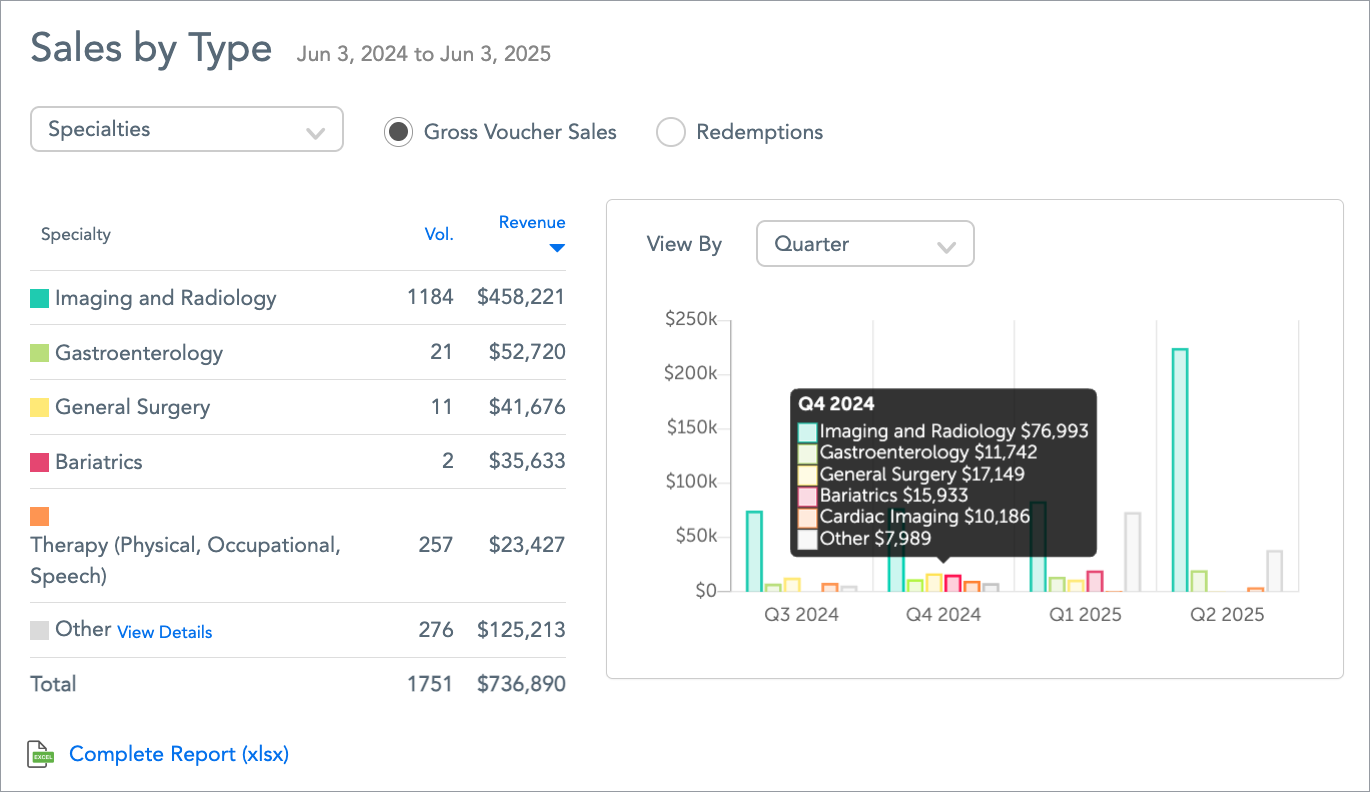
This chart drills down into the types of voucher sales by volume and revenue. You can choose to see Gross Voucher Sales or Redemptions, hover over a time period to see the revenue for the top types during that period, and click to see a complete report or details in the Other category.
Activity by Staff
On this table, you can see the top voucher sales by staff and top redeemed vouchers by staff, including which staff members have passed Tendo Marketplace training certification, and the volume of vouchers and voucher revenue that each has brought in.
Your Reach
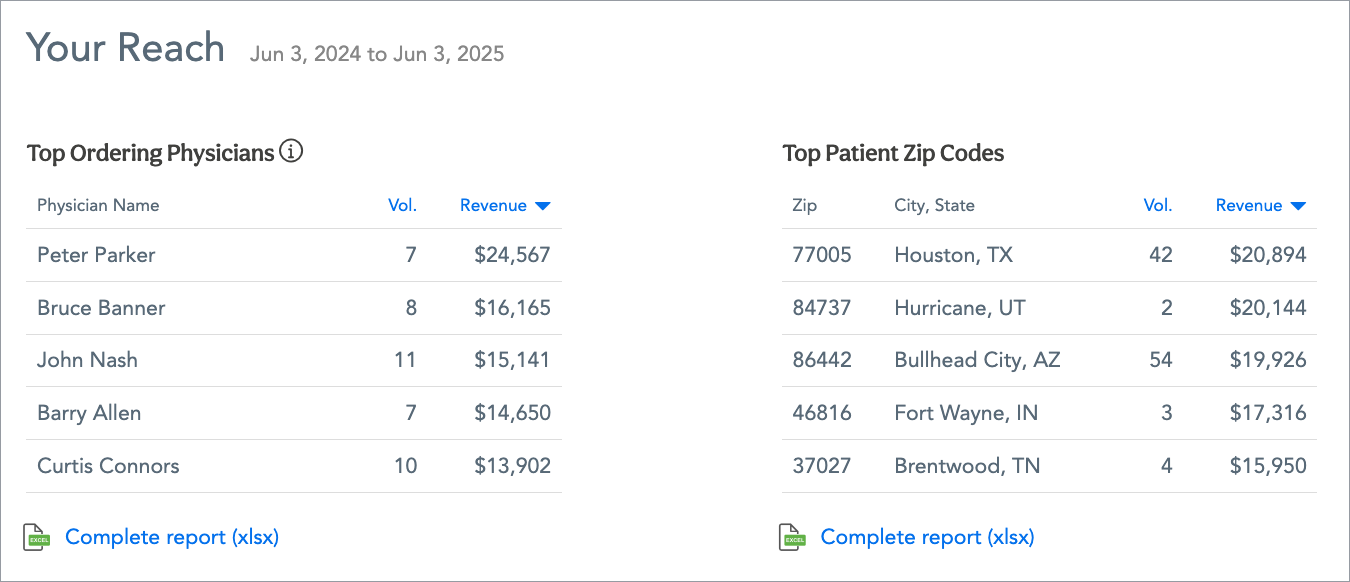
This table shows the top ordering physicians and the volume of their vouchers and voucher revenue as well as the top patient zip codes where vouchers were purchased.
Top On-Site Procedure Searches
This is a list of the top procedures consumers are searching for.
Patient Feedback
This shows Provider Ratings and Tendo Marketplace ratings with patient comments.
Reports
At the bottom of the dashboard are links to a number of reports about voucher sales.
Users
Hospital administrators can manage general staff users under the Users tab, although Tendo Marketplace in practice manages users for most of hospitals. Under this tab, you can:
- View a list of users with their sign-in status, administrative status, user type, when their account was created, and their sales and redemptions.
- Add a general staff user by clicking on the Add New User button at the top of the page and then entering the user’s email.
- Reset a user’s password by checking the checkbox on the left of a user or users' name(s) and clicking Email Password Reset Link on the top right, or clicking the … dropdown menu on the right of the user’s row and selecting Reset password (unlock user).
- Delete users by checking the checkbox on the left of a user or users' name(s) and clicking Delete Users in the top right. For an individual user, click on the … dropdown menu on the right and select Delete User.
You can add general staff users only on this page. To add other users or if you want Tendo Marketplace to manage your general staff users, contact your account manager or email support@tendo.com.
Procedures
This tab functions the same for hospital administrator staff as for general staff users.
See Helping a Patient Purchase a Procedure Voucher
Vouchers
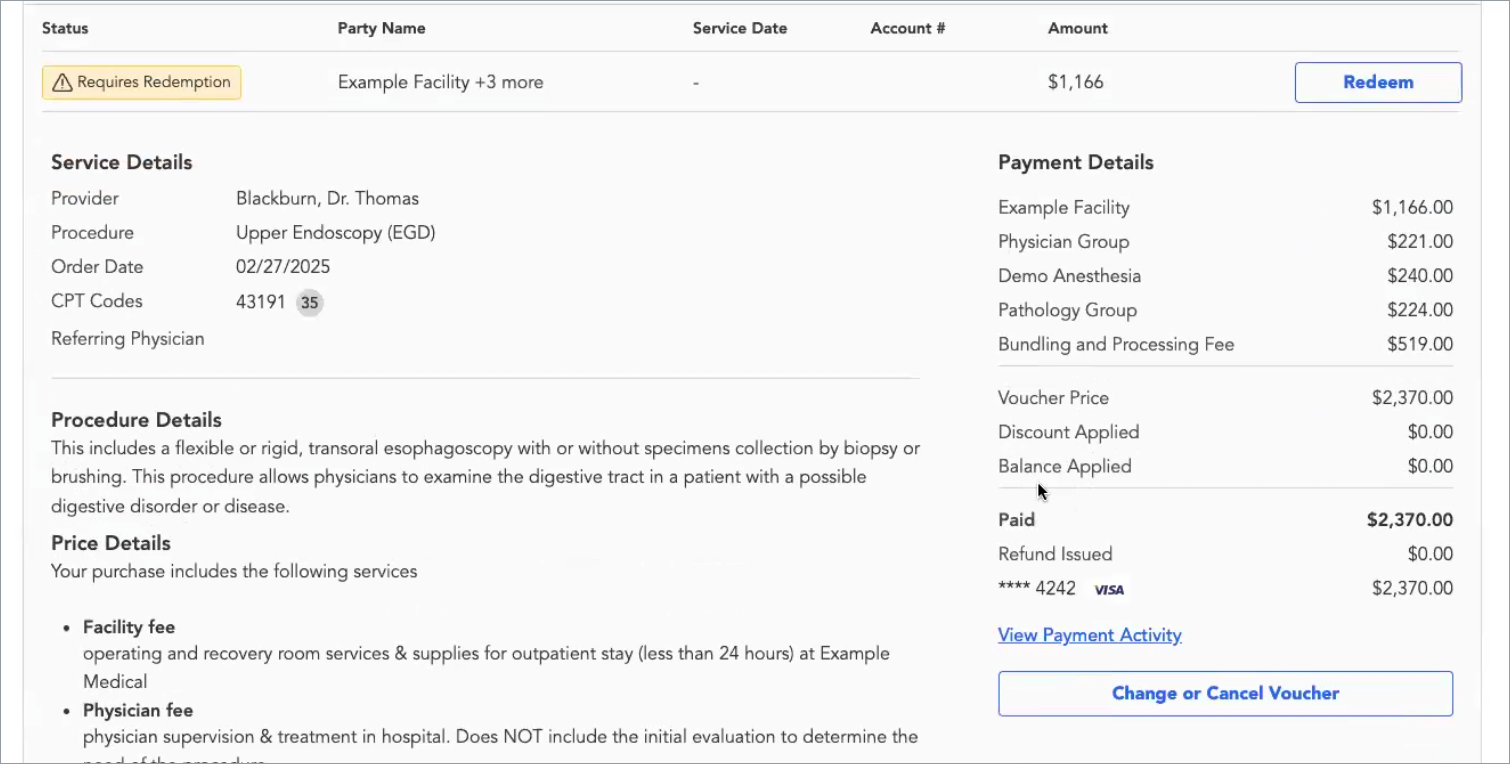
This tab functions like the Voucher tab that general staff users see, but as an administrator, you can see more details about payments on the voucher page and the breakdown for voucher fees.
Patient Carts
This tab functions like the Patients Cart tab that general staff users see.
Reconciliation Reports
Under this tab, you can see payment reports on vouchers that Tendo Marketplace sends out to hospital administrators. Once the vouchers are redeemed, Tendo Marketplace pays providers for them the following week, and those vouchers can be seen in the reports. You can see what was paid, to whom, and for how much money. You can download a PDF and/or a CSV of the report.
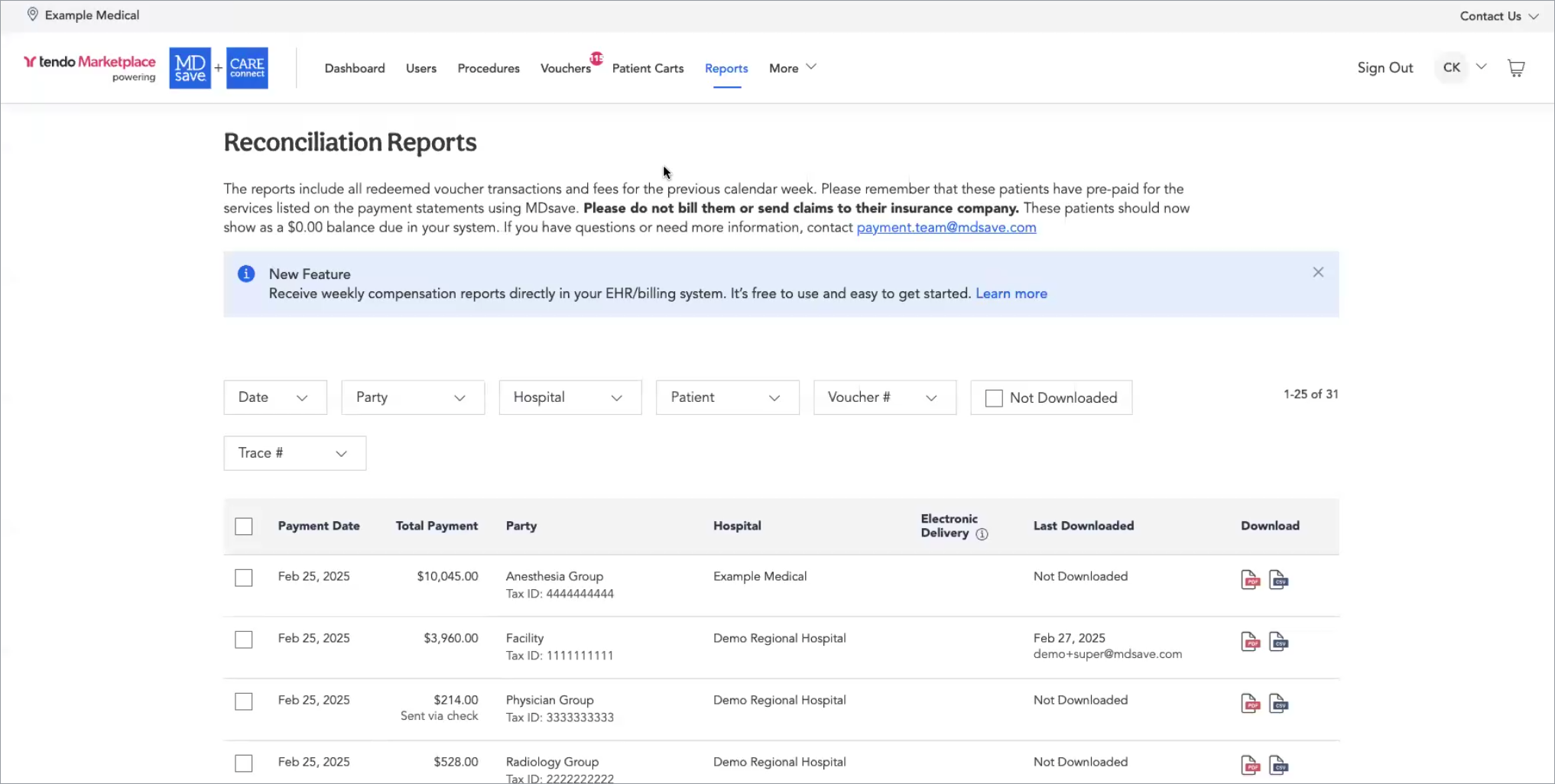
You can filter by Date, Party, Hospital, Patient, Voucher # or Trace # at the top, so you can search for any payment based on one of those. Typically, users who use this report are involved in patient billing.
Providers
Under the More tab, click Providers. On this page, you can view providers' profiles, add new providers, and edit providers' profile information.
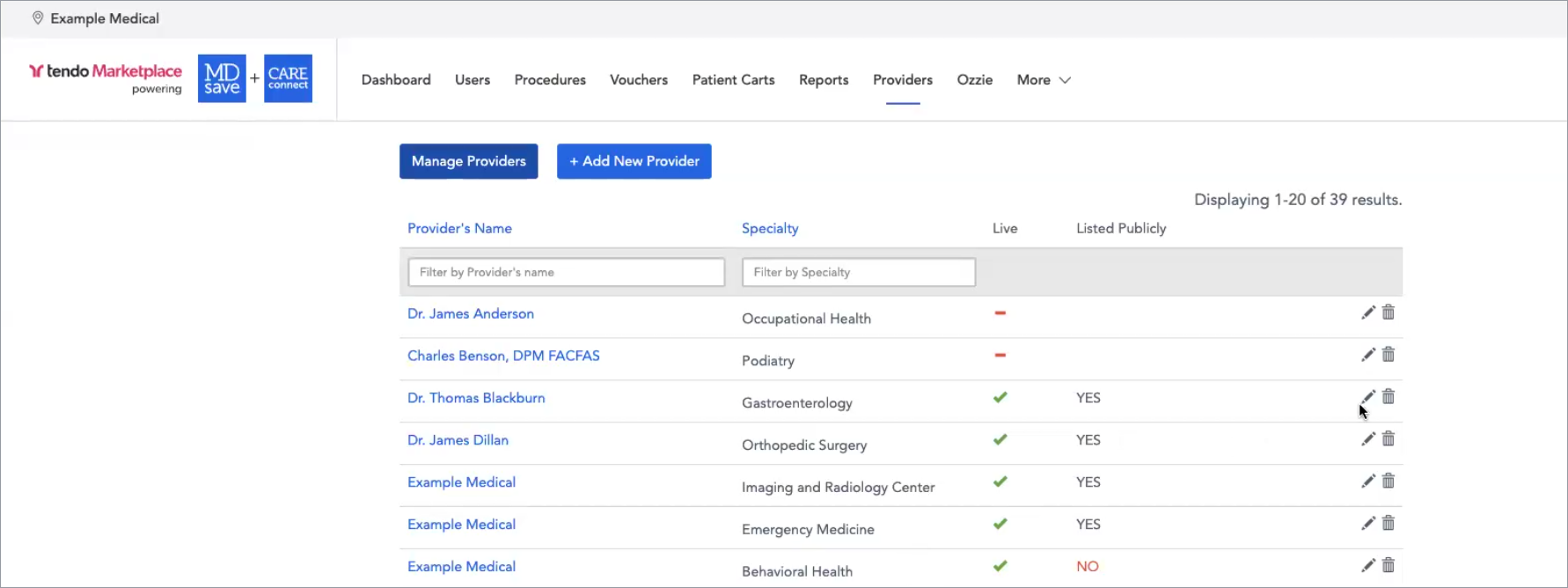
Click the edit pencil icon on each row to edit a provider’s profile.
You can filter providers by name or specialty.
Ozzie
Hospital administrators have access to our pricing recommendation tool, which is called Ozzie. However, most hospital administrators don’t use Ozzie, but instead work with their Tendo account manager to set procedure pricing. Reach out to your account manager if you would like to have a pricing strategy session with them. If you don’t know who your account manager is, contact us at support@tendo.com or call 844-256-7696.
Ozzie is a way that Tendo Marketplace recommends pricing to providers based on a percentage of Medicare.
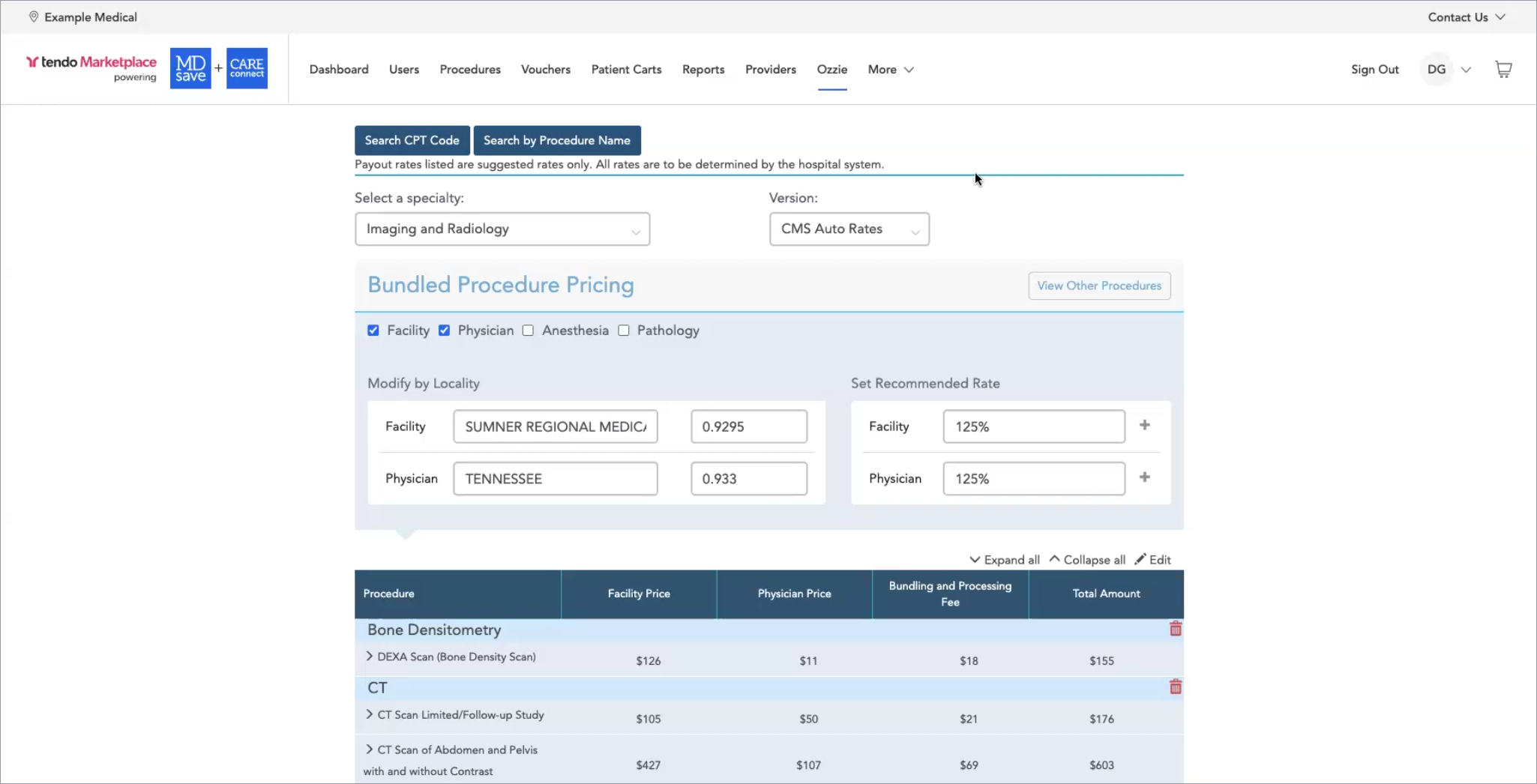
Tendo Marketplace uses CPT® codes for all of the procedures that are offered to patients, combining the procedure bundles/CPT® codes with pricing. Ozzie helps come up with the pricing for the bundles.
To use Ozzie to calculate pricing, search for the CPT® code or procedure at the top left.
You also can select a Specialty to narrow down your search, and can select CMS Auto Rates or Manually Set Rates.
Then click Facility, Physician, Anesthetics, and/or Pathology depending on which services will be part of a procedure bundle. Provider(s) who provide the parts of the bundle can then decide what percentage of Medicare they want to be paid for their part. The dollar rates show in each procedure’s row. Once these rates are confirmed with your organization and other participating providers, Tendo Marketplace will upload the files.
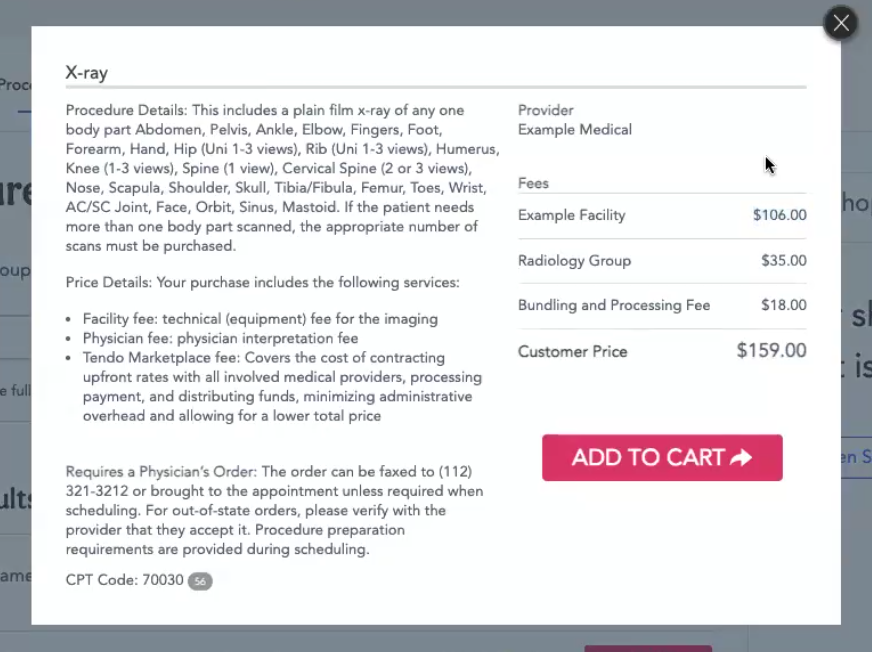
The rates will then display when patients or care navigators shop for procedures and view their details.
The final three items on the More tab - Deductible Checker, Marketing Materials and Training Hub - work the same for hospital administrators as for general staff users.