Managing Vouchers and Receiving Payment
IN THIS ARTICLE
Changing or Canceling a Voucher
Voucher Purchases by Provider Staff
Viewing Vouchers
View vouchers by clicking the Vouchers tab at the top of the page. You can also view a voucher that you have just redeemed by clicking View on Vouchers Page on the Orders Confirmed page.
Under the Vouchers tab, you can search for vouchers by patient name or voucher number, which is why Tendo Marketplace recommends that patients bring the voucher or voucher number to their procedure appointment.
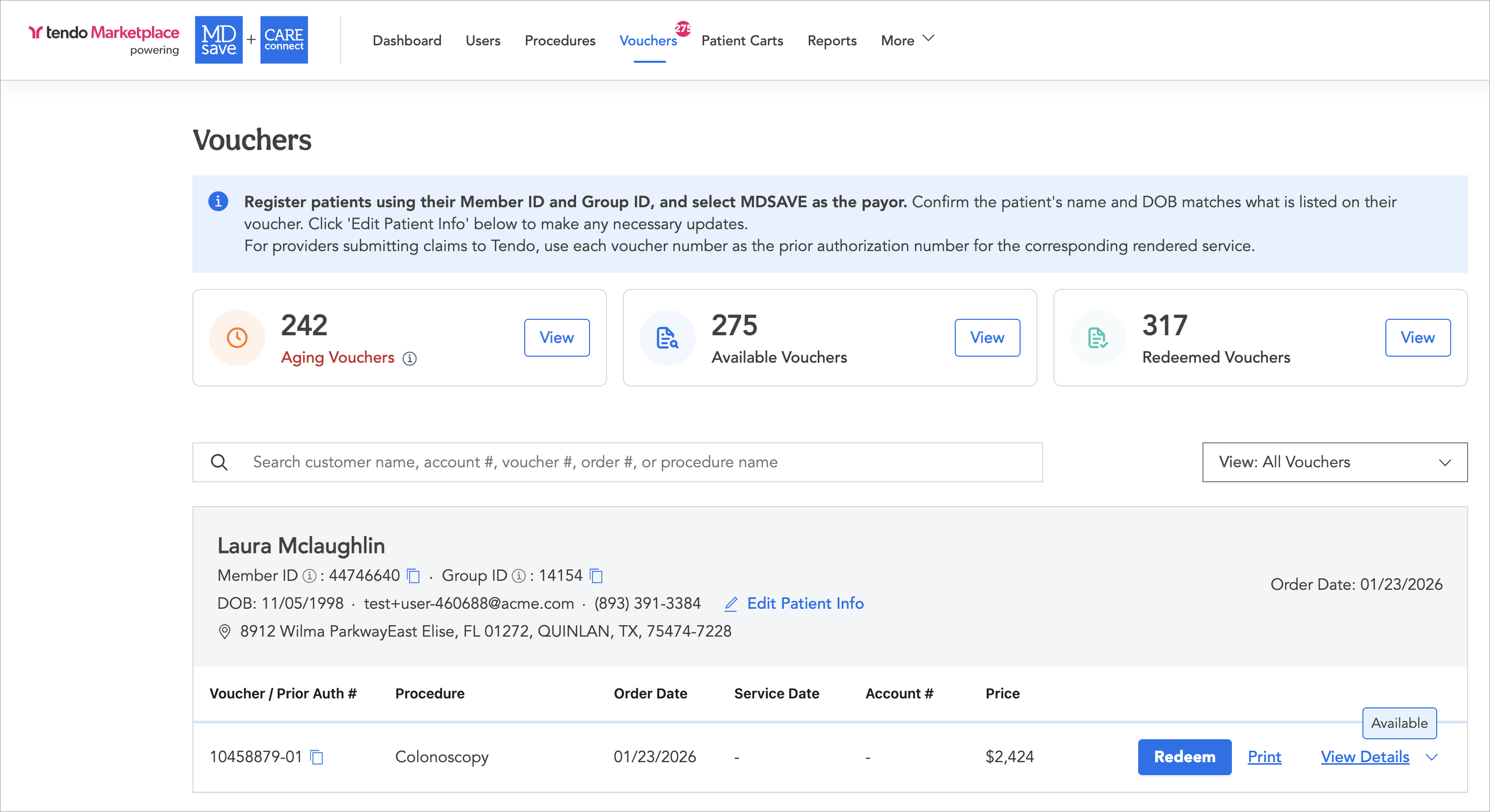
At the top in the blue box are instructions for you to register patients using their Member ID and Group ID, select MDSAVE as the payor, and confirm that the patient’s name and date of birth are on the voucher. If your facility submits claims to Tendo, use the voucher number as the prior authorization number.
You can see this information on each individual voucher listing on this page.
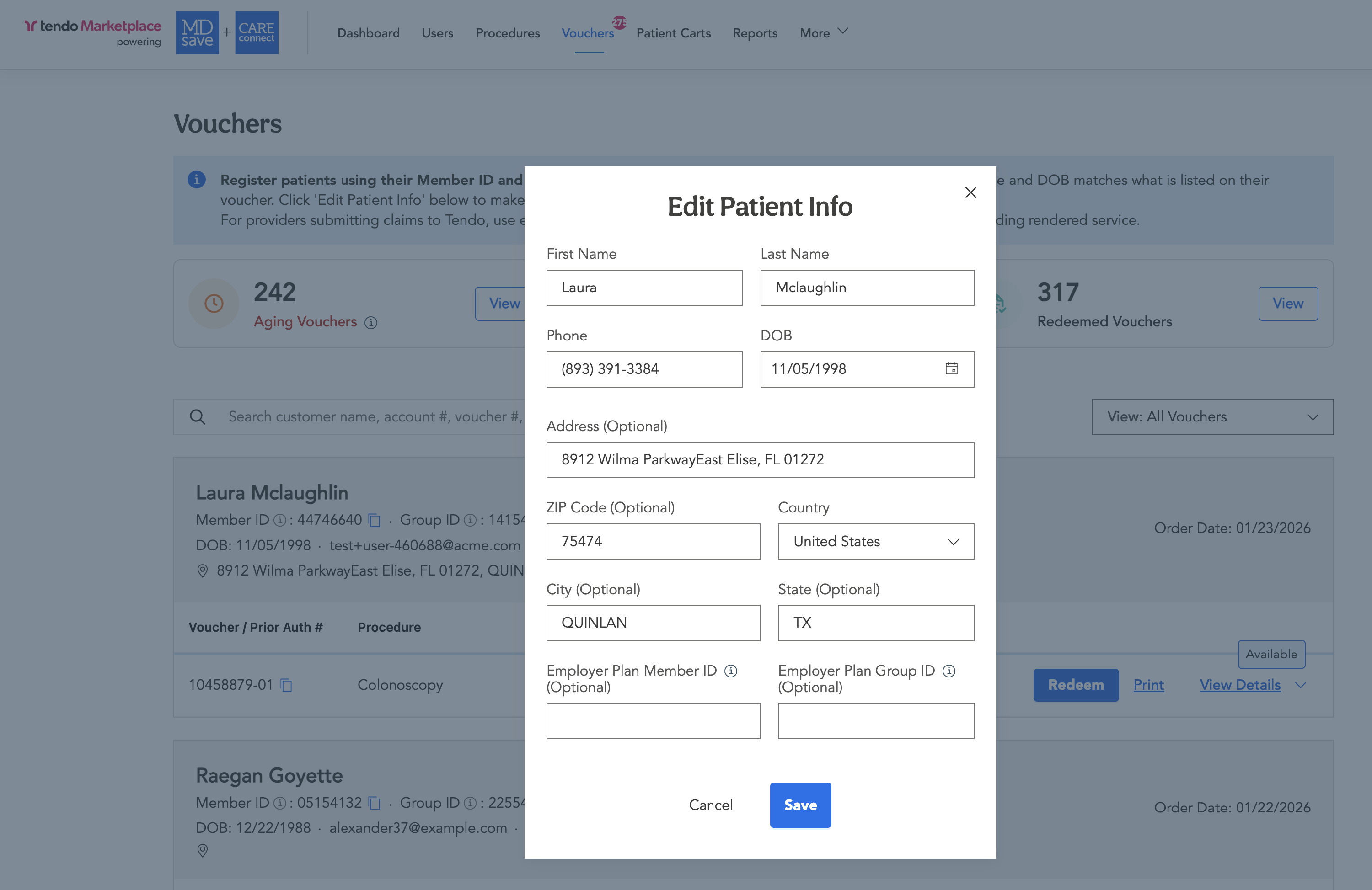
Editing Patient Information
To Edit a patient's information on their voucher, click Edit Patient Info. A popup will appear on which you can make changes. Click Save.
You also can filter vouchers for various types. Filter for Aging Vouchers, Available Vouchers, and Redeemed vouchers in the three boxes below the blue box by clicking View next to one of them.
Or click the View All Vouchers dropdown on the right to select the type of vouchers you want to see.
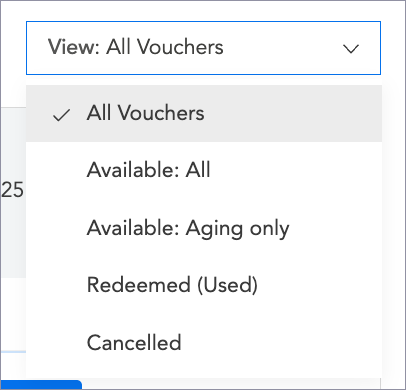
- Available: All - Vouchers that haven’t yet been redeemed
- Available: Aging Only - Vouchers that haven’t been redeemed and may expire soon. Most vouchers expire after 1 year. It’s important to double check aging vouchers to make sure that they were redeemed if the procedure was performed, or check with the patient if they purchased the procedure but didn’t schedule it. You also can see aging vouchers by checking View Vouchers in the pink box at the top that tells you how many aging vouchers may expire soon.
- Redeemed - Vouchers that patients have used
- Cancelled - Vouchers that were cancelled for some reason.
Click View Details on the right of a voucher’s row to expand it and see more information about the voucher, the procedure, and payment.
Redeeming a Voucher
Voucher redemption is different depending on whether your staff redeems vouchers manually or they are automatically redeemed via electronic claims.
Redeeming a Voucher Via Electronic Claims
When your facility uses electronic claims reconciliation, identify the patient as a Tendo Marketplace patient by using their payer code in the EHR/billing system. You don't need to redeem vouchers so don't click the Redeem button on any vouchers because that could interfere with the claims process. After the procedure is performed, the claim is electronically submitted to Tendo Marketplace, which matches claims to vouchers and redeems them automatically or manually reviews unmatched claims.
Tendo Marketplace then pays the providers involved in the voucher via Automatic Clearing House (ACH) deposit on Tuesday or Tuesday/Thursday and sends an ERA through Optum with payment or denial details. Your facility’s system matches the ERA and ACH deposit using a trace number, posts payments to patient accounts, and writes off contractual adjustments to avoid balance billing.
Redeeming a Voucher Manually
These instructions are only for providers who do not submit automated claims to Tendo:
See Registration and Redeeming a Voucher to redeem a voucher after purchase on the Order Confirmed page at the point of service.
You also can redeem vouchers at other times. Click the Vouchers tab and search for the voucher. Click the blue Redeem button on the voucher row.
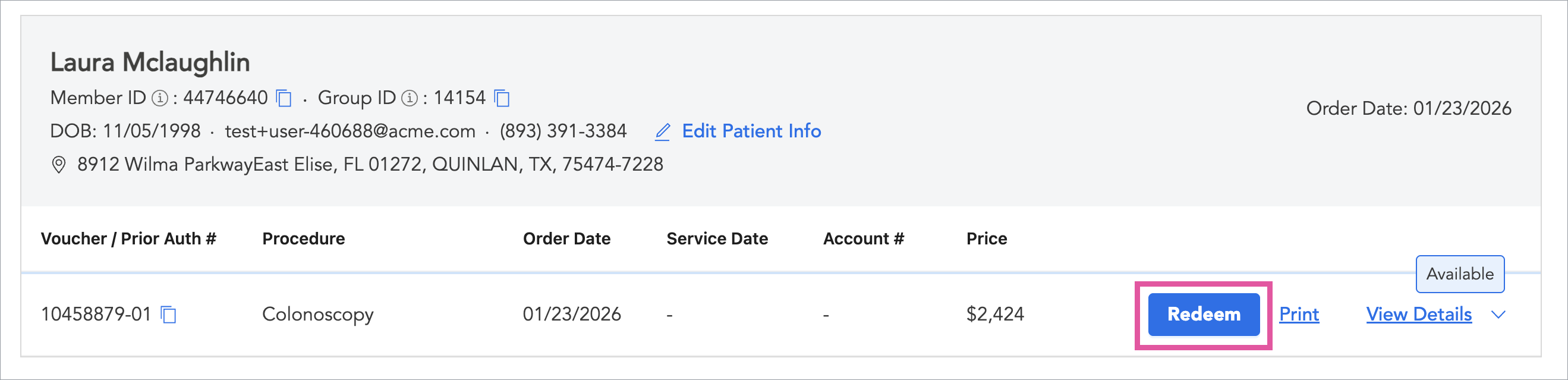
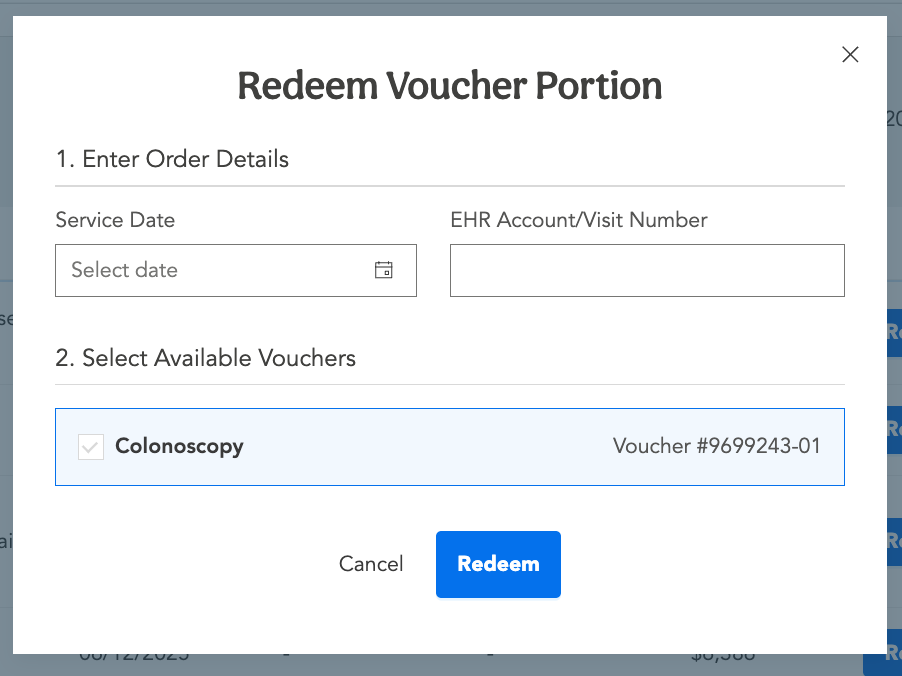
In both scenarios, a popup will display. Enter the Service Date (date of the procedure) and the EHR Account/Visit Number. You cannot redeem a voucher until the service date.
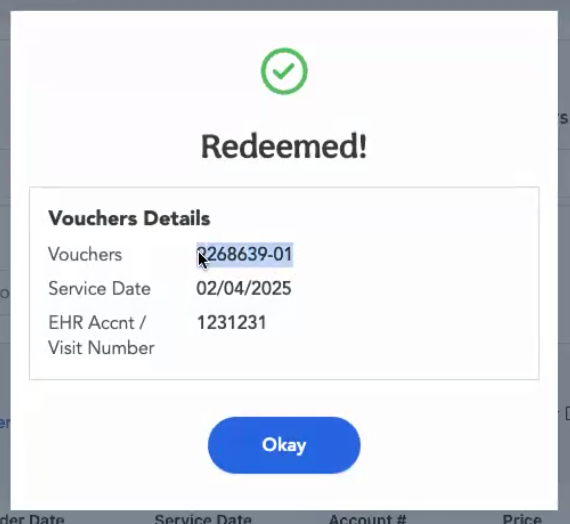
A popup will inform you that the voucher has been redeemed. Click Okay. Payment will be triggered and the associated providers will be paid for the procedure in the next payment cycle.
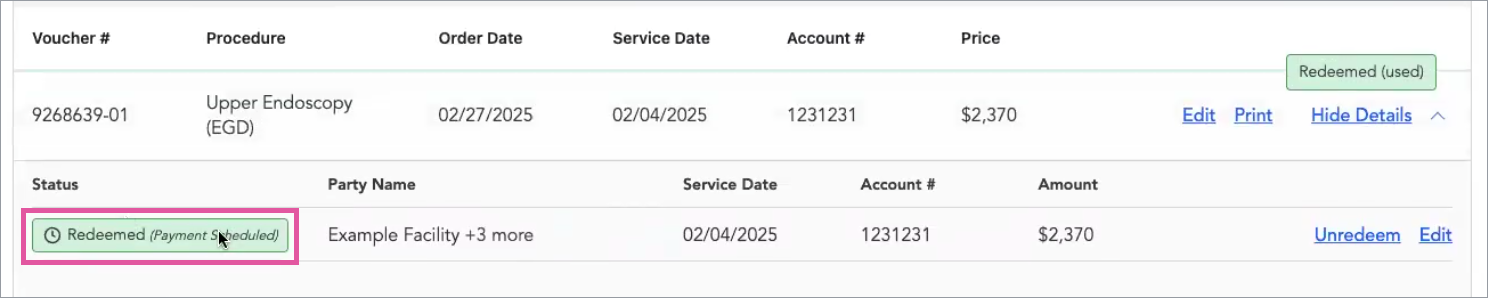
Under the Voucher tab after a voucher has been redeemed, it will show a status of Redeemed (Used),

Click View Details, and you can see that the voucher has been redeemed and the payment scheduled.
Editing the Service Date and EHR Account/Visit Number
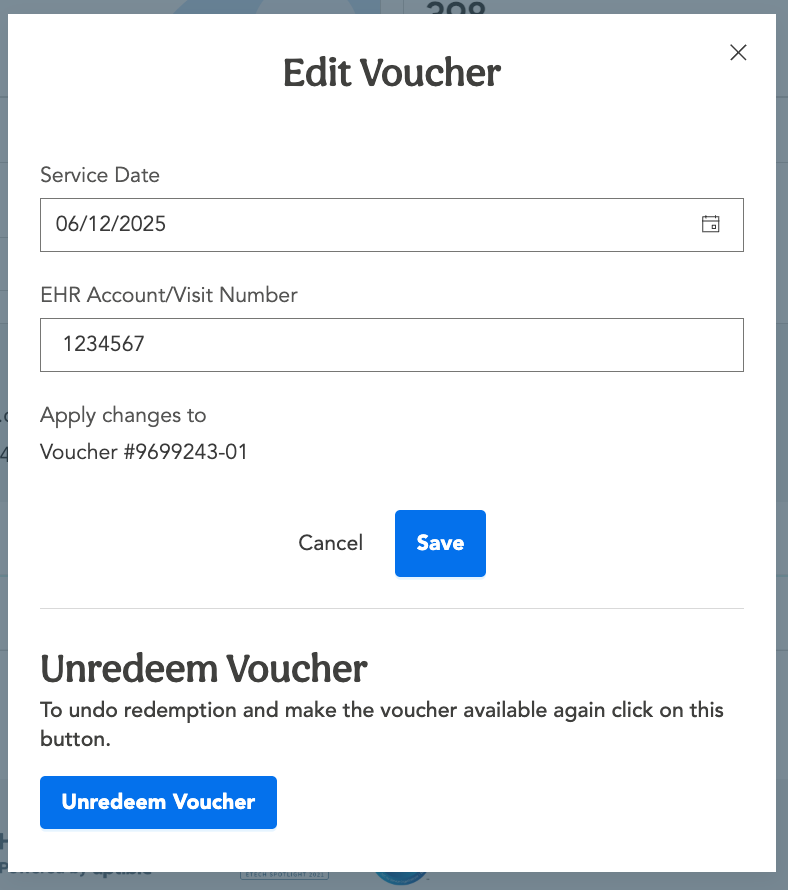
To edit the Service Date if it changes or the EHR Account/Visit Number, find the voucher under the Vouchers tab. Click Edit.

A popup will display. Make the changes you want and click Save. Note that on this form, if a voucher has been redeemed, you will want to unredeem it if you have made changes such as choosing a future date for the Service date. Vouchers can only be redeemed on the date that a service is performed, so changing the date to a future one will require that you also click Unredeem Voucher so that the voucher can be used at a later date. You can only unredeem a voucher if payment has not been made.
Unredeeming a Voucher
In addition to unredeeming a redeemed voucher if the service date has to be changed to a future date, you may need to unredeem a voucher if it contains an error or the voucher needs to be canceled for some reason.
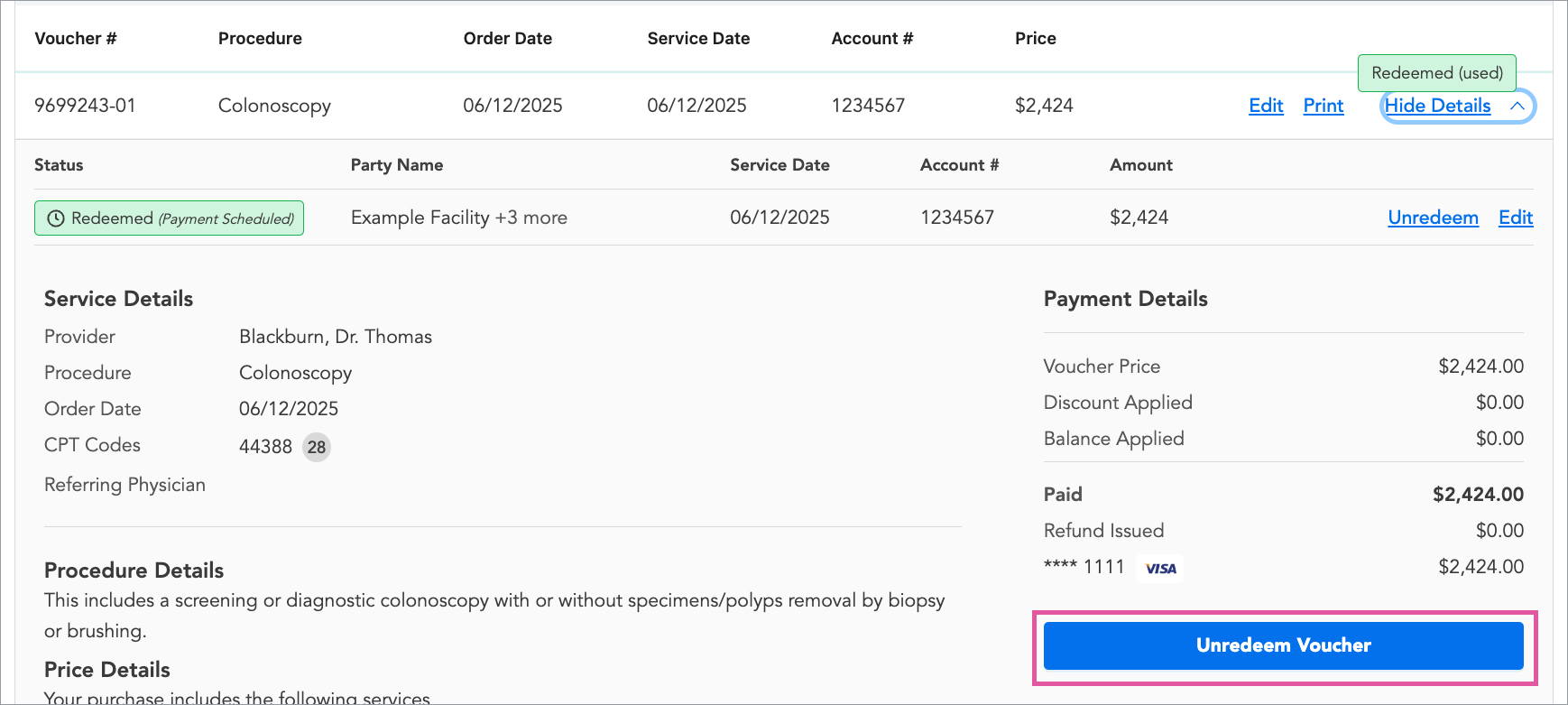
For example, a patient may arrive for a procedure and you redeem their voucher during registration. However, the patient then reveals that they have mistakenly eaten within 12 hours before the surgery so you need to reschedule them for a different date. You can unredeem the voucher as long as the payment hasn’t yet been paid out. Under the Vouchers tab, find the voucher, click View Details to expand it, and click Unredeem Voucher in the lower right corner.
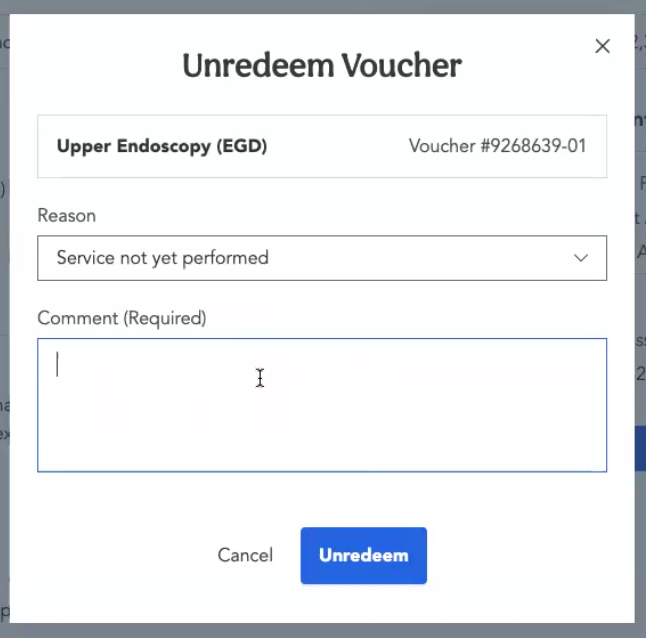
A popup will display on which you can select from a dropdown the reason the service was not yet performed, and add explanatory comments. Click Unredeem.
You can’t unredeem a voucher if Tendo has already sent payment to all of the associated providers. Instead, call our Support team at 844-256-7696 or email us at support@tendo.com. to unredeem the voucher. This process requires recouping the funds from all of the parties to the procedure that have been paid and it can cause them billing issues, so an effort should be made to keep unredeeming vouchers to a minimum.
Once you unredeem a voucher, it will return to Available status, so the patient could return later for the procedure and you could redeem it again.
If a voucher was for the wrong procedure, unredeem it and then contact Tendo Support to cancel it and transfer it to another procedure or get a refund for the patient.
Another example of a case where a voucher might be unredeemed would be when a patient was covered by Medicare or Medicaid and the hospital didn’t realize that. In that case, the voucher should be unredeemed and then canceled.
Changing or Canceling a Voucher
There may be situations where a voucher needs to be changed or canceled.
- Sometimes when a patient has one procedure, they also will have another one at the same time. For example, a patient may have an Upper Endoscopy (EGD) and then a Colonoscopy at the same time. If they have purchased the first procedure, you can ask them if they also want to buy the second procedure. The patient can refuse, perhaps asking that their insurance or they be billed. If they agree, you can return to the Procedures tab and help them purchase the second procedure. If a patient has multiple procedures performed at one time, their cost may be less than if they had each procedure at different times because the hospital or surgical center has to prep the patient only once and there is less anesthesia and recovery time.
- A patient may purchase a procedure and then realize that what they have purchased is different from what is scheduled.
- There also may be other reasons for changing or canceling a voucher.
In these cases, click View Details to expand a voucher, and then click Change or Cancel Voucher in the lower right corner.
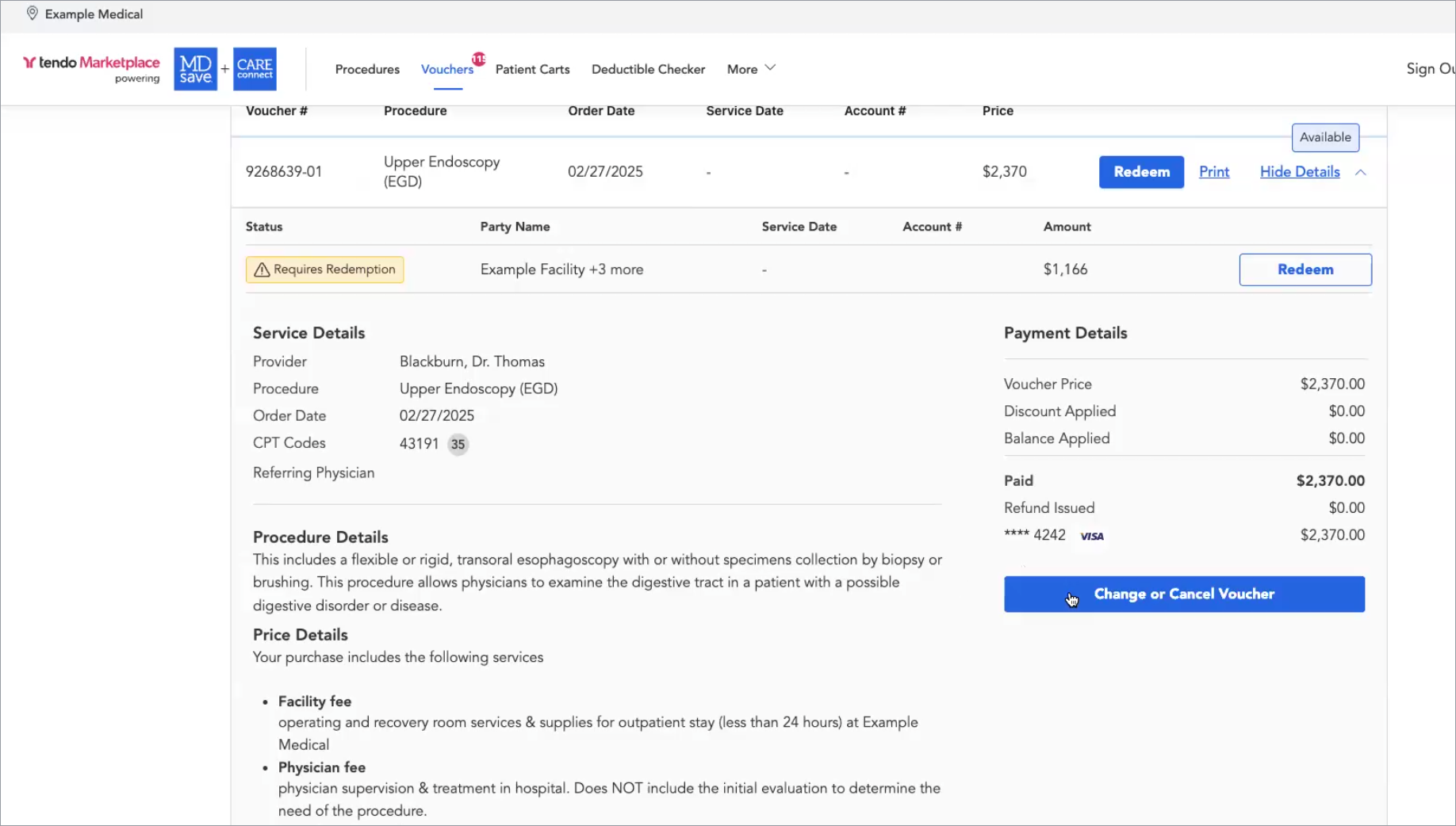
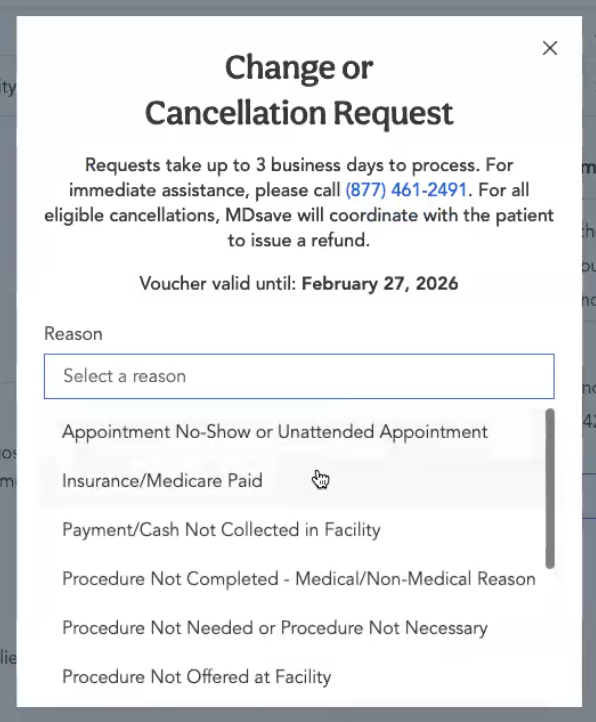
A popup will appear on which you can choose the reason for the change.
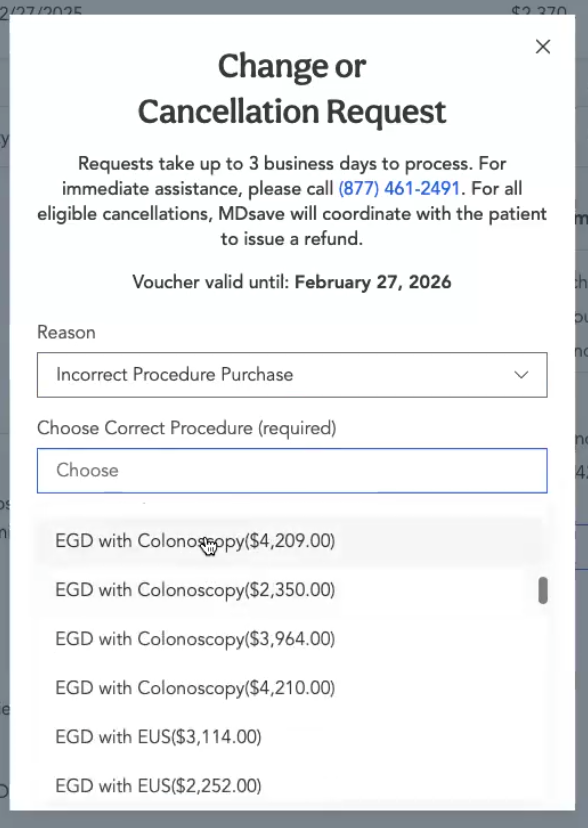
Then choose the procedure the patient needs, such as an EGD with Colonoscopy so that the two procedures are combined.
Add a comment, and click Send Request.
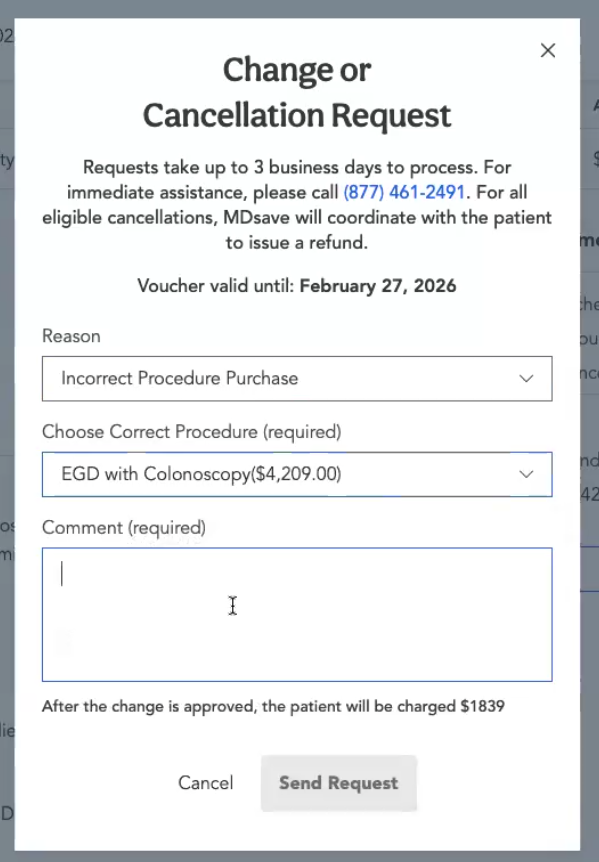
Our support team may reach out to the patient and provider to confirm that they should buy a different procedure. For example, a patient may have purchased an MRI without contrast online, because it’s less expensive than one with contrast. When they go in for their procedure, they are told that they need an MRI with and without contrast, which is another voucher. You will need to work with Tendo Marketplace Support to transfer the voucher to the correct one so that the patient will pay only the difference in cost between the two procedures. Tendo Support will cancel the old voucher and purchase the correct one for them.
For help with voucher issues, call Tendo Support at 844-256-7696 or email us at support@tendo.com.
All canceling and changing of vouchers is handled by Tendo Marketplace because of the various payment methods involved. Tendo Marketplace can easily refund a credit card if it’s still within the 180-day credit card refund window, If the voucher is older, Tendo Marketplace has to send the patient a check. There’s no automated way to refund patients for CareCredit.
Expired or Overdue Vouchers
Tendo Marketplace vouchers expire and are automatically refunded 1 year from their date of purchase. They are marked OVERDUE if they have not been unredeemed within 30 days. Vouchers purchased with CareCredit expire and are refunded automatically 30 days after date of purchase.
Voucher Purchases by Provider Staff
As provider staff, you can purchase vouchers using a single credit card or multiple cards.
You also may be able to use cash for some purchases. Check with your facility for guidelines on use of cash for voucher purchases. If you can purchase using cash, you can combine cash and credit cards for voucher purchases.
Patients can purchase via PayPal or CareCredit in addition to credit cards. You can share a cart with a patient to allow them to purchase using those payment methods.
See Sharing a Cart with a Patient
Refunds
If a refund needs to be made for a procedure, Tendo Marketplace will try to refund the original payment if possible. If the purchase was outside of our refund window (which varies depending on payment methods for credit cards, PayPal, and CareCredit), Tendo Marketplace can send the patient a refund check.
Email Tendo Support or call 844-256-7696 to cancel or transfer vouchers or refund patients.
Multiple Procedure Payment Reduction (MPPR)
When a single patient’s multiple procedures that are priced more than $500 are purchased together and performed on the same date of service and in the same episode of care, Tendo charges full price for the highest paying procedure but discounts the facility fee, physician fee, and anesthesia fee for other procedures by 50%.
This is in line with typical multiple procedure payment reduction (MPPR) rules used by Medicare and commercial payers when multiple procedures are performed in the same session. The reason for this discount is that preoperative, intra-operative, and post-operative work often overlaps when more than one procedure is performed on the same day.
Tendo creates an automated smart shopping cart that applies the discount to the cart when multiple procedures are purchased together for the same episode of care.
Vouchers with MPPR (primary voucher + discounted vouchers) must be redeemed, unredeemed, or canceled together. The exception is non-MPPR items, such as imaging, that are part of the same voucher.
Example
| Procedure | Facility | Physician | Anesthesia | Pathology | Total |
| Mastectomy | $4,071.00 | $1,298.00 | $448.00 | $480.00 | $6,297.00 |
| Mastectomy (2nd breast) |
$2,036.00 |
$649.00 |
$224.00 |
$480.00 | $3,389.00 |
|
|
|
|
|
Total for both procedures | $9,686.00 |
A 50% discount was applied to the facility fee, physician fee, and anesthesia fee on the second procedure because both procedures were purchased and performed together.
Specialities that are exempt from the discount:
- Pathology - Pathology will not receive a discount because when combining multiple procedures, specimen collection usually increases.
- Imaging and Nuclear Medicine - Imaging/Nuclear Medicine will not receive a discount as Tendo Marketplace’s imaging procedures have already been listed at a discounted price compared to the competitive market.
- Laboratory Services - Laboratory services will not receive a discount as these services are considered diagnostic tests, not procedures.
- Therapy Services - Therapy services will not receive a discount as they are purchased on a per session basis
- Emergency Room Services - Emergency Room services will not receive a discount as they are purchased based on a flat rate per level of visit.
Printing a Voucher
To print a voucher, click Print on the voucher listing.
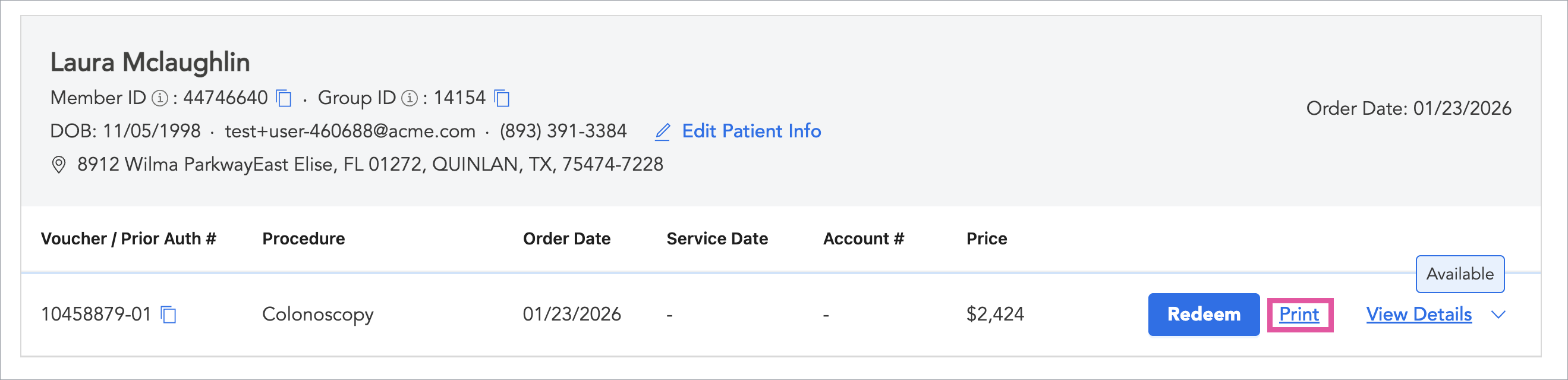
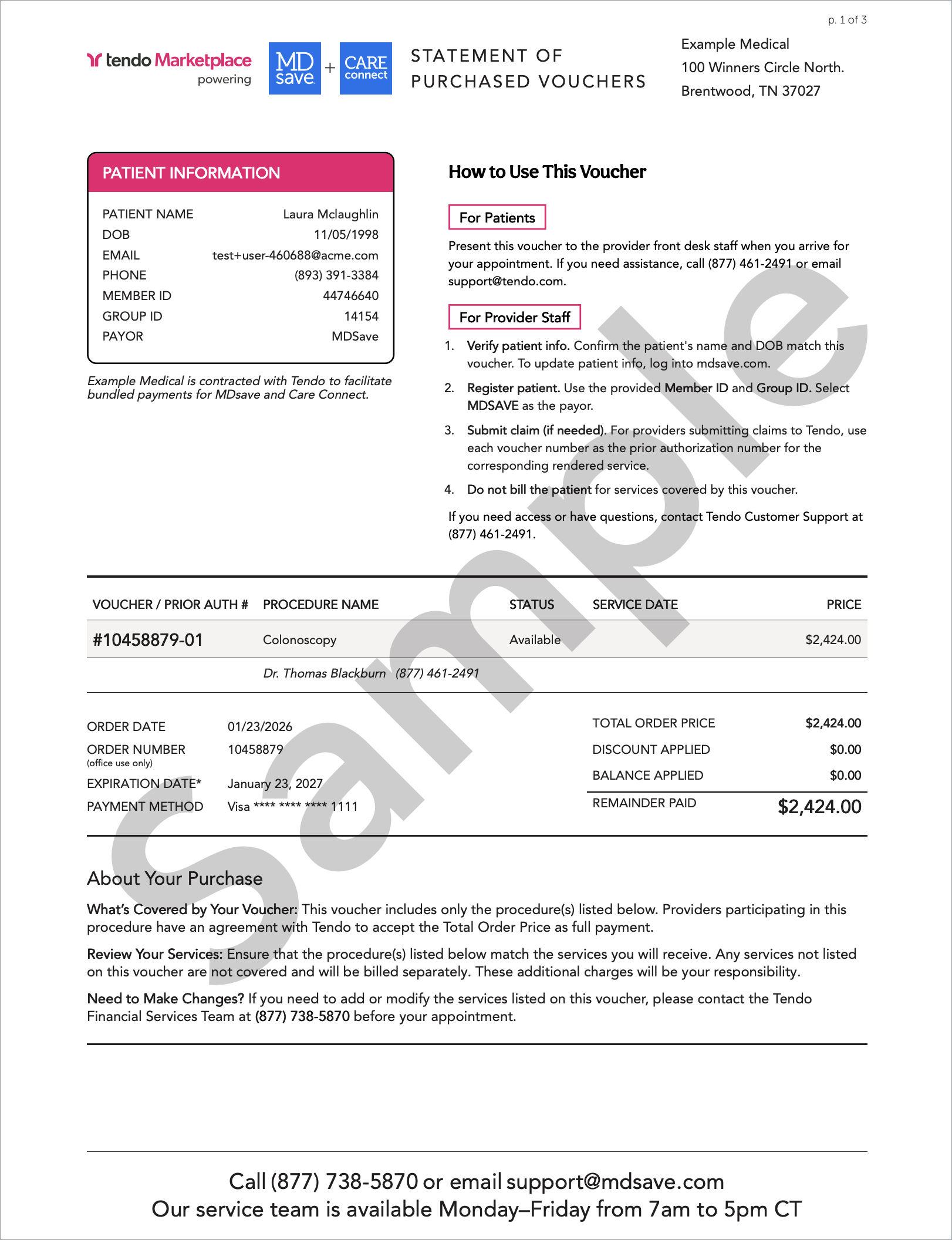
This will open a PDF version of the voucher which has a card on the left that contains all of the information needed to verify the voucher at the patient’s appointment., including the Member ID and Group ID. The Voucher/Prior Auth Number below the card on the left is used for prior authorization.